Batch
This chapter describes the key features of the [Batch] menu in OpenFrame Manager.
1. Overview
[Batch] displays various OpenFrame/Batch functions grouped by function in a single page, and the user can interact with the server through the web browser. It also manages the web server that communicates with the OpenFrame/Batch server.
For user convenience, Batch Manager provides a friendly and easy-to-use GUI for tasks that were performed through the tjesmgr command tool. These tasks include job execution and monitoring, dataset creation, modification, deletion, and querying, and JCL Runner administration.
Click [Batch] at the top and then click a menu from the left navigation pane.
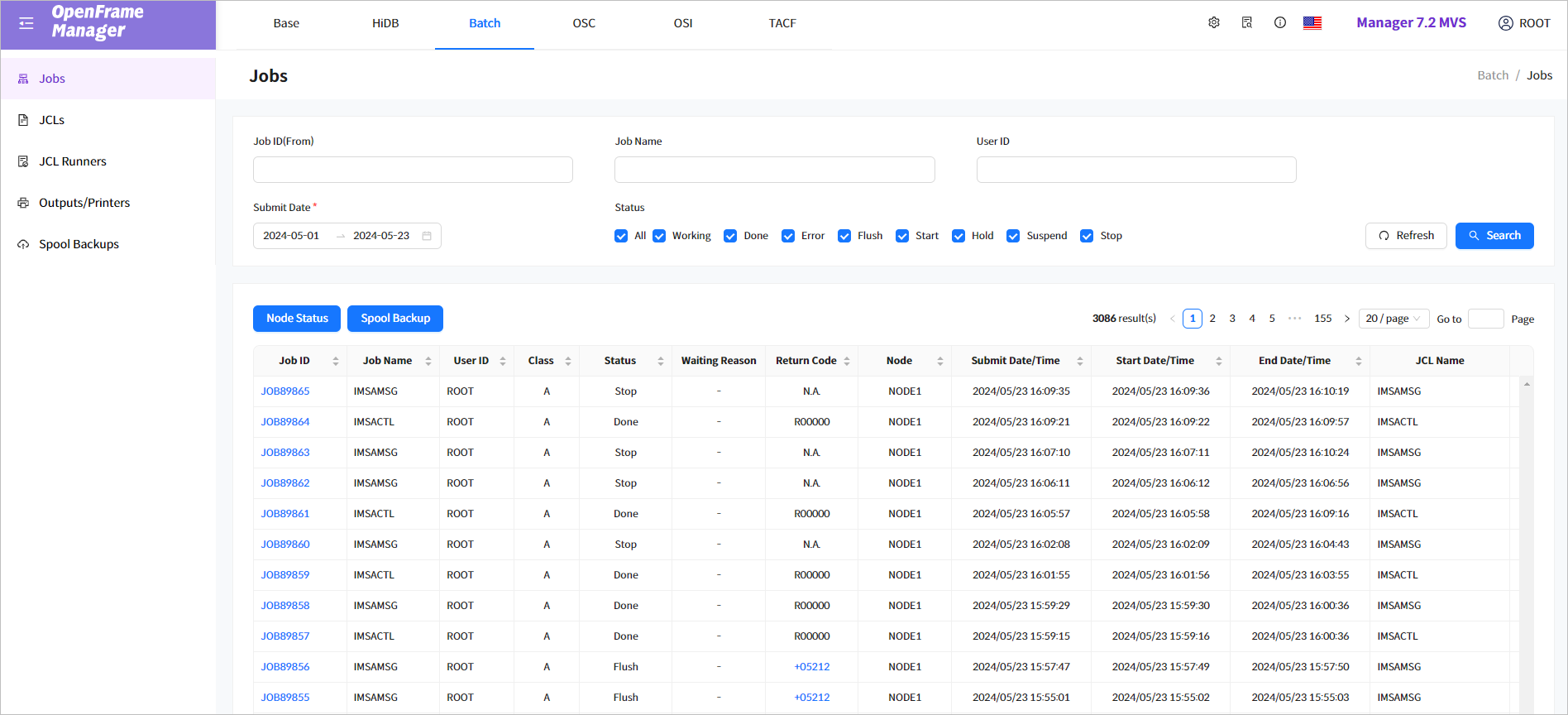
The following describes the menus in the navigation pane.
| Menu | Description |
|---|---|
Display a list of jobs, and manage jobs such as changing job status. |
|
Display a list of JCLs, and view, submit, or start (from a specific step) a JCL, or run SCAN/JEM on a JCL. |
|
Display a list of submitted JCLs, and change the status and Runner class of a JCL. |
|
Display a list of outputs and printers. |
|
Display a list of spool backups by date and Job ID. |
|
Search for spools whose Output class is W and view their contents. |
2. Jobs
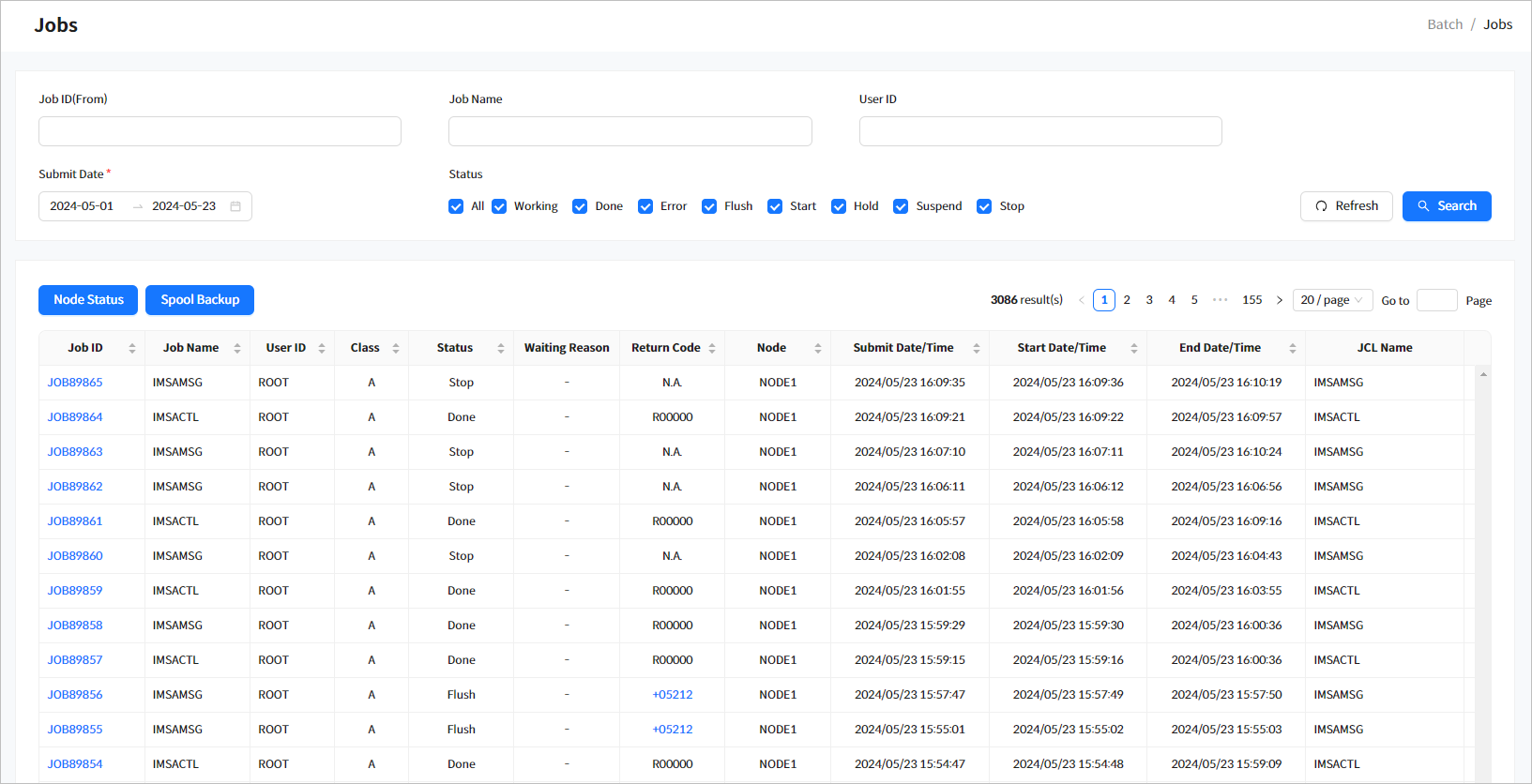
Click Jobs from the navigation pane to display a list of jobs and manage individual jobs. The user can view a job’s details including information about the JCL that submitted the job and the job spool, and change the job status.
Enter the search conditions from the Jobs page and then click [Search] to display the results. If no conditions are specified, the search is performed for the default date range set ('Submit Date'). To refresh the list, click [Refresh] above the list.
-
Search Conditions
The following describes the job search conditions.
Item Description Job ID (From)
Job ID.
Searches for IDs that start with 'XXX' using wildcard (*) operator. A list of jobs that match the Job ID (JOBXXXXX or J0XXXXXX format where X is a number) condition is retrieved.
Job Name
Job name (full match).
User ID
User ID. This is the Exec ID that ran the job. To search the user ID, the wildcard (*) can be used.
Submit Date
Searches for jobs that were submitted or started between the specified dates.
Status
Job status.
Check All to select all options. By default, all options are selected.
Refresh Interval
Refreshes the Jobs menu according to the specified interval value.
-
Search Results
The following describes the search result columns. For more information about each item, refer to Job Details.
Column Description Job ID
The job ID.
Click this to go to the Job Details page.
For more information about the page, refer to the description in Job Details.
Job Name
The job name.
User ID
The user ID. This is the Exec ID that ran the job.
Class
The job class.
Status
The current status of the job.
-
Working
-
Done
-
Error
-
Flush
-
Start
-
Hold
-
Suspend
-
Stop
Waiting Reason
Reason for wait when the job is in the wait state.
Return Code
The return code after the job has completed.
If the error code is searchable, clicking it opens the Error Code Search panel. Refer to the Error Code Search panel on the Jobs page.
Node Name
Node where the job is executed.
Submit Date/Time
Submit date/time of the job.
Start Date/Time
Start date/time of the job.
End Date/Time
End date/time of the job.
JCL Name
JCL that submitted the job. Since JCL can be modified immediately in OpenFrame Manager, create a temporary file in a pre-specified directory and then submit it to keep the original JCL.
When you click an enabled return code, the following Error Code Search window opens.
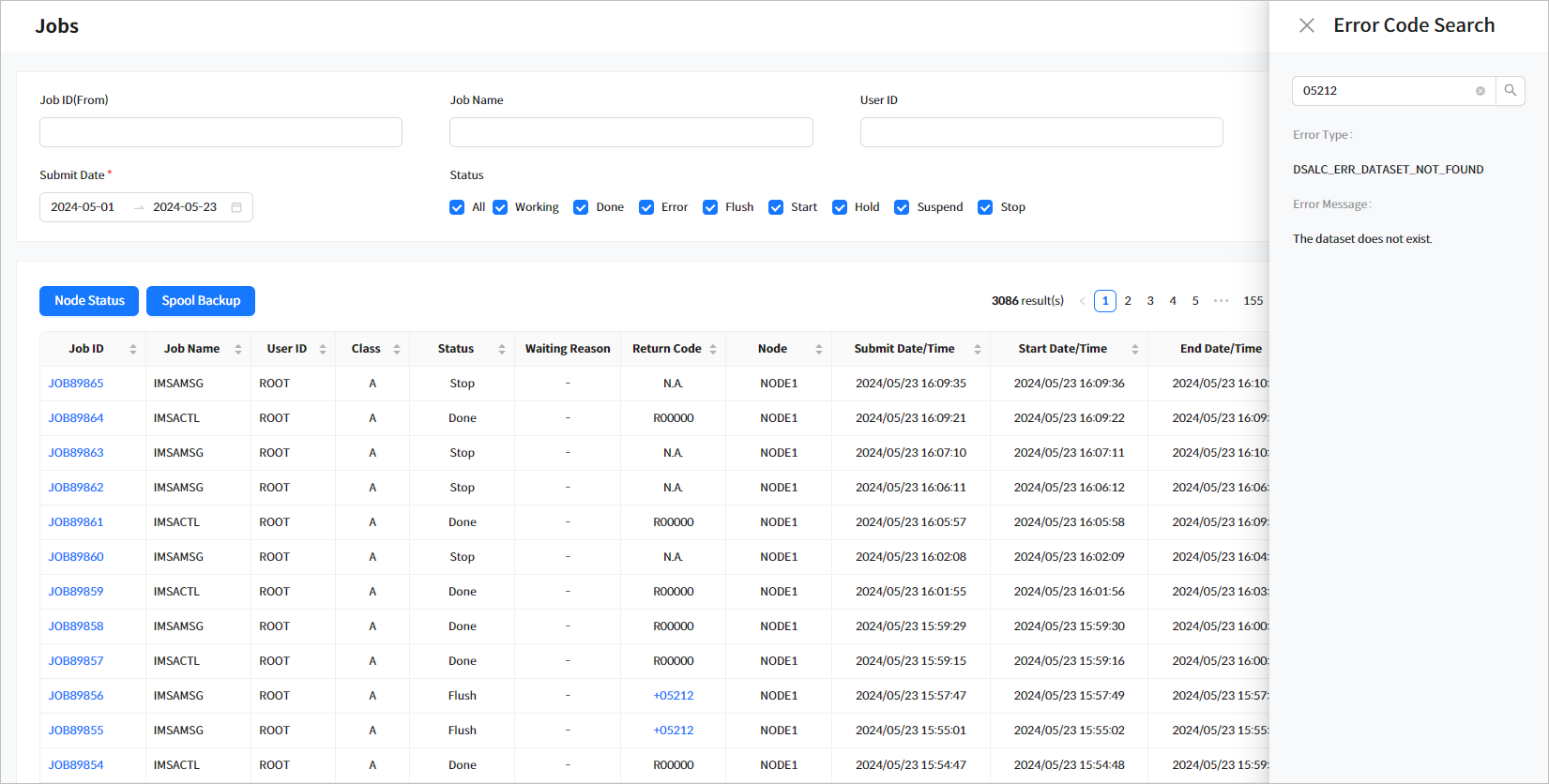 [Batch] - Jobs - Error Code Search
 -
-
Tool Buttons
The following describes the buttons above the Jobs list.
Button Description [Node Status]
Displays TJES server status by node ([Booted] or [Downed]), or boots/shuts down a node.
[Spool Backup]
Backs up the job spool. The result can be checked from the [Spool Backups] menu.
Enter either the start and end Job IDs or Submit Data/Time to insert the backup command.
-
[Job ID]: back up jobs with IDs between the entered start and end IDs.
-
[Submit Date/Time]: back up the spool of Jobs submitted until the date/time.
-
2.1. Job Details
Click a Job ID from the Jobs list in the Jobs page to go to the Job Details page. Click the [<] icon before the page title to return to the previous page. The page is refreshed every second for a job in progress. To view the latest information, click the [Refresh] button to the right of Job ID.
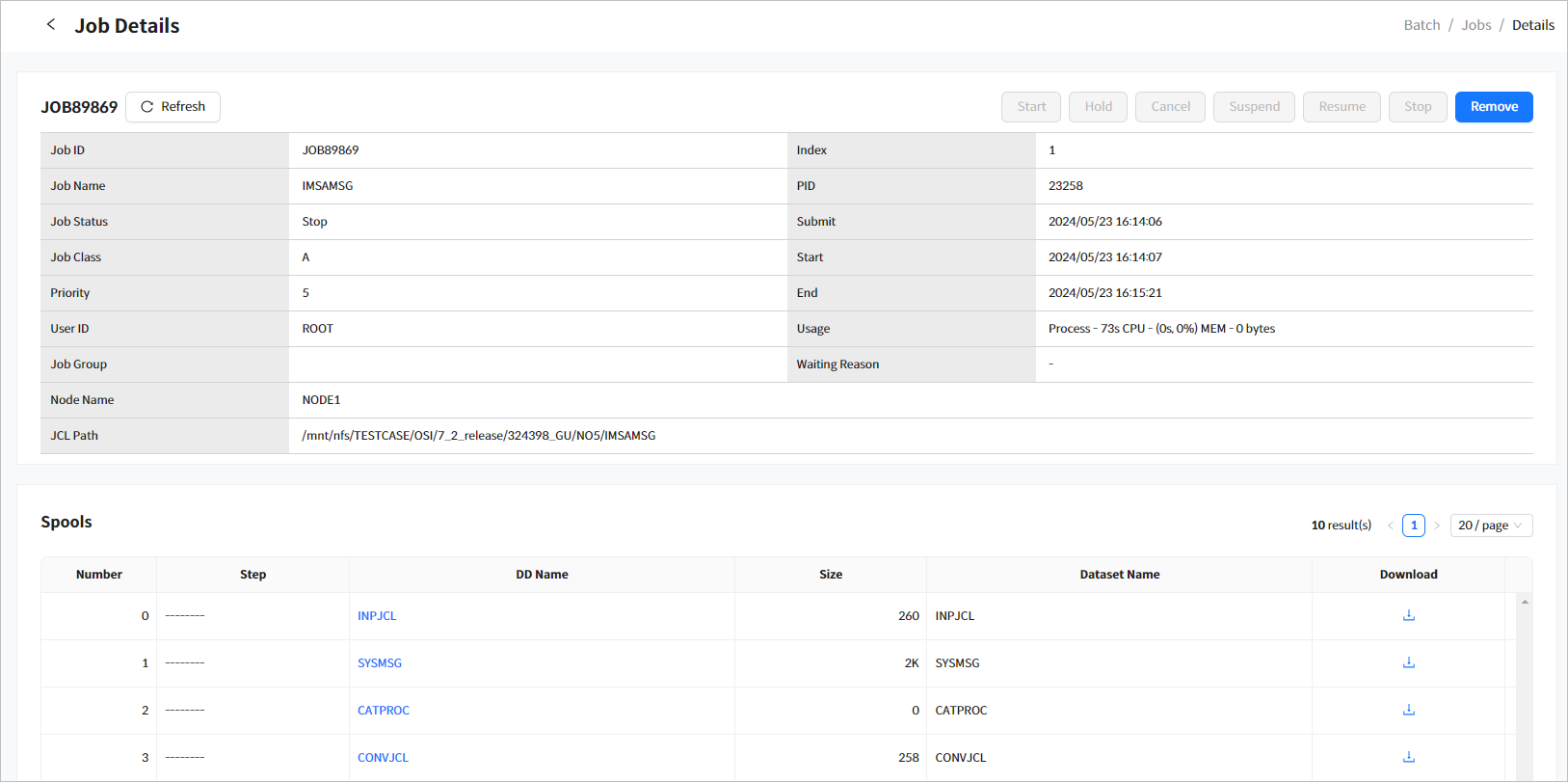
The Job Details page consists of the following sections.
2.1.1. Job Information
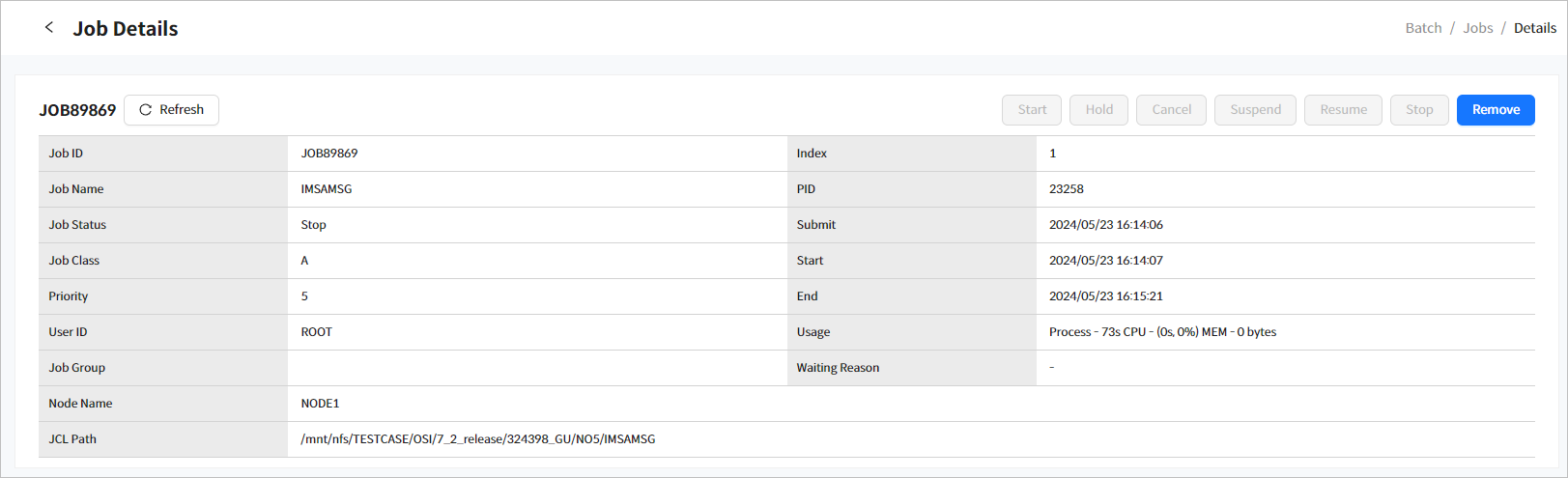
Displays detailed information about a job and provides a tool strip bar at the top right for job management.
-
Search Items
The following describes each item.
Item Description Job ID
The job ID.
Job Name
The job name.
Job Status
The job status.
-
Working
-
Done
-
Error
-
Flush
-
Start
-
Hold
-
Suspend
-
Stop
Job Class
The job class.
Priority
The priority of the job.
User ID
The ID of the user who executed the job.
Job Group
The job group.
Node Name
The name of the node where the job was executed.
Index
The index of the runner slot executing the job.
PID
The Process ID.
Submit
The date and time when the job was submitted.
Start
The date and time when the job started.
End
The date and time when the job ended.
Usage
Resource usage of the job.
Waiting Reason
The reason for waiting if the job is in a wait state.
-
None: The reason is unknown.
-
Already Lock: Dataset is already locked.
-
Job Name Duplicate: The job name is duplicated.
JCL Path
The absolute path of JCL that submitted the job.
-
-
Buttons
Use the buttons in the tool strip at the top right to change the job status. The available statuses for change depend on the current job status.
The following describes each button in the tool strip.
Button Description [Start]
Enabled if 'Job Status' is 'Hold'.
[Hold]
Enabled if 'Job Status' is 'Start'.
[Cancel]
Enabled if 'Job Status' is 'Start' or 'Hold'
[Suspend]
Enabled if 'Job Status' is 'Working'.
[Resume]
Enabled if 'Job Status' is 'Suspend'.
[Stop]
Enabled if 'Job Status' is 'Working' or 'Suspend'.
[Remove]
Enabled if 'Job Status' is 'Done', 'Flush', 'Error', or 'Stop'.
|
Permissions for changing the job status is authenticated through TACF. For more information about changing the job status, refer to "JOB Management" in OpenFrame Batch TJES Guide. |
2.1.2. Spools
Displays information about job spools. Click a spool from the list to open the Spool Viewer window.
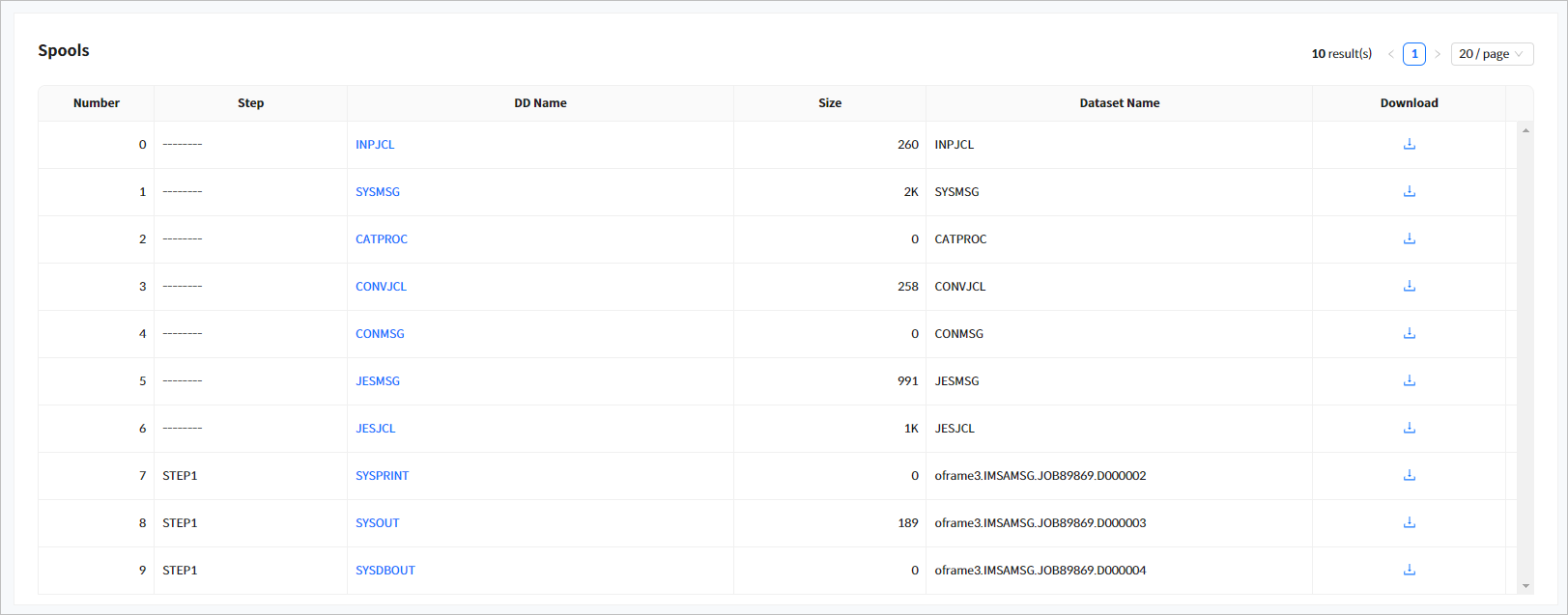
The following describes each item.
| Item | Description |
|---|---|
Number |
Serial number. |
Step |
Step name. |
DD Name |
DD name specified in the JCL. To view the details of the spool in the Spool Viewer window, click 'DD Name'. |
Size |
Spool file size. (Unit: byte) |
Dataset Name |
Dataset name specified in the JCL that records the spool. |
Download |
The contents of each spool are saved as text by clicking the icon on each row. |
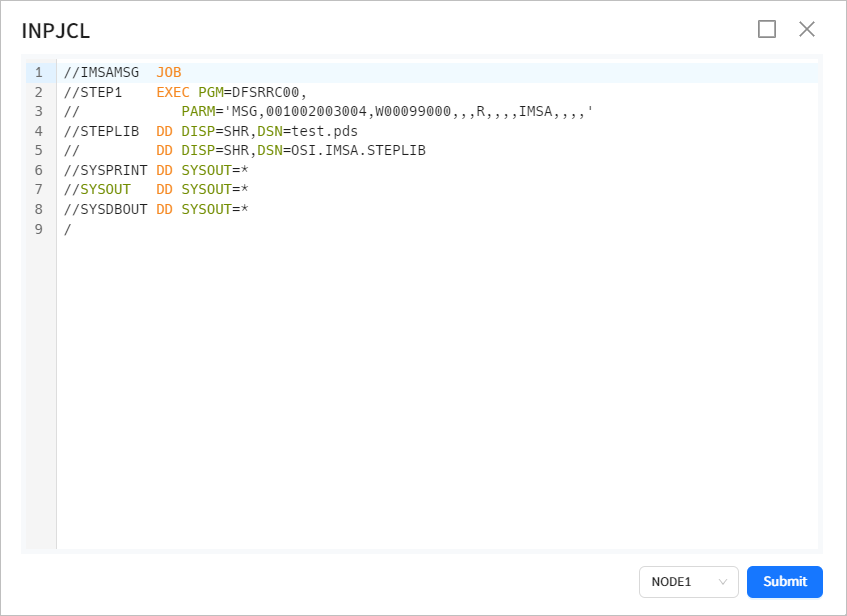
The following is the Spool Viewer dialog box that appears when clicking 'INPJCL' in 'DD Name' of the spool list.
2.1.3. Steps
Displays information about each job step.

The following describes each item.
| Item | Description |
|---|---|
Steps |
Step name. |
RCODE |
Return code (exit code). |
Start |
Start date/time of the step. |
End |
End date/time of the step. |
CPU |
CPU time spent executing the step. (Unit: sec) |
Processor time |
Processor time spent executing the step. (Unit: sec) |
2.1.4. DDs
Displays information about DDs in each step.
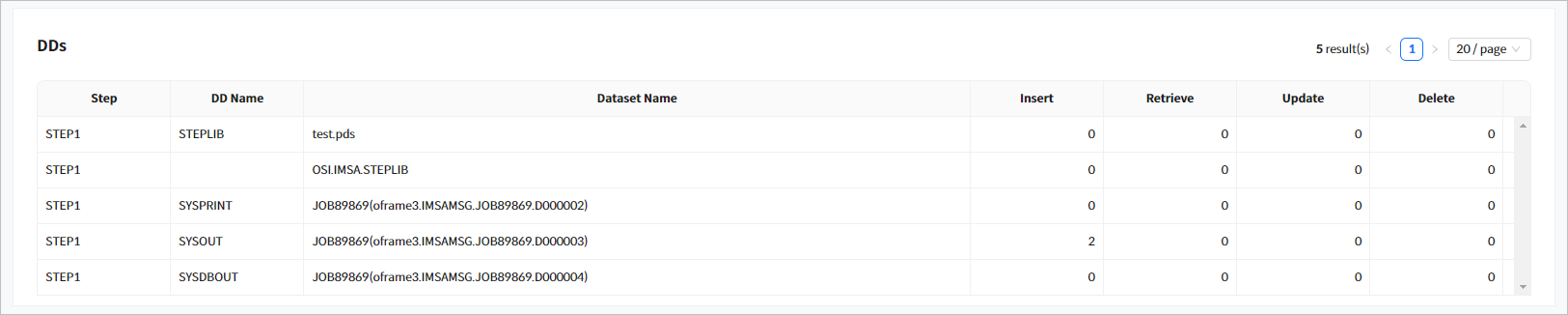
The following describes each item.
| Item | Description |
|---|---|
Steps |
Step name. |
DD Name |
DD name. |
Dataset Name |
Dataset name. |
Insert |
Number of records inserted into the data set during the job. |
Retrieve |
Number of records retrieved from the data set during the job. |
Update |
Number of records updated in the data set during the job. |
Delete |
Number of records deleted from the data set during the job. |
3. JCLs
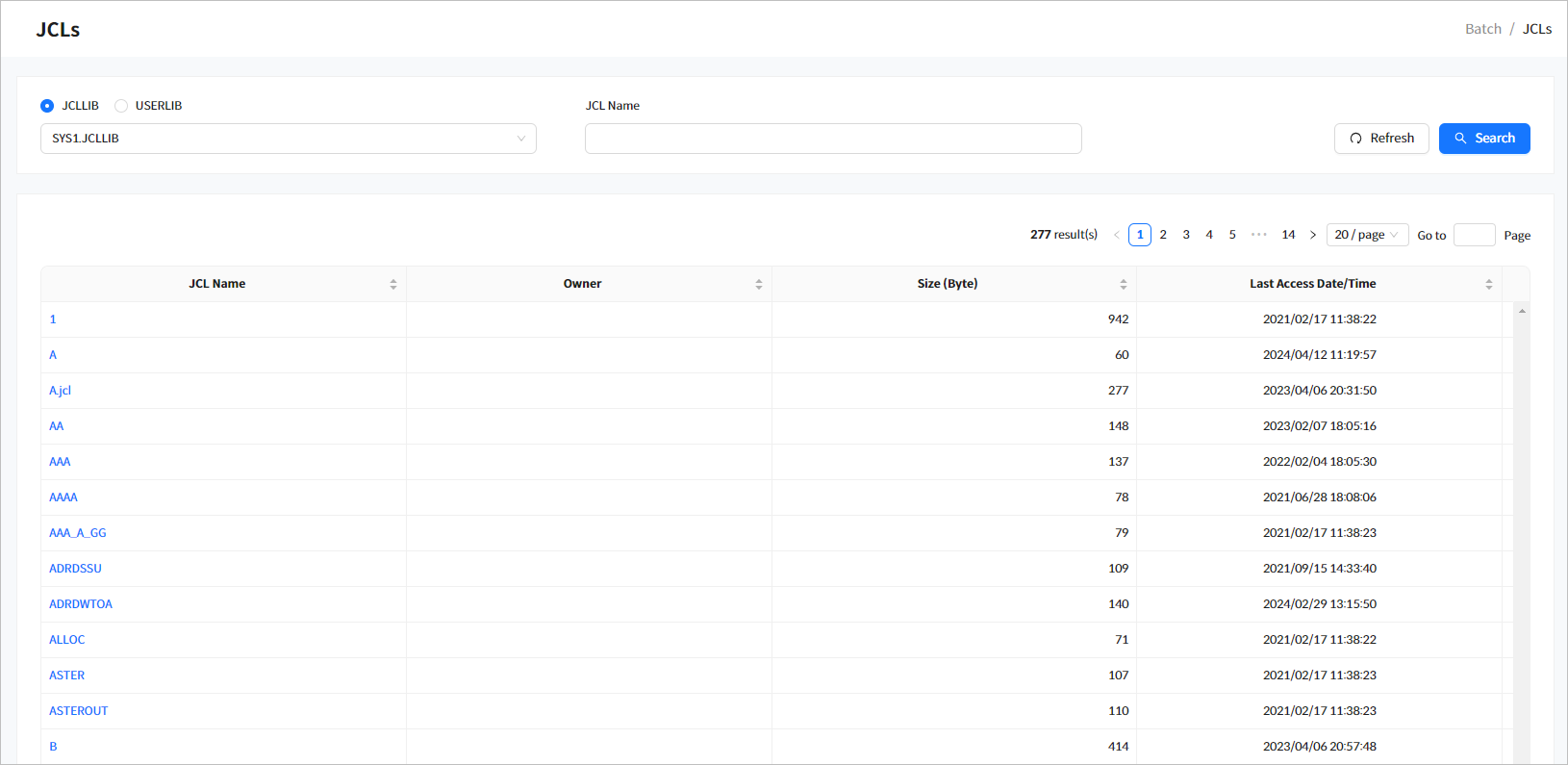
Click JCLs from the navigation pane to display a list of JCLs for the selected dataset. The user can click a JCL Name to view JCL details, and use the Run, Start from Step, Scan, and JEM functions.
Enter the search conditions from the JCLs page and then click [Search] to display the results. If no conditions are specified, all JCLs in the default JCL library (SYS1.JCLLIB) are displayed. Click [Refresh] to refresh the list.
-
Search Conditions
The following describes the JCL search conditions.
Item Description JCLLIB/USERLIB
Select the JCL library to view.
This is the library specified in the JCLLIB and USERLIB keys under the PROCLIB section in the tjes subject of openframe_batch.conf file.JCL Name
JCL name. (LIKE prefix search)
Fore more information about openframe_batch.conf file, refer to OpenFrame Batch Configuration Guide.
-
Search Results
The following describes the search result columns.
Column Description JCL Name
The name of the JCL. Click this to go to the JCL Details page. For more information, refer to JCL Details.
Owner
The owner of the member’s actual file.
Size (Byte)
The actual size of the member’s file. (Unit: bytes)
Last Accessed Date/Time
The date and time when the member was last viewed or modified.
3.1. JCL Details
Click a JCL Name from the JCLs list in the JCLs page to go to the JCL Details page. Click the [<] icon before the page title to return to the previous page.
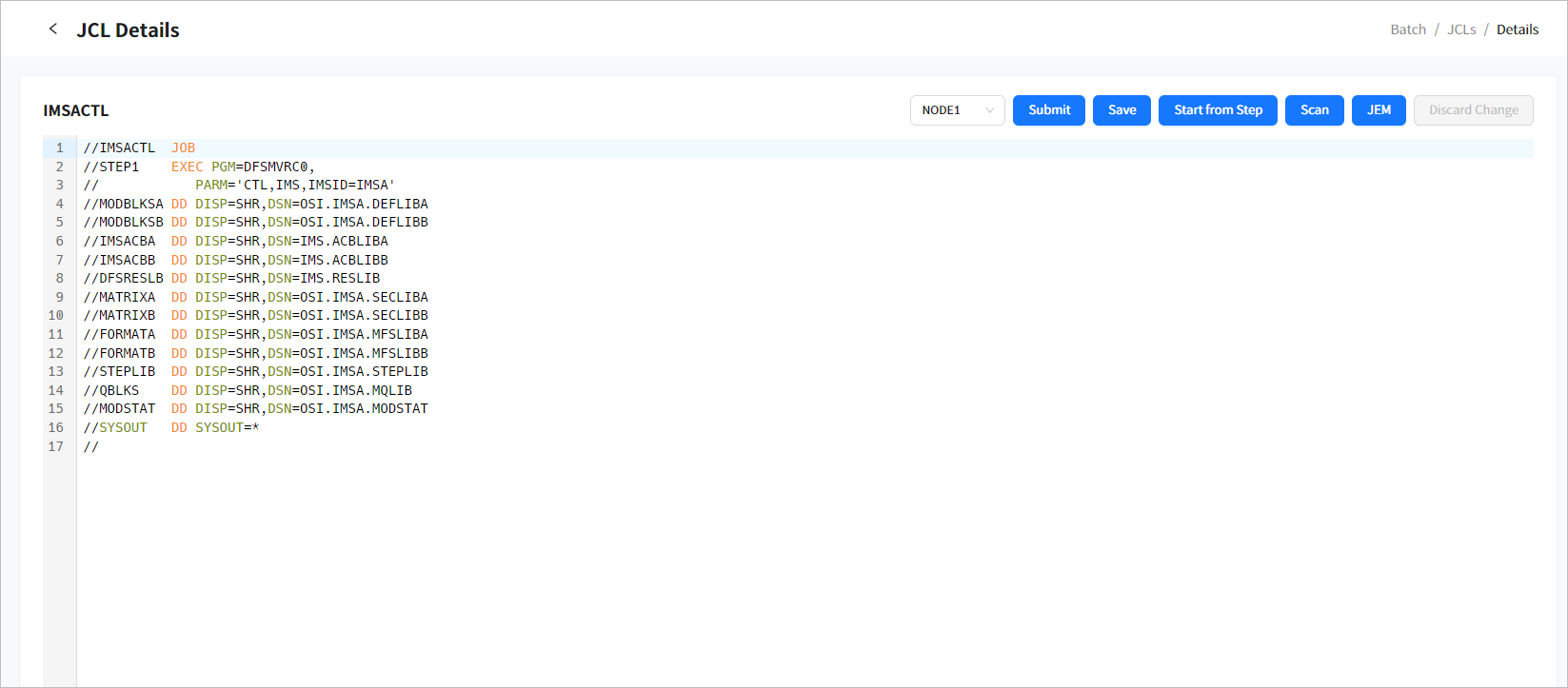
The following describes each button.
| Button | Description |
|---|---|
[Save] |
Saves the JCL if it has been modified. |
[Submit] |
Submits all steps of the JCL. Unix format is supported, but DOS format (text written on Windows) is not supported. |
[Start from Step] |
Submits starting from the specified step. When clicking this button, the Start From Step pop-up window appears where you can select a step to execute the submit. 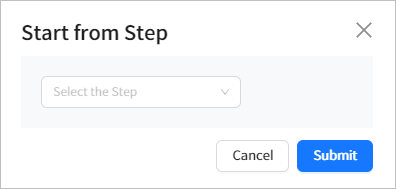
Clicking this button after modifying JCL opens a pop-up window saying that JCL is modified. Do not modify JCL when using this button. |
[Scan] |
Executes the JCL with 'typerun=scan' to perform a syntax check without actually running the JCL. |
[JEM] |
Executes the JCL with 'typerun=JEM' to verify the existence of PGMs, datasets, and data catalogs without actually running the JCL. |
[Discard Change] |
If you modify the JCL, the [Discard Changes] button is enabled. Click this button to revert back to the original JCL. image::resources/bm/figure_bm_jcl_detail.png[id="figure_bm_jcl_detail", width=750] |
4. JCL Runners
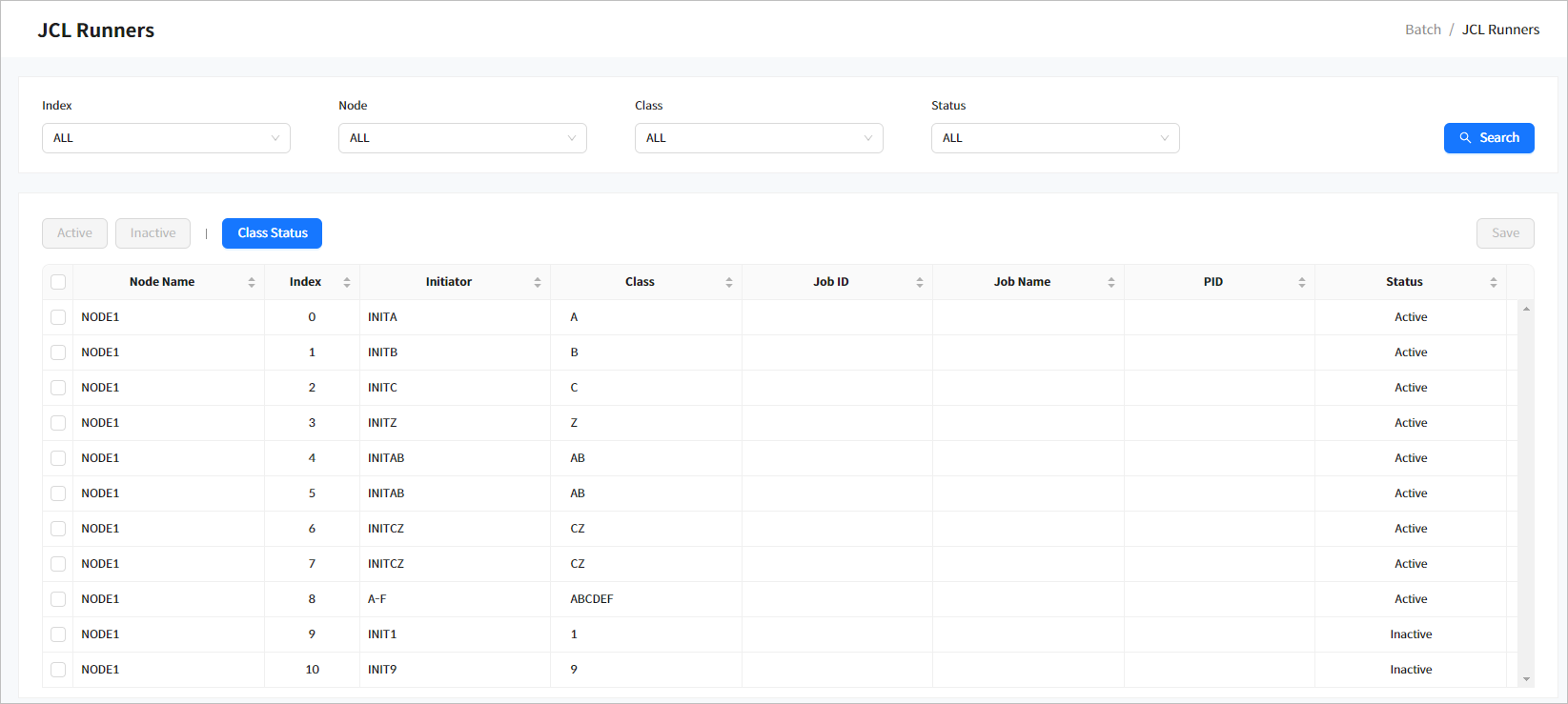
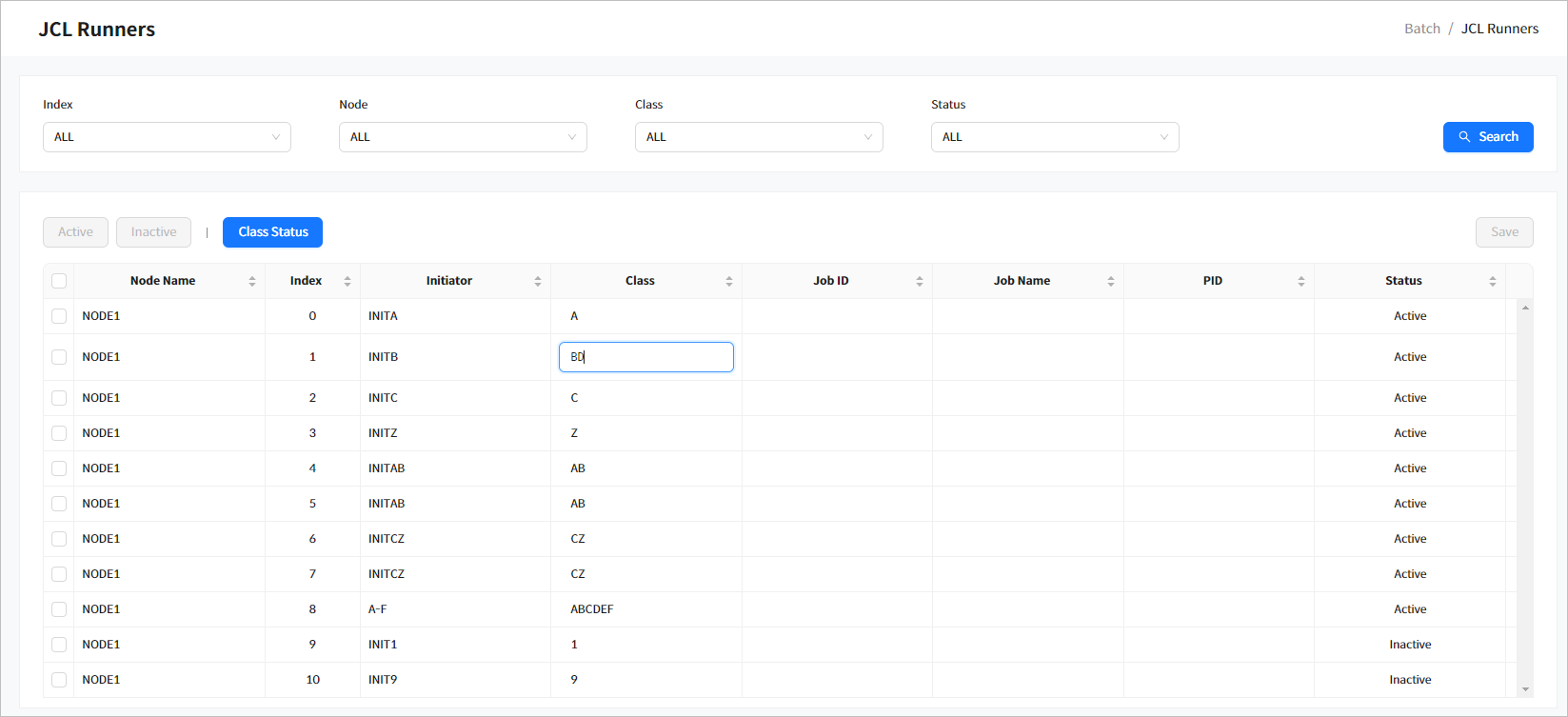
Click JCL Runners from the navigation pane to display a list of JCL runners, and change their status and class. If you select a class, runners of the class are displayed, and can be classified by status. By default, all classes are displayed.
-
Search Conditions
The following describes the JCL runner search conditions.
Item Description Index
Index.
Node Name
Node name. All node names configured in OpenFrame Manager environment are provided as options.
Class
Class. All runners that include the class are displayed. All classes are searched by default.
Status
Status of the JCL runner to view. (either Active or Inactive).
-
Search Results
The following describes the search result columns.
Column Description Node Name
Node name.
Index
Runner index.
Initiator
Runner slot name set to the INITDEF section in tjes subject of openframe_batch.conf file.
Class
Classes allocated in the runner slot.
Job ID
ID of the job running in the runner.
Job Name
Name of the job running in the runner.
PID
PID of the runner executing the job. This is only applicable to the node where the runner is running.
Status
Option to change the runner status (Active or Inactive). For more information about changing the runner status, refer to "Changing the status of a single runner" in Changing JCL Runner Status.
For more information about openframe_batch.conf file, refer to OpenFrame Batch Configuration Guide.
4.1. Changing JCL Runner Status
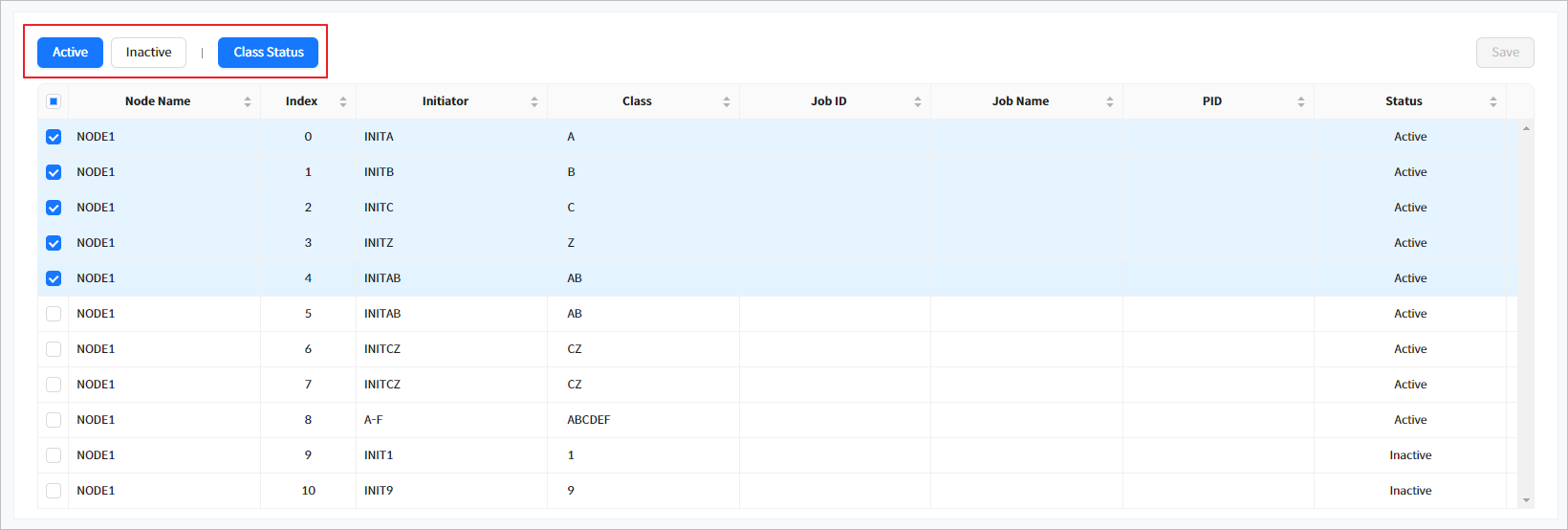
Check the check boxes of multiple runners in the JCL Runners list and then click [Activate] or [Inactivate]) to change their status. Select/deselect all rows by checking/unchecking the check box in the list header.
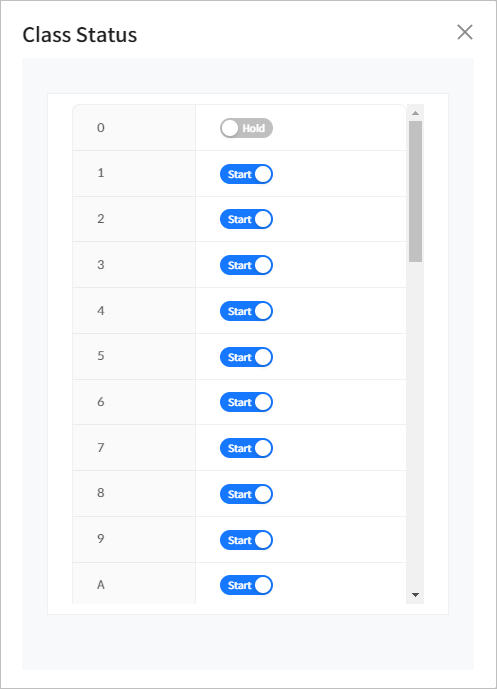
To check job queue status, click [Class Status]. You can change each class status by using the toggle button. To close the window, click the [X] button.
5. Outputs/Printers
Click [Outputs/Printers] from the navigation pane to go to the Outputs/Printers page. This page consists of the [Outputs] tab for displaying a list of outputs, purging or changing status of an output, and the [Printers] tab for displaying a list of printers.
5.1. [Outputs] Tab
Click the [Outputs] tab to display a list of jobs in output queue.
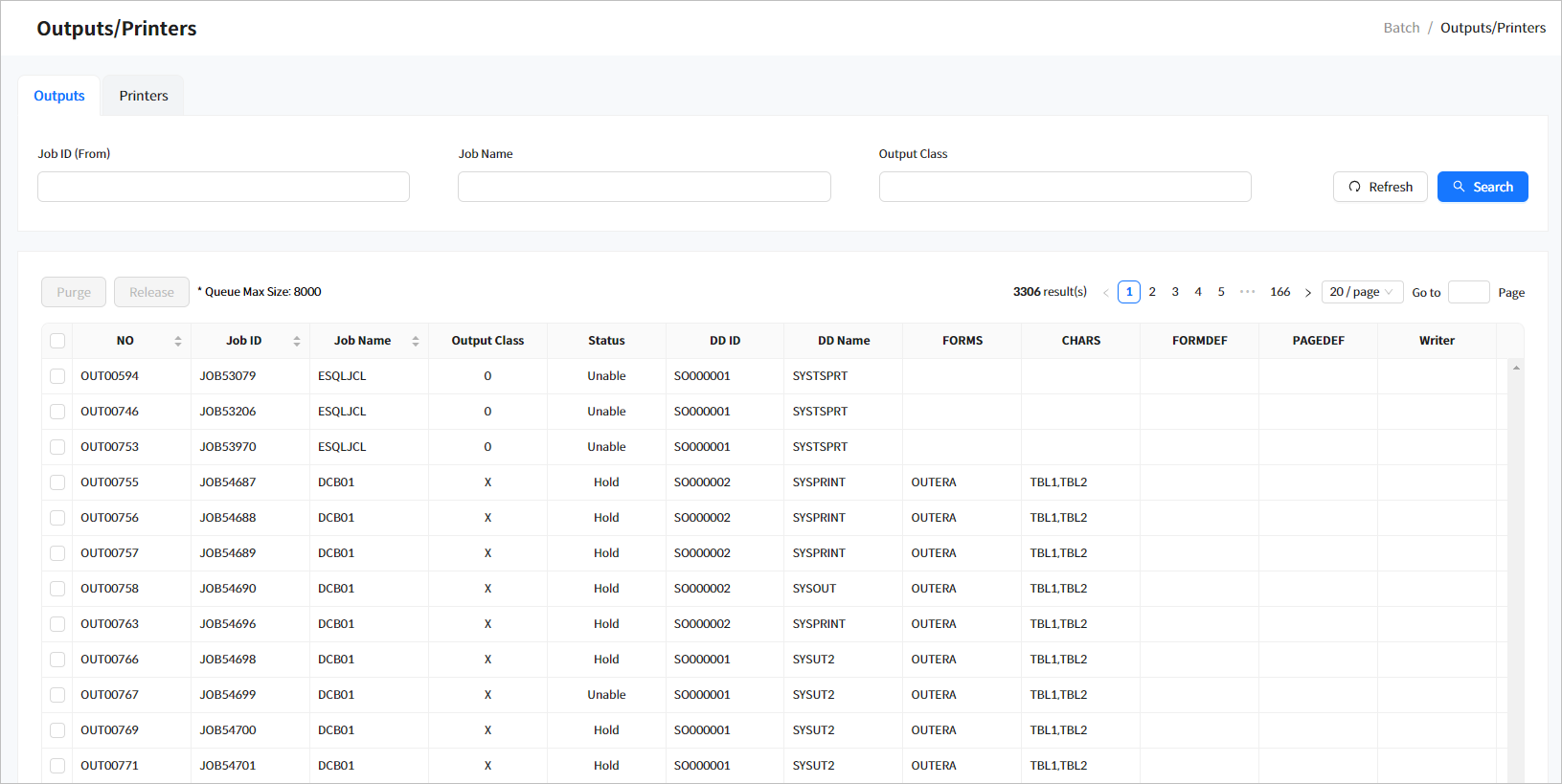
Click [Refresh] above the list to refresh the list. Enter the search conditions and then click [Search] to display the results.
To change the DISPOSITION status of selected job’s output, use [Purge] and [Release]. To remove an output from output queue, click [Purge]. To change the job status from 'Hold' to 'Write', click [Release].
-
Search Conditions
The following describes the search conditions.
Item Description Job ID (From)
Job ID to view.
Searches for Job IDs that start with 'XXX' using the wildcard (*) operator.
If you enter a Job ID (JOBXXXXX or J0XXXXXX format where X is a number), a list of the matching jobs starting from that ID.
Job Name
The name of the job
Output Class
The output class.
-
Search Results
The following describes the search result columns.
Column Description No
Output number.
Job ID
The job ID.
Job Name
The job name.
Output Class
The output class.
Status
The Output status.
Select one of:
-
Hold
-
Unable
-
Ready
-
Print
-
Error
DD ID
DD ID.
DD Name
DD name.
FORMS
Form of the SYSOUT dataset.
CHARS
Names of one or more coded fonts for printing the dataset.
FORMDEF
Member name of a form definition.
PAGEDEF
Member name of a page definition.
Writer
Name of an external writer to process output.
-
|
For more information about Outputs, refer to "POLIST (Print Output detail LIST)" in OpenFrame Batch TJES Guide. |
5.2. [Printers] Tab
Click the [Printers] tab to display a list of printers.
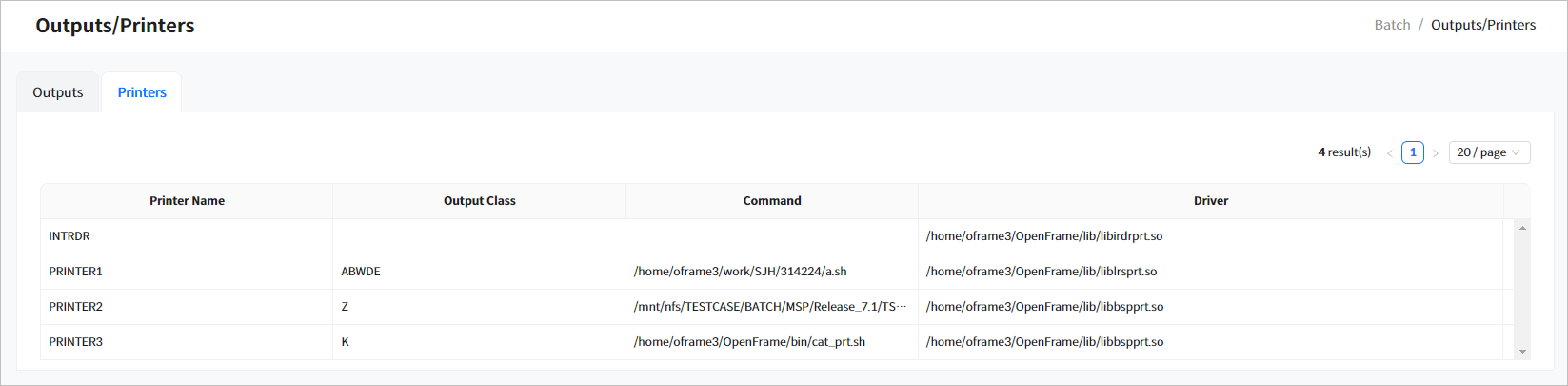
-
Search Results
The following describes the search result columns.
Column Description Printer Name
The name of the printer.
Output Class
The output class.
Command
The command used to run the printer.
Driver
The path to the printer library.
6. Spool Backups
Click [Spool Backups] from the navigation pane to display a list of spool backups by date and job name.
Specify a desired period in Backup Date and then click [Search] to display the results. You can enter a job name as a search condition.
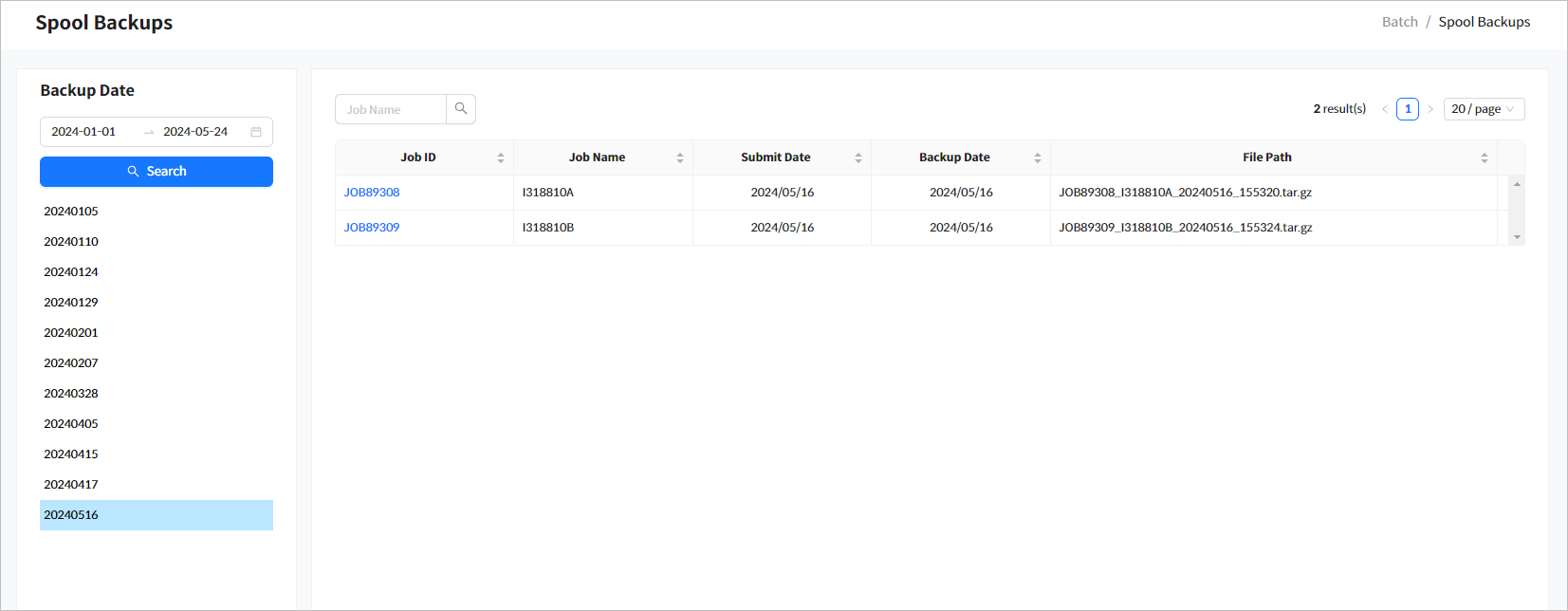
-
Backup Date
Specify a desired period and then click [Search] to display the results. The search returns spool backups that were ran during the period. Select a date to display the spooled jobs in the Jobs list.
-
Jobs
-
Search Conditions
The following describes the search conditions.
Item Description Job Name
Job name. (LIKE (prefix) search method)
-
Search Results
The following describes the search result columns.
Column Description Job ID
Click this to go to the Spool Backup Details page. For more information, refer to the description of Spool Backup Details.
Job Name
The name of the job.
Submit Date
The date the job was submitted.
Backup Date
The date the spool was backed up.
File Path
The physical file path where the spool was backed up.
-
6.1. Spool Backup Details
Click a job ID from the Jobs list to go to the Spool Backup Details page. Click the [<] icon before the page title to return to the previous page.
The Spool Backup Details page consists of the 'Job Information', 'Spools', 'Steps', and 'DDs' sections. For more information about each section, refer to Job Details.
Click a spool from the Spools list to open the Spool Viewer window to view its contents.
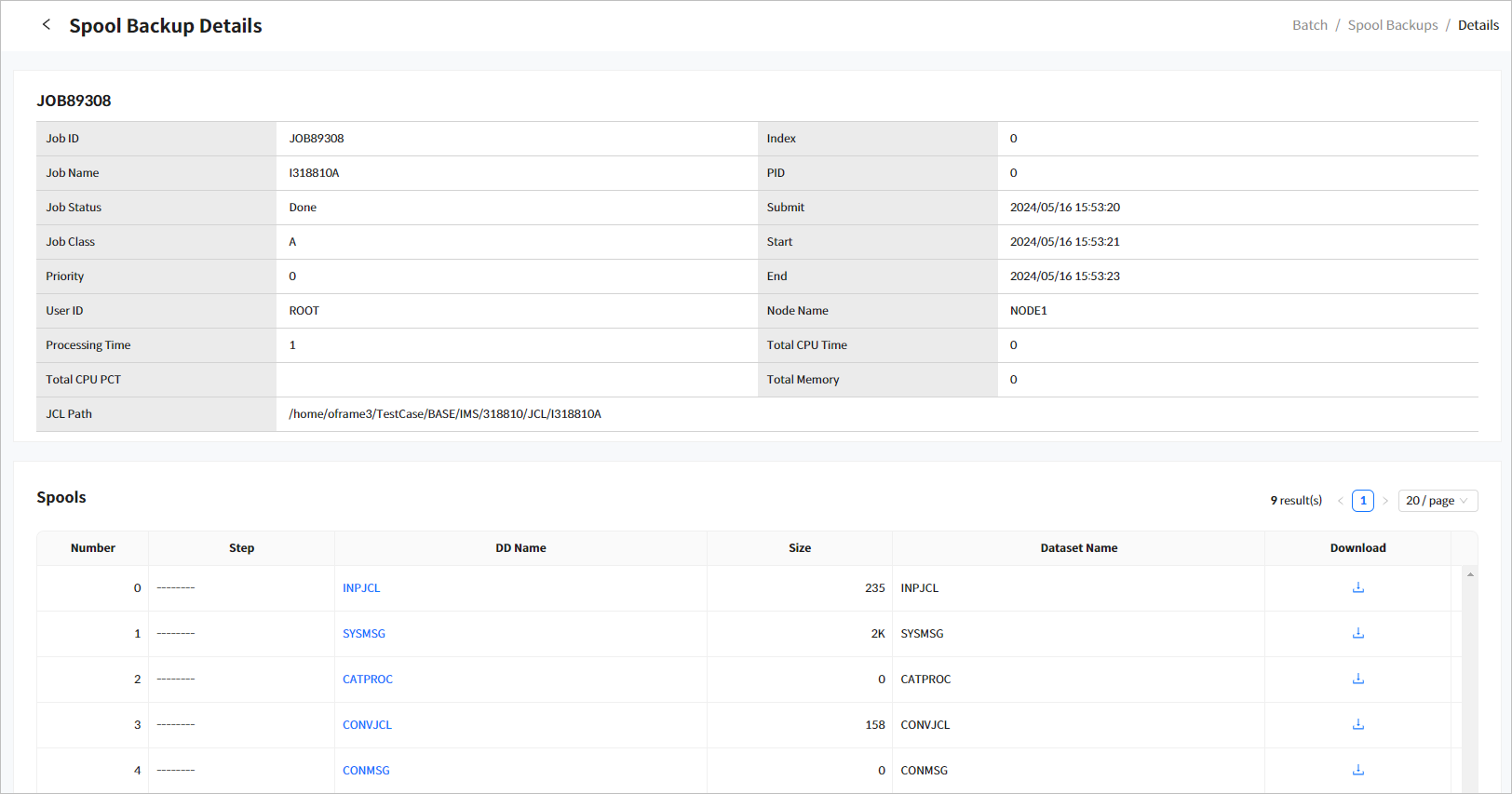
The following describes each item.
| Item | Description |
|---|---|
Job ID |
The job ID. |
Job Name |
The name of the job. |
Job Status |
Job status.
|
Job Class |
The job class. |
Priority |
The job priority. |
User ID |
The user ID that ran the job. |
Node Name |
Name of the node where the job ran. |
Index |
The index of the runner slot executing the job. |
PID |
Process ID. |
Ready |
The submission time of the job. |
Start |
The start time of the job. |
End |
The end time of the job. |
Processing Time |
Total processing time (excluding CPU time) spent processing the job. |
Total CPU Time |
Total CPU time spent executing the job. |
Total CPU PCT |
Total percent of CPU time spent executing the job. |
Total Memory |
Total memory used by the job. |
JCL Path |
The absolute path of JCL that submitted the job. |
7. User Spool
Click User Spool from the navigation pane to display a list of spools whose Output class is W. User Spool menu is available to users with at least READ permission for the BM.USERSPOOL resource of the TACF OFMANAGR class.
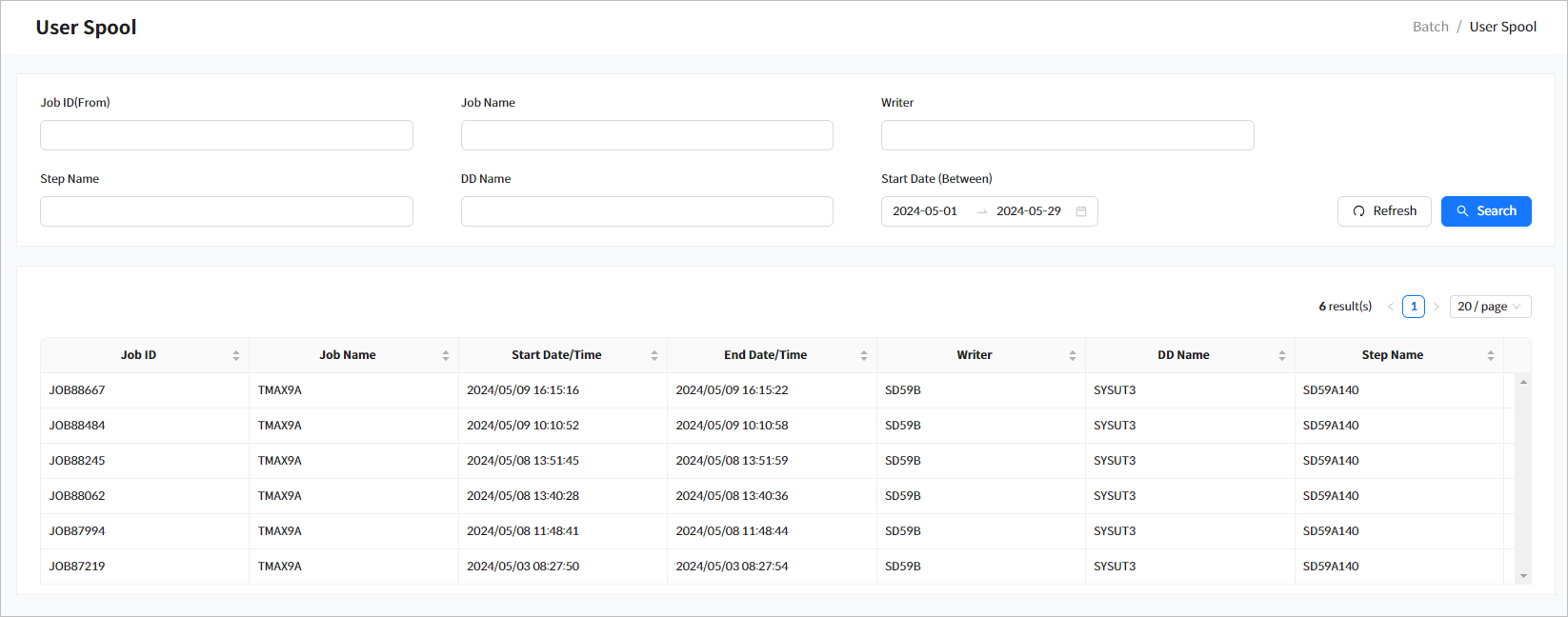
-
Search Conditions
The following describes the search conditions.
Item Description Job ID (From)
The job ID.
Searches for IDs that start with 'XXX' using wildcard (*) operator. A list of jobs that match the Job ID (JOBXXXXX or JXXXXXXX format where X is a number) condition is retrieved in ascending order.
Job Name
The name of the job (Exact search method).
Writer
Writer specified in the JCL SYSOUT (Exact search method).
Step Name
JCL step name (Exact search method).
DD Name
JCL DD name (Exact search method).
Start Date (Between)
Search period during which a job was submitted (Exact search method).
-
Search Results
The following describes the search result columns. For more information about each item, refer to Job Details.
Column Description Job ID
Click this to go to the Job Details page. For more information, refer to the description in Job Details.
Job Name
The name of the job.
Start Date/Time
Start date/time of job execution.
End Date/Time
End date/time of job execution.
Writer
Writer specified in the JCL SYSOUT.
DD Name
JCL DD name.
Step Name
JCL step name.
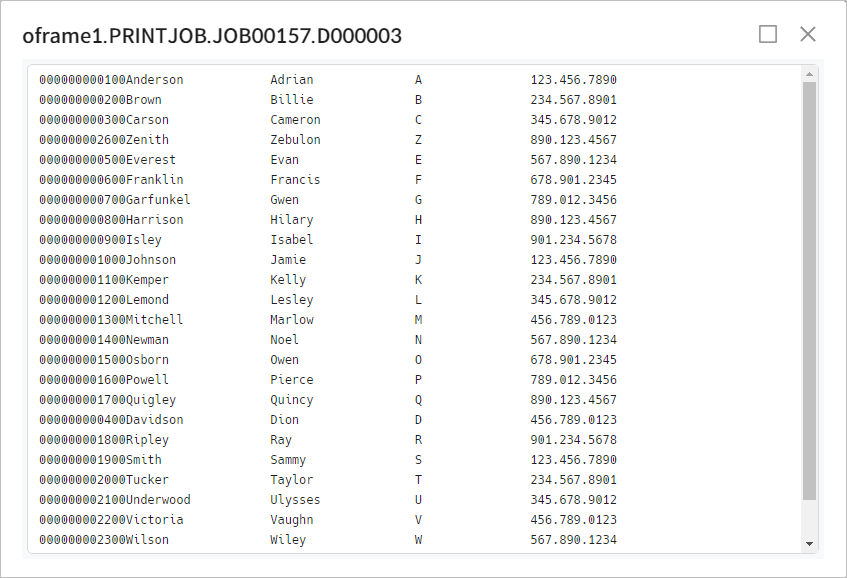
Click a spool from the search results to view its details. To maximize the window, click the [Maximize] button. To close the window, click the [X] button.
 [Batch] - User Spool - Spool Details