Installation Overview and Pre-Installation Tasks
This chapter briefly describes how to install JEUS and provides the system requirements and JDK environment configurations for the installation.
1. Overview
JEUS provides a graphical user interface (GUI) that allows easy installation in both UNIX and Windows environments. For UNIX and Linux environments where command-line mode is preferred, installation can be performed in console mode.
The installation file performs the following actions.
-
Displays the JEUS license agreement. Read it carefully, and agree with the terms to install JEUS.
-
Copies JEUS configuration files and directories.
-
Sets JEUS environment variables.
2. System Requirements
The following are the hardware and software requirements for JEUS.
-
System requirements
JEUS requires the following.
Platform Required Environment Windows 10, Windows Server 2019
JDK 8, JDK 11, JDK 17, or JDK 21
More than 2 GB of hard disk space available
AIX, Linux, SunOS
JDK 8, JDK 11, JDK 17, or JDK 21
More than 2 GB of hard disk space available
When using WebAdmin, it is only supported in JDK 17 and JDK 21 environments.
-
Supported platforms
The following are the platforms supported by JEUS.
OS Version CPU RAM Memory Hard Disc Space JDK Version IBM AIX 7L or later
IBM pSeries(PowerPC)
1 GB
20 GB
JDK 8, JDK 11, JDK 17, JDK 21
Linux series
(Kernel 2.6 or later)
Intel x86 series k2.6 or later
1 GB
20 GB
JDK 8, JDK 11, JDK 17, JDK 21
SunOS 11 or later
SPARC
1GB
20GB
JDK 8, JDK 11, JDK 17, JDK 21
Windows 10 or later
Windows Server 2019 or later
Intel x86
1GB
20GB
JDK 8, JDK 11, JDK 17, JDK 21
3. Installation Process
JEUS is installed in the following order on UNIX and Windows. While the overall installation process is the same, some steps differ. For details, refer to the corresponding section.
-
Install JDK 8, 11, 17, or 21.
-
Install JEUS (copy files) in console mode.
-
Configure and verify the environment variables.
-
Verify JEUS installation.
The following figure shows the JEUS installation order.
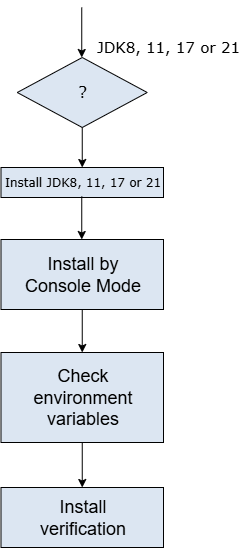
A box in the previous figure represents an action. For detailed information, refer to the relevant section.
For information about how to install and uninstall JEUS in console mode on UNIX, refer to Installation and Uninstallation.
4. Installing Java JDK
To use JEUS, the Java SE Development Kit (JDK) must be installed.
Ensure that JDK 8, 11, 17, or 21 is installed before installing JEUS. After installation, add the bin directory of the installed JDK to the environment variable PATH.
5. JEUS Licensing
A license key issued by TmaxSoft is required to use JEUS. A trial license is included with the version of JEUS installed by the installer by default. The license file is named 'license' and is in the 'JEUS_HOME/license' directory.
There are two license editions: Standard and Enterprise. They each have different features and license period.
To upgrade a license or to purchase a full license, contact a TmaxSoft sales representative or TmaxSoft directly. To use a license file, copy it to the 'JEUS_HOME/license' directory with the name of 'license'.
|
If the license file is not named 'license', rename it as 'license'. |