Java Node Manager
This chapter describes how to configure and operate the Java node manager.
1. Overview
The Java node manager can detect the abnormal termination of a server faster than the SSH node manager. The SSH node manager cannot be used if the OS is Windows. The Java node manager can be used regardless of the OS.
This chapter describes the basic knowledge that is required to use the Java node manager.
2. Using the Java Node Manager Functions
This section describes how each Java node manager function works.
2.1. Starting Managed Servers on a Remote Machine
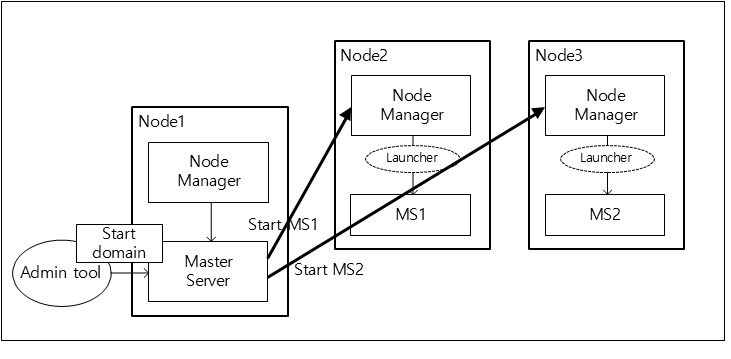
The following is the process of starting servers on remote machines in the domain through the node manager.
-
The node manager creates the lock file of the server and gets the FILE LOCK.
-
After starting the server, it creates the pid and state files, and then records the PID (process ID) and server state.
-
It updates the username, password, and masterurl in the <serverName>.properties file.
-
The server starts the NodeManagerService, creates the address file, and records its host information.
|
The same process is used to restart the server. |
2.2. Monitoring Servers
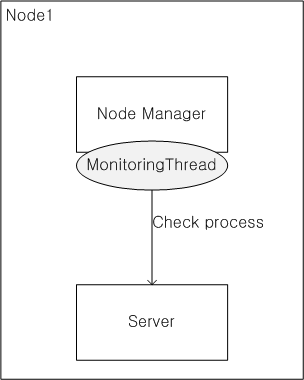
The Java node manager monitors the state of server processes regularly to update the state file. If an error occurs, the node manager restarts the server process.
The node manager does not monitor all the servers on a node, but only the server processes that were started through the node manager. Therefore, to restart a server immediately in case of an error occurrence, the server must be started by the node manager. Even when a node manager is restarted, it continues to monitor the server that it started.
The following shows the process of the Java node manager monitoring a server.
The following shows how a node manager finds the server that it was monitoring after it is restarted.
-
When a node manager is restarted, the node manager finds the domain names that are managed by the node manager in the following path.
JEUS_HOME/domains
-
The node manager finds the server names that are managed by the node manager in the server directory in the following path.
JEUS_HOME/domains/<domain-name>/servers
-
It checks if the files <serverName>.address, <serverName>.lck, <serverName>.state, <serverName>.pid are in the server directory. If all the files exist, then it knows that the server is running.
-
It gets FILE LOCK from the lock file.
-
It checks the server state in the state file and determines whether the server can run the services.
-
A service can run if it is in one of the following states: RUNNING, STANDBY, SUSPENDED, RESUMING, SUSPENDING, and STARTING
-
A service cannot run if it is in one of the following states: SHUTDOWN and SUNTTING_DOWN
-
-
It checks if the process is running with the server process ID in the pid file. If the server is down, the node manager restarts the server.
-
It makes a socket connection based on the host information of the server that is recorded in the address file and checks if the server process is running normally. If the server is down, the node manager restarts the server.
-
If it is determined that the server is ready to run the services, the node manager monitors the server by regularly checking the server state.
|
The SHUTDOWN_NEED_TO_RESTART state in the state file is used to restart the server, which was previously running on the node, when the node manager restarts. It is usually used to restart the previously running server after a server shutdown when the node manager is registered as an OS service, like a Windows service. |
2.3. Restarting a Server in an Abnormal State
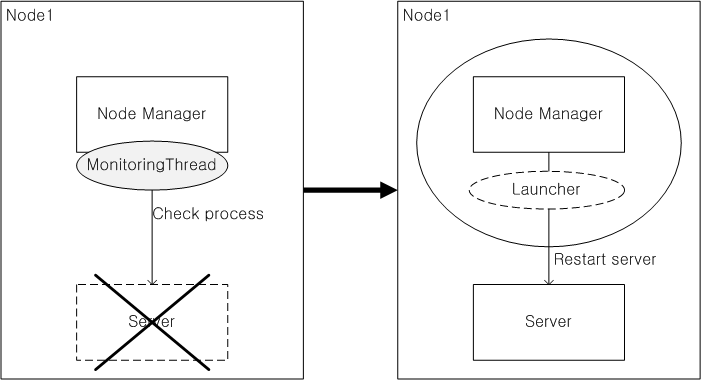
The Java node manager restarts the server processes if the server processes were terminated abnormally, and also if the server processes go into an abnormal state.
Each server sets a memory ratio, and if heap memory is used more than the specified ratio, the server terminates its own process. The node manager detects this and restarts the server.
2.4. Rolling Patch
A patch can be applied to a domain by using the Java node manager. The node manager can send a patch file to the servers on remote machines or can delete the patch file. The node manager can also restart the servers on remote machines to apply the patch.
Master can access node managers on remote machines to send, delete, or apply a patch file.
-
Sending a patch file
domain1.adminServer>apply-patch
-
Deleting a patch file
domain1.adminServer>remove-patch
-
Applying a patch file
The patch can be applied to each server using the -rolling option. When the option is used, the patch is applied to each node in order to prevent errors that may occur for replicated services. If multiple servers are operating on the same node, each server must be terminated in order and after applying the patch file, the servers must be restarted one by one.
domain1.adminServer>apply-patch -rolling

domain1.adminServer>remove-patch -rolling
-
Reverting if installing a patch fails.
The -action option can be used to define an action for a failed patch.
domain1.adminServer>apply-patch -rolling -action CONTINUE|STOP|ROLLBACK
Use one of the following options (CONTINUE, STOP, or ROLLBACK).
Option Description CONTINUE
Option to proceed even if applying the patch on a node has failed.
STOP
Option to stop the patch installation and return if applying the patch on a node has failed.
ROLLBACK
Option to stop the patch installation and rollback the successfully applied patches if applying the patch on a node has failed. When deleting the patches, there might be nodes from which the patch has already been deleted. In this case, even when this option is set, deleting the patch will stop as with the STOP option.
2.5. Connecting to Master
The servers that were started without using the node manager are not managed by the node manager, and the monitoring or patch functions are not provided for them.
For Master, however, the process can be monitored and the patch can be delivered even if it was started without using the node manager. When Master starts, it connects to and sends its information to the node manager, and the node manager can use this information to monitor Master.
The rolling patch upgrade is possible only when Master is connected to the node manager. Although Master was not started using the node manager, since it is connected to the node manager the patch can be sent to other nodes as well as to its own node.
|
The servers that are not started by the node manager cannot be monitored. If the Java node manager is used and a server is started by the node manager, the node manager detects any abnormal terminations and restarts the server before it goes into the FAILED state. |
3. Configuring the Environment
This section describes how to configure the environment needed for using the Java node manager.
3.1. Configuration File
The following files must be configured in order to use the Java node manager which requires other configuration in addition to the nodes.xml file.
3.1.1. nodes.xml
Configure a node manager type to use in the nodes.xml file that is located in the following path.
JEUS_HOME/domains
The nodes.xml, which is referenced by Master, defines the physical address of the node. The information of the node where each MS is running is defined in the domain configuration. This file is shared by multiple domains where the installed JEUS belongs to. Master in each domain accesses the node manager of each node according to the configuration in the node.xml file.
Nodes can be added or deleted using the console tool. For more information, refer to Configuring and Deleting Nodes.
|
The machine settings in the nodes.xml file and the "host" and "port" settings in the jeusnm.xml file must match. |
3.1.2. jeusnm.xml
The jeusnm.xml is a configuration file that defines how the node manager works, and it is in the following path.
JEUS_HOME/nodemanager
The following are the configuration items that can be set in the jeusnm.xml file which must be modified manually.
| Item | Description |
|---|---|
useNodeManager |
Option to use the Java node manager. (Default: true) |
host |
Listen address of the node manager. (Default: localhost) |
port |
Listen port of the node manager. (Default: 7730) |
serverMonitoringPeriod |
Monitoring cycle for the server process state. (Default: 500, Units: ms) |
serverAutoRestart |
Option to reboot the server automatically if the server process has been terminated abnormally. (Default: true) |
serverRestartTryCount |
Retry count for server restart. (Default: 5) If the attempts to restart the server exceeds this value during the time set in 'serverRestartDurationTime', it is determined that there’s a problem with the server process, and server restart will no longer be attempted. |
serverRestartDurationTime |
Server restart cycle. (Default: 120000, Units: ms) If the number of server restart attempts during this cycle exceeds the value set in 'serverRestartTryCount' then it is determined that there is a problem with the server process and server restart will no longer be attempted. |
serverRetryRestart |
Option to retry restarting the server when the attempt to restart the server fails. If set to true, the server is restarted until it starts successfully. (Default: false) |
useSSLListener |
Whether the node manager uses SSL. (Default: false) |
keystoreFile |
Path to the keystore file that is used during authentication when SSL is used. (Default: NODEMANAGER_HOME/keystore) |
keystorePass |
Password of the keystore file that is used during authentication when SSL is used. (Default: jeuskeypass) |
truststoreFile |
Path to the truststore file that is used during authentication when SSL is used. (Default: NODEMANAGER_HOME/truststore) |
truststorePass |
Password of the truststore file that is used during authentication when SSL is used. (Default: jeustruststorepass) |
logFileName |
Log file location of the node manager. If the location is an absolute path, a log file will be created in the path. If the location is a relative path, a log file will be created in a default path. (Default: JEUS_HOME/nodemanager/logs/JeusNodeManager.log) |
standbyPort |
Enables to use a node manager’s standby process when a node manager is terminated abnormally by configuring a port to use for this. For more information, see Standby Node Manager. |
processList |
List of information about RQS processes. For more information, see Configuring the Environment. |
3.1.3. <serverName>.properties
The <serverName>.properties file is the cache file that stores the information that is required to restart the server. The file is created in the following path after the server is restarted by the node manager.
SERVER_HOME/nodemanager
The node manager can store the options that are required to start the server in a file and can use it to start the server. This information is used only when the node manager starts the server directly using the console tool. The options are not used when an MS is started by Master.
The following are the cached items.
| Item | Description |
|---|---|
masterurl |
Host information of Master. It is cached only for MSs. |
username |
Server account that is required to start the server. |
password |
Server password that is required to start the server. |
sslArguments |
SSL properties information that is required for SSL authentication when the node manager accesses the server and the server uses SSL. |
3.2. Required Files
The following describes the additional files that are required for the node manager to start and monitor the server. Each file is located in the following path.
JEUS_HOME/domains/<domain_name>/servers/<server_name>/nodemanager
| File | Description |
|---|---|
<serverName>.lck |
This file is created by the node manager to prevent the server process from being started multiple times. This file is created before the node manager starts the server process and is deleted when the server process terminates successfully. When the node manager is restarted, it determines whether to keep monitoring the server based on the existence of this file. |
<serverName>.pid |
If the server process is restarted successfully, the node manager creates this file to store the server process ID. This file is created when the node manager starts the server process successfully and is deleted when the server process is terminated successfully. When the node manager is restarted, it determines whether to keep monitoring the server, depending on the existence of this file. Also, it can be determined whether the server is abnormally terminated depending on the existence of the PID process in the file. When the node manager is restarted, the server can be restarted and monitored (by the node manager) if the server has been terminated abnormally. |
<serverName>.state |
This file is created by the node manager to record the server state after the server process is started successfully. This file is created when the node manager starts the server process successfully and is deleted when the server process is terminated successfully. The node manager regularly checks and updates the server state in the file. When the node manager is restarted, it determines whether to keep monitoring the server depending on the existence of this file. When the node manager is restarted, the server state recorded in the file can be used to determine if the server has been terminated abnormally and whether to keep monitoring the server. |
<serverName>.address |
This file is created when the server is started. It records the Listen Address and the Listen Port of the server. If the server is terminated successfully, this file will be deleted. When the node manager is restarted, it determines whether to keep monitoring the server depending on the existence of this file and the host information in the file can be used to continue to monitor the server. If the node manager is restarted, it sends an MBean request to the server to regularly monitor and detect abnormal termination of the server. |
4. Configuring and Deleting Nodes
The console tool is used to configure or delete Java nodes.
4.1. Configuring a Java Node
This section describes how to use the console tool to configure a Java node.
|
To start a server using the console tool, the node name must be configured on the server. |
4.1.1. Using the Console Tool
The following shows how to configure a node using the console tool.
-
Add a node named node1 by using the add-java-node command.
[MASTER]domain1.adminServer>add-java-node node1 -host 192.168.34.65 -port 7730
The node [node1] was successfully added.
-
Check the configuration of the added node by using the show-node command. The following Java node "node1" is displayed.
[MASTER]domain1.adminServer>show-node node1
============================================================
+------------------------------------------+---------------+
|                 Property                 |     Value     |
+------------------------------------------+---------------+
| Node Name                                | node          |
| Host                                     | 192.168.34.65 |
| Mapped Servers                           |               |
| Node Type                                | JAVA          |
| NodeManager Port                         |          7730 |
| Use SSL                                  | false         |
+------------------------------------------+---------------+
============================================================
To check the nodes in the domain, use the list-nodes command.
[MASTER]domain1.adminServer>list-nodes
=========================================================================
+-----------+------+-------------------------------------+--------------+
| Node name | Type |            Under control            | JEUS version |
+-----------+------+-------------------------------------+--------------+
| node1     | JAVA | N                                   | -            |
+-----------+------+-------------------------------------+--------------+
=========================================================================
-
To modify a node, use the modify-java-node or modify-node command.
[MASTER]domain1.adminServer>modify-java-node node1 -port 7731
The node [node1] was modified successfully. Check the results using "show-node"
[MASTER]domain1.adminServer>modify-node node1 -port 7732
The node [node1] was modified successfully. Check the results using "show-node"
-
To check the modified node information, use the show-node command.
[MASTER]domain1.adminServer>show-node node1
============================================================
+------------------------------------------+---------------+
|                 Property                 |     Value     |
+------------------------------------------+---------------+
| Node Name                                | node          |
| Host                                     | 192.168.34.65 |
| Mapped Servers                           |               |
| Node Type                                | JAVA          |
| NodeManager Port                         |          7732 |
| Use SSL                                  | false         |
+------------------------------------------+---------------+
============================================================
|
For more information about the add-java-node and list-nodes commands, refer to Node Management Commands in JEUS Reference Guide. |
4.2. Deleting a Java Node
This section describes how to delete a Java node using the console tool.
4.2.1. Using the Console Tool
The following shows how to delete a node using the console tool.
-
Delete the node "node1" using the remove-node command.
[MASTER]domain1.adminServer>remove-node node1
The node [node1] was successfully removed.
-
To check if the node has been deleted successfully, check the list of nodes using the list-nodes command. The Java node "node1" should no longer be in the list.
[MASTER]domain1.adminServer>list-nodes
=========================================================================
+-----------+------+-------------------------------------+--------------+
| Node name | Type |            Under control            | JEUS version |
+-----------+------+-------------------------------------+--------------+
(No data available)
=========================================================================
|
For more information about the remove-node and list-node commands, refer to Node Management Commands in JEUS Reference Guide. |
5. Starting and Terminating the Node Manager
Unlike the SSH node manager, the Java node manager requires a separate starting and terminating process.
5.1. Starting the Java Node Manager
The Java node manager can be executed using a script. When executing startNodeManager under the 'JEUS_HOME/bin' folder, the node manager becomes ready to receive commands from Master or from the console tool to control the servers. Available options can be checked using the 'startNodeManager -h' command.
JEUS_HOME/bin$ startNodeManager
**************************************************************
  - JEUS Home         : /home/jeus/jeus9
  - Added Java Option :
  - Java Vendor       : Sun
**************************************************************
...
[2016.07.28 13:55:32][2] [nodemanager-1] [NodeManager-0101] The node manager is starting.
[2016.07.28 13:55:32][2] [nodemanager-1] [NodeManager-0102] Initializing the node manager configuration.
[2016.07.28 13:55:32][2] [nodemanager-1] [NodeManager-0108] Beginning to listen: localhost/127.0.0.1:7730.
[2016.07.28 13:55:32][2] [nodemanager-10] [NodeManager-0109] Processing the request......
If the node manager is restarted after being terminated while monitoring the servers, the node manager performs preparation tasks to monitor the servers again and the following logs are generated.
JEUS_HOME/bin$ startNodeManager
**************************************************************
  - JEUS Home         : /home/jeus/jeus9
  - Added Java Option :
  - Java Vendor       : Sun
**************************************************************
...
[2016.07.28 13:59:16][2] [nodemanager-1] [NodeManager-0101] The node manager is starting.
[2016.07.28 13:59:16][2] [nodemanager-1] [NodeManager-0102] Initializing the node manager configuration.
[2016.07.28 13:59:16][2] [nodemanager-1] [NodeManager-0108] Beginning to listen:localhost/127.0.0.1:7730.
[2016.07.28 13:59:16][2] [nodemanager-1] [NodeManager-0115] Domain=[domain1], Server=[adminServer]
[2016.07.28 13:59:16][2] [nodemanager-10] [NodeManager-0109] Processing the request......
[2016.07.28 13:59:16][2] [nodemanager-1] [NodeManager-0115] Domain=[domain1], Server=[server1]
[2016.07.28 13:59:16][2] [nodemanager-11] [NodeManager-0137] Beginning to monitor the server[adminServer] in the domain[domain1].
[2016.07.28 13:59:16][2] [nodemanager-12] [NodeManager-0137] Beginning to monitor the server[server1] in the domain[domain1].
[2016.07.28 13:59:16][2] [nodemanager-11] [NodeManager-0145] The process is alive(Server=adminServer, Process ID=4856).
[2016.07.28 13:59:17][2] [nodemanager-12] [NodeManager-0145] The process is alive(Server=server1, Process ID=5376).
|
When the node manager is started, Master may also be started. When the domain is configured and the node manager is about to run for the first time, the Master startup option enables Master to start on the node. |
5.2. Terminating the Java Node Manager
The Java node manager can be terminated using a script or the console tool.
-
Using a script
The node manager can be terminated by using a script as in starting a Java node manager. When the stopNodeManager command is executed, the Java node manager is terminated.
JEUS_HOME/bin$ stopNodeManager -host localhost -port 7730
******************************************************************
  - Usage : stopNodeManager -host host -port port
******************************************************************
Succeed to stop the node manager.
When terminating the node manager, the path of the jeusnm.xml file may be specified using the -properties option. The host and port information is read from the node manager’s configuration file to terminate the node manager.
JEUS_HOME/bin$ stopNodeManager -properties JEUS_HOME/nodemanager/jeusnm.xml
******************************************************************
  - Usage : stopNodeManager -host host -port port
******************************************************************
Succeed to stop the node manager.
-
Using the console tool
When the nm-stop command is executed in the console tool, the node manager is terminated. For more information about the nm-stop command, refer to stop-nodemanager in JEUS Reference Guide.
JEUS_HOME/bin$ jeusadmin
JEUS 9 Administration Tool
To view help, use the 'help' command.
offline>nm-stop -host localhost -port 7730
Succeed to stop the node manager.
6. Controlling Servers Using the Java Node Manager
The Java node manager controls the servers. This section describes how to control the servers using the console tool.
6.1. Using the Console Tool
The console tool can be used to access the node manager to start/terminate a server and to check the server state.
The console tool and node manager must be connected in order to control a server using the console tool. After completing the necessary tasks, terminate the connection.
-
Connecting to the node manager
To connect to the node manager, use the nm-connect command.
JEUS_HOME/bin$ jeusadmin
JEUS 9 Administration Tool
To view help, use the 'help' command.
offline>nm-connect -host localhost -port 7730 -domain domain1
The connection to the node manager domain1 has been established.
[NodeManager]domain1>
-
Starting a server using the node manager
To start a server, use the nm-start-server command.
[NodeManager]domain1>nm-start-server -server adminServer -u jeus -p jeus
succeed to start server[adminServer].
  RUNNING
[NodeManager]domain1>nm-start-server -server server1 -u jeus -p jeus
-masterurl 192.168.0.4:9736
succeed to start server[server1].
  RUNNING
The nm-start-server command also connects the server to the node manager.
JEUS_HOME/bin$ jeusadmin
offline>nm-start-server -host localhost -port 7730 -domain domain1 -server adminServer -u jeus -p jeus
succeed to start server[adminServer].
  RUNNING
-
Using the script to start Master controlled by the node manager
Master can be connected to and be controlled by the node manager even if the server was not started by the node manager.
The startMasterServerNM script accesses the node manager and executes the start command on Master which enables the node manager to start Master. A single script is provided for connecting to the node manager through the console tool and starting the server.
When Master is started using the startMasterServer script, it can be managed by the node manager. Master connects to the node manager and registers its information. If Master information is registered to the node manager, the node manager can check the Master state to detect any errors and restart it.
JEUS_HOME/bin$ startMasterServerNM -host 192.168.0.26 -port 7730 -domain domain1 -server adminServer -u jeus -p jeus
********************************************************************************
  - Usage : startMasterServerNM -host host -port port -domain domain -server
server1 -u username -p password
********************************************************************************

succeed to start server[adminServer].
  RUNNING
-
Checking the server state using the node manager
Use the nm-state-server command to check the server state.
[NodeManager]domain1>nm-state-server -server adminServer -u jeus -p jeus
server[adminServer] :  RUNNING
[NodeManager]domain1>nm-state-server -server server1 -u jeus -p jeus
server[server1] :  RUNNING
-
Terminating the server using the node manager
Use the nm-stop-server command to terminate the server.
[NodeManager]domain1>nm-stop-server -server server1 -u jeus -p jeus
succeed to stop server[server1].
[NodeManager]domain1>nm-stop-server -server adminServer -u jeus -p jeus
succeed to stop server[adminServer].
-
Disconnecting from the node manager
Use the nm-disconnect command to disconnect the node manager.
[NodeManager]domain1>nm-disconnect
disconnect to node manager.
offline>
-
Starting a server in Master
When starting an MS using the start-server command, the server is started by the node manager.
[MASTER]domain1.adminServer>start-server server1
The server [server1] was successfully started.
|
For more information about the commands to connect and disconnect from the Java node manager, and the server control commands through the Java node manager in the console tool, refer to Node Management Commands in JEUS Reference Guide. |
7. Log Files
The node manager logs are stored in the 'JeusNodeManager.log' file under the 'JEUS_HOME/nodemanager/logs' folder. The node manager records the log messages that are generated during server startup and monitoring. It also records the booting log messages, which are generated during server startup.
To set the log level of the node manager, configure the following setting in the node manager startup script.
-Djeus.nodemanager.log.level=FINEST
|
For more information about logs and log levels, refer to JEUS Server Logging in JEUS Server Guide. |