Installing and Uninstalling JEUS on Windows
This chapter describes how to install and uninstall JEUS on Windows.
1. Overview
In a Windows environment, JEUS installation and uninstallation are performed using the GUI installation tool.
The following are the steps for installing JEUS.
-
Install JDK 8, 11, 17, or 21
-
Install JEUS in GUI mode (copying files).
-
Verify the installation
-
Verify that JEUS starts.
-
Configure and verify the environment variables.
-
JEUS can also be uninstalled in GUI mode.
|
If a JEUS patch is available, apply it and check it in the jext, jlext, and jnext directories located in JEUS_HOME/lib. |
2. Installation
This section describes how to install JEUS on Windows using the GUI installation tool.
|
Unlike UNIX and Linux environments, the Windows environment does not provide console mode when installing JEUS. |
To install JEUS on Windows, follow these steps:
-
Go to the directory where the JEUS installer, jeus9100_win_ko.exe, is located. Double-click the file to run it.
-
The installation tool’s initial screen will appear. Wait until the progress reaches 100%.
-
The Introduction screen will appear. Read the introduction and click the [Next] button. To cancel the installation, click the [Cancel] button.
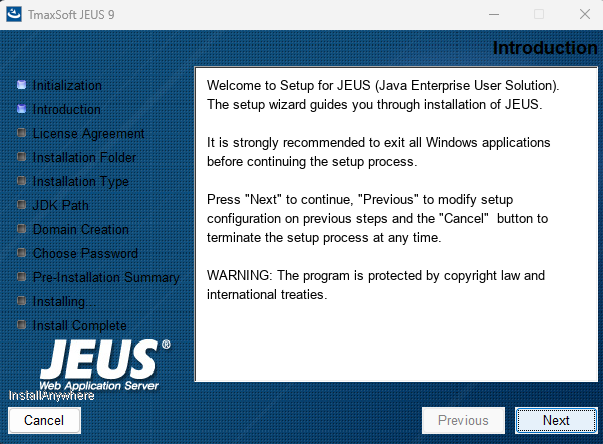 Installation on Windows - Introduction
 -
The License Agreement screen appears. Read the license agreement, select "I accept the terms of …", and then click the [Next] button.
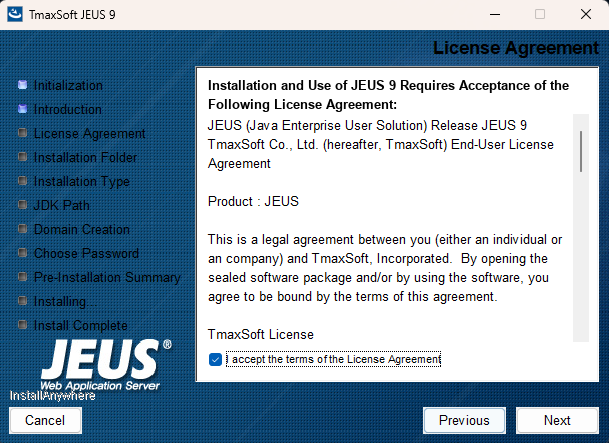 Installation on Windows - License Agreement
 -
Specify the installation path in the Installation Folder screen.
The JEUS binary and other files are installed under the specified path. Clicking the [Choose…] button allows you to select a different installation folder, while the [Restore Default Folder] button restores the default folder. It is recommended to use the default folder if possible (e.g., “C:\TmaxSoft\JEUS9”).
Select the directory to install to and click the [Next] button.
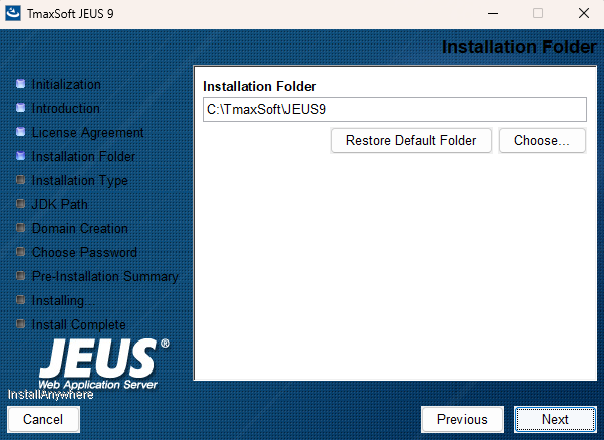 Installation on Windows - Installation Folder
 -
On the Installation Type screen, select either Master Server or Managed Server from the installation options and click the [Next] button.
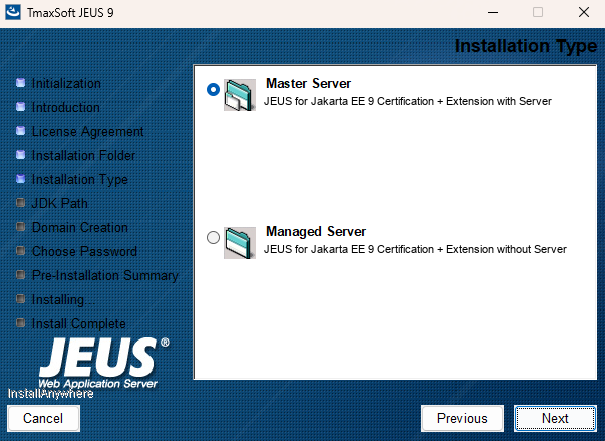 Installation on Windows - Installation Type
The following describes each installation item.
Item Description Master Server
Installs the Master Server, which manages the Managed Servers.
Managed Server
Installs the Managed Server.
-
In the JDK Path Screen, enter the full path to the installed Java JDK (e.g. “C:\java\17.0.6”).
The installer suggests a path to the installed JDK, but you can change it if necessary. Clicking the [Choose…] button allows you to select a different installation folder, while the [Restore Default Location] button reverts to the default folder.
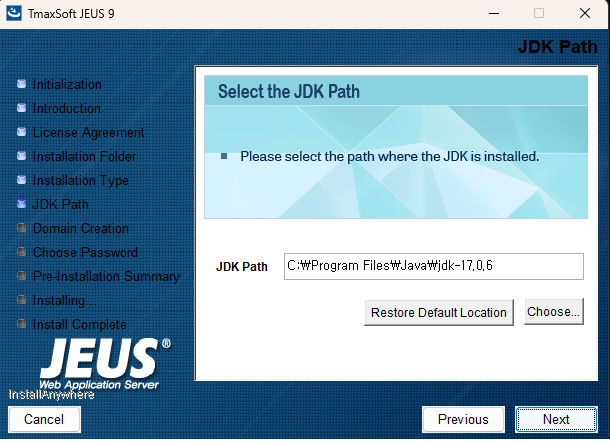 Installation on Windows - JDK Path
If you want to install Java JDK after installing JEUS, you must manually set the JAVA_HOME environment variable, which includes the JDK installation path. Therefore, it is recommended to install JEUS after installing JDK. For example, set it by running the
set JAVA_HOME=C:\java\jdk17.0.6command in the Windows command prompt. -
If you select Master Server, select Installation Mode.
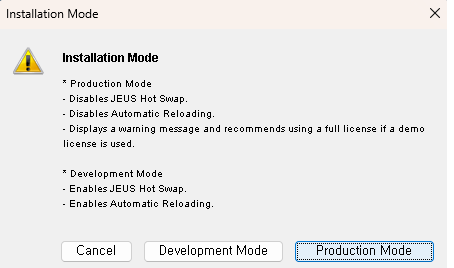 Installation on Windows - Installation Mode
The following describes the installation options.
Item Description Production Mode
Installs in production mode. JEUS Hot Swap and Automatic Reloading are disabled. If a demo license is used, a warning message will be displayed.
Development Mode
Installs in Development Mode. JEUS Hot Swap and Automatic Reloading are enabled.
-
The Windows installer will prompt you to select the Windows service registration option. For more information about registering a Windows service, see Registering a Windows Service.
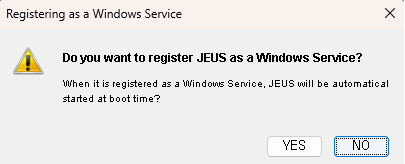 Registering as a Windows Service
 -
After reviewing the specified installation information, click [Next] to start the installation.
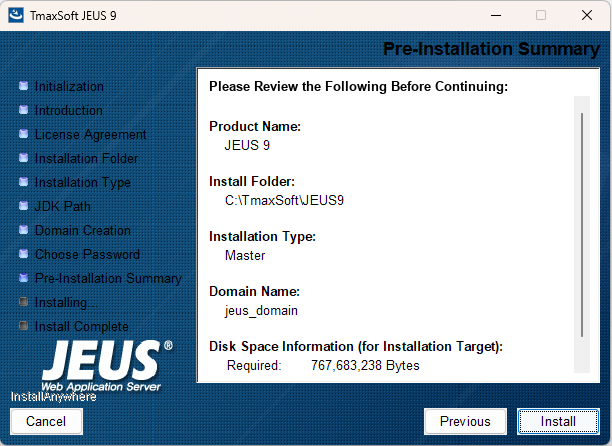 Installation on Windows - Pre-Installation Summary
 -
Enter the JEUS administrator password in the Get Password screen. The password is assigned to the 'administrator' account.
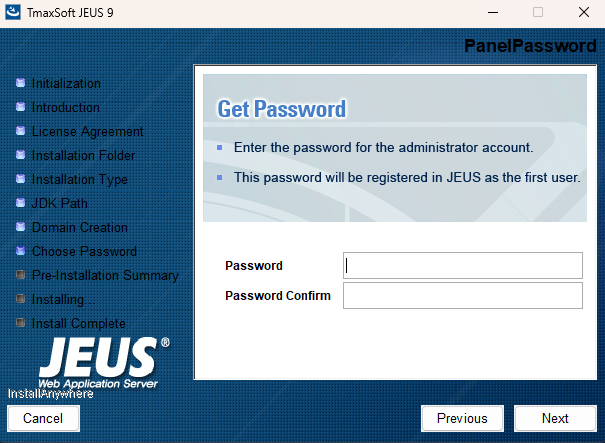 Installation on Windows - Get Password
 -
You can see that the installation is in progress.
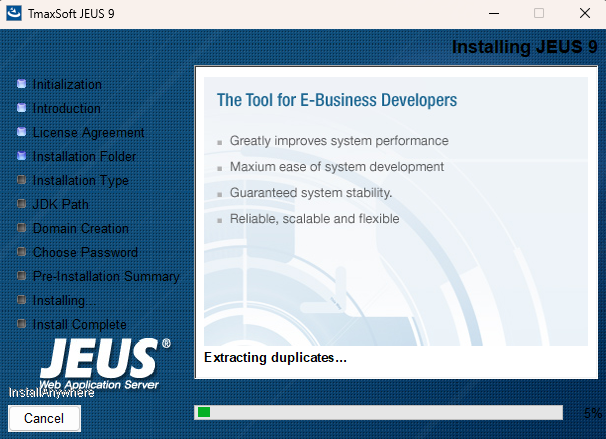 Installation on Windows - Installing JEUS
 -
After confirming that the installation is complete, click [Done] to finish the installation.
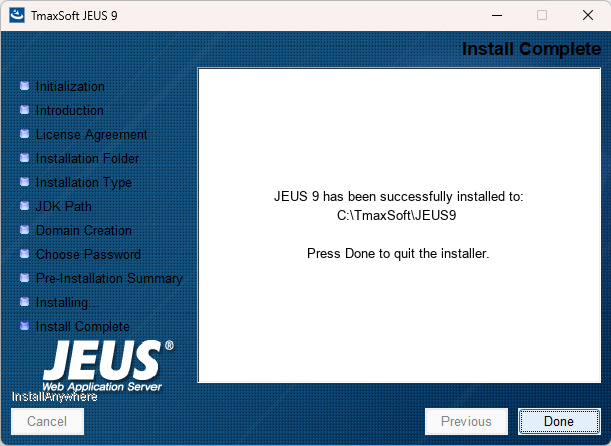 Installation on Windows - Install Complete
3. Verifying Installation
After installing JEUS, you need to configure the environment variables and start JEUS to verify that it has been installed properly. Verify the following directory structure before setting the environment variables.
3.1. Directory Structure
The following is the directory structre of the installed JEUS.
{JEUS_HOME}
    |-- bin
    |    |--[01]startMasterServer
    |    |--[01]startManagedServer
    |    |--[01]stopServer
    |    |--[01]jeusadmin
    |--derby
    |--docs
    |--lib
    |   |--shared
    |        |--[X]libraries.xml
    |--license
    |--nodemanager
    |--setup
    |--templates
    |--samples
    |--webserver
    |--domains
          |--<domain_name>
                  |--.applications
                  |--.deploymentplans
                  |--.libraries
                  |--bin
                  |--config
                  |--lib
                  |   |--application
                  |--servers
                      |--<server_name>
                             |--.workspace
                             |     |--deployed
                             |     |--tmp
                             |     |--web-nio
                             |     |--tmlog
                             |--bin
                             |--lib
                             |   |--application
                             |--logs
                             |--nodemanager

* Legend
- [01]: binary or executable file
- [X] : XML document
- [J] : JAR file
- [T] : Text file
- [C] : Class file
- [V] : java source file
- [DD] : deployment descriptor
The following describes each directory and file.
- {JEUS_HOME}
-
The root directory of JEUS. The actual directory name and location are selected during installation.
- bin
-
Contains the scripts to start and stop servers. The scripts are startMasterServer, startManagedServer, and stopServer. This directory also contains the executable files including the JEUS console tool 'jeusadmin'.
- derby
-
Contains Apache Derby, which helps users build sample applications or perform tests.
- docs
-
Contains Javadoc documentations for the APIs provided by JEUS.
- lib
-
Contains the libraries used to start JEUS. Users only need to access the shared directory.
Directory Description shared
Contains the libraries used by applications.
Library information must be added to libraries.xml in order to use the libraries in the shared directory. Reference information about the library must also be specified in the JEUS deployment descriptor of the application that will use the library. For more information about shared libraries, see Shared Libraries in JEUS Applications & Deployment Guide.
- license
-
Contains JEUS license files that are needed to execute JEUS.
- nodemanager
-
Contains the jeusnm.xml file used to configure the JEUS node manager.
- setup
-
Contains the files needed to set up the environment to use JEUS after JEUS has been installed.
- templates
-
Contains configuration file templates.
- samples
-
Contains example files for JEUS.
- webserver
-
Directory where the JEUS Web server is installed during the JEUS installation. For details, refer to JEUS Web Engine Guide.
- domains
-
Each domain contains a file named nodes.xml that contains the information about the nodes used from DOMAIN_HOME and JEUS_HOME.
DOMAIN_HOME contains the following files and directories:
-
.applications
Contains application files managed by the domain.
These can only be added or deleted by using the install-application and uninstall-application commands. This is a JEUS system directory with restricted user access. For detailed information about each command, refer to install-application and uninstall-application in JEUS Reference Guide.
-
.deploymentplans
Contains deployment plan files managed by the domain.
These can only be added or deleted by using the install-deployment-plan and uninstall-deployment-plan commands. This is a JEUS system directory with restricted user access. For detailed information about each command, refer to install-deployment-plan and uninstall-deployment-plan in JEUS Reference Guide.
-
.libraries
Contains library files managed by the domain.
These can only be added or deleted by using the install-library and uninstall-library commands. This is a JEUS system directory with restricted user access. For detailed information about each command, refer to install-library and uninstall-library in JEUS Reference Guide.
-
bin
Contains the scripts to start or stop the Master Server and Managed Server of the domain. The functions of the scripts are the same as startMasterServer, startManagedServer, and stopServer scripts in the 'JEUS_HOME/bin' directory, except that the users don’t need to specify the file names.
-
config
Contains backup files that store changes to domain.xml, a domain configuration file. For detailed information about domain configurations, refer to Changing Domain Settings in JEUS Domain Guide.
Directory Description security
-
SYSTEM_DOMAIN: Contains security domain files, including accounts.xml and policies.xml. Each XML file can be dynamically modified by using jeusadmin. For detailed information about security domain configurations, refer to Configuring the Security System Domain in JEUS Security Guide.
-
security-domains.xml: Contains security domain configuration for JEUS.
-
security.key: Contains the keys for symmetric key encryption. They are created when 'JEUS_HOME/bin/encryption' is executed. For detailed information about the security.key file, refer to Configuring Password Security in JEUS Security Guide.
-
policy: Contains the Java permissions configuration file. This is used by Java SE Security Manager, separate from the JEUS security system.
servlet
-
web.xml: This file is used when a web module does not have a separate web.xml file. By default, the file is empty.
-
webcommon.xml: Settings that apply to all Web modules of the Web engines in the domain. For detailed information about the file, refer to Directory Structure in JEUS Web Engine Guide.
webadmin
-
Contains the WebAdmin configuration file.
-
rolewithusers.json: Defines authority relationships between users and WebAdmin pages.
-
-
lib/application
Contains the shared application libraries for the domain.
If a library conflicts with an application library in the SERVER_HOME directory, it is overridden by 'SERVER_HOME/lib/application' and a warning message appears. For detailed information about the 'lib/application' directory, refer to lib/application Directory in JEUS Applications & Deployment Guide.
-
servers
Create the SERVER_HOME directory by using the server name in this directory. For detailed information about the directory structure, refer to Server Directory Structure in JEUS Server Guide.
Directory Description .workspace
Contains workspaces used by each JEUS server. Cannot be modified by the user.
bin
Contains scripts for starting and stopping the server. The scripts execute the same functions as those in 'JEUS_HOME/bin', but they do not require the domain and server names.
-
Master Server: uses startMasterServer and stopServer.
-
Managed Server: uses startManagedServer and stopserver.
lib/application
Contains application libraries for the server. This directory takes precedence over the domain-level library directory (DOMAIN_HOME/lib/application). If a library conflicts with an application library in the DOMAIN_HOME/lib/application, the file in this directory overrides that in DOMAIN_HOME and a warning message appears. For detailed information about lib/application, refer to lib/application Directory in JEUS Applications & Deployment Guide.
logs
Includes launcher logs, server logs, and access log files. For detailed information, refer to Logging in JEUS Server Guide.
nodemanager
Contains information that determines whether the server was managed by the node manager at the time of reboot. This directory is used by JEUS and user access is restricted.
-
-
3.2. Environment Configurations
The environment variables must be configured in order to use JEUS. Some environment variables are set during the installation, but they can be changed if needed. The PATH variable is set in the .profile/.cshrc file and other environment variables are set in the $JEUS_HOME/bin/jeus.peoperties file. If you want to set different environment variables for each server, create a $JEUS_HOME/bin/<SERVER_NAME>.properties file. When starting the server, use the [-server] option to specify the server name.
|
When using a node manager, you cannot set environment variables per server. |
The following describes each environment variable.
| Environment Variable | Description |
|---|---|
PATH |
System path. It must include:
|
JEUS_HOME |
JEUS installation directory. (Example: C:\TmaxSoft\JEUS9) |
JEUS_LIBPATH |
JEUS library file path. (Example: C:\TmaxSoft\JEUS9\lib\system) |
VM_TYPE |
Option to use the Java HotSpot JVM. (Example: hotspot or old) |
USERNAME |
Administrator account ID. |
PASSWORD |
Administrator account password. |
JAVA_HOME |
Path to JDK. (Example: /usr/jdk17) |
ANT_HOME |
ANT installation directory path. (Example: C:\TmaxSoft\JEUS9\lib\etc\ant) |
JAVA_ARGS |
JDK parameters. |
JAVA_VENDOR |
JDK vendor. (Example: Sun, IBM) |
3.3. Starting JEUS
Use the following steps to start JEUS in order to verify that JEUS has been installed properly.
-
Start the Master Server (MASTER) by entering 'startMasterServer' command at the console prompt. Default ID is 'administrator' and password is the input value during JEUS installation.
The following is how to start the Master Server (MASTER) by executing the command.
startMasterServer -u <user_name> -p <password>
Once the Master Server is started, you will see the message saying, 'Successfully started the server. The server state is now RUNNING'.
C:\TmaxSoft\JEUS9\bin> startMasterServer -u administrator -p <password>
***************************************************************
  - JEUS Home         : C:\TmaxSoft\JEUS9
  - Added Java Option : -Djeus.io.buffer.size-per-pool=81920 -Djeus.cdi.enabled=false -Djeus.jms.server.manager.produce-wait-strategy-type=blocking -Djeus.servlet.sortWebinfLibraries=name_asc
***************************************************************

=============== JEUS LICENSE INFORMATION ================
== VERSION : JEUS 9.1 (9.1.0.0-b63)
== EDITION: Enterprise (Trial License)
== NOTICE: This license restricts the number of allowed clients.
== Max. Number of Clients: 5
==========================================================
[2025.06.19 14:57:18][1] [launcher-1] [Config-0153] DomainConfigServiceProvider is jeus.service.descriptor.JEUSDomainDescriptorFile.
This license is not appropriate for product runtime mode. Replace the license with an appropriate one.
[2025.06.19 14:57:18][1] [launcher-1] [Config-0157] SecurityDomainsConfigServiceProvider is jeus.service.descriptor.SecurityDomainsDescriptorFile.
[2025.06.19 14:57:18][2] [launcher-1] [Launcher-0012] Starting the server [adminServer] with the command
 C:\Program Files\Java\jdk-17.0.6\bin\java -DadminServer -Xms1024m -Xmx1024m -XX:MetaspaceSize=128m -XX:MaxMetaspaceSize=512m -Djeus.io.buffer.size-per-pool=81920 -Djeus.cdi.enabled=false -Djeus.jms.server.manager.produce-wait-strategy-type=blocking -Djeus.servlet.sortWebinfLibraries=name_asc -server -Xbootclasspath/a:C:\TmaxSoft\JEUS9\lib\system\extension.jar --add-opens=java.base/java.lang=ALL-UNNAMED --add-opens=java.base/java.util=ALL-UNNAMED --add-opens=java.base/java.security=ALL-UNNAMED --add-opens=java.base/sun.nio.ch=ALL-UNNAMED --add-opens=java.base/sun.security.util=ALL-UNNAMED --add-exports=java.base/sun.net.www.protocol.jar=ALL-UNNAMED --add-exports=java.base/sun.nio.cs=ALL-UNNAMED --add-exports=java.base/sun.reflect.misc=ALL-UNNAMED --add-exports=java.base/sun.security.util=ALL-UNNAMED --add-exports=java.rmi/sun.rmi.server=ALL-UNNAMED --add-exports=java.xml/com.sun.org.apache.xerces.internal.jaxp=ALL-UNNAMED --add-exports=java.xml/com.sun.org.apache.xerces.internal.parsers=ALL-UNNAMED --add-exports=java.xml/com.sun.org.apache.xml.internal.serialize=ALL-UNNAMED --add-exports=java.xml/com.sun.org.apache.xerces.internal.dom=ALL-UNNAMED --add-opens=java.base/java.io=ALL-UNNAMED --add-opens=java.base/java.lang.reflect=ALL-UNNAMED --add-exports=java.xml/com.sun.org.apache.xerces.internal.util=ALL-UNNAMED -classpath C:\TmaxSoft\JEUS9\lib\system\bootstrap.jar -Djava.security.policy=C:\TmaxSoft\JEUS9\domains\jeus_domain\config\security\policy -Djava.library.path=C:\TmaxSoft\JEUS9\lib\system -Djeus.properties.replicate=jeus,java.util.logging,sun.rmi.dgc,java.net -Djeus.server.home=C:\TmaxSoft\JEUS9\domains\jeus_domain\servers\adminServer -Djeus.server.name=adminServer -Djava.util.logging.config.file=C:\TmaxSoft\JEUS9\bin\logging.properties -Dsun.rmi.dgc.server.gcInterval=3600000 -Djava.util.logging.manager=jeus.util.logging.JeusLogManager -Djeus.home=C:\TmaxSoft\JEUS9 -Djava.net.preferIPv4Stack=true -Djeus.tm.checkReg=true -Djeus.dispatcher.blocking=true -Dsun.rmi.dgc.client.gcInterval=3600000 -Djeus.tool.webadmin.locale.language=ko -Djeus.domain.name=jeus_domain -Djava.naming.factory.initial=jeus.jndi.JNSContextFactory -Djava.naming.factory.url.pkgs=jeus.jndi.jns.url -Djeus.server.protectmode=false -Dis.jeus.master=true -Dsun.net.http.errorstream.enableBuffering=true -XX:+UnlockDiagnosticVMOptions -XX:+LogVMOutput -XX:LogFile=C:\TmaxSoft\JEUS9\domains\jeus_domain\servers\adminServer\logs\jvm.log jeus.server.admin.MasterServerBootstrapper -domain jeus_domain -u administrator -verbose -server adminServer .
[2025.06.19 14:57:18][2] [launcher-1] [Launcher-0014] The server[adminServer] is being started ...
[2025.06.19 14:57:18][1] [adminServer-1] [Config-0153] DomainConfigServiceProvider is jeus.service.descriptor.JEUSDomainDescriptorFile.
[2025.06.19 14:57:18][1] [adminServer-1] [Config-0157] SecurityDomainsConfigServiceProvider is jeus.service.descriptor.SecurityDomainsDescriptorFile.
[2025.06.19 14:57:18][2] [adminServer-1] [SERVER-0248] The JEUS server is STARTING.
[2025.06.19 14:57:18][0] [adminServer-1] [SERVER-0000] Version information - JEUS 9.1 (9.1.0.0-b63).

... Omitted

[2025.06.19 14:57:19][2] [adminServer-1] [SERVER-0248] The JEUS server is STANDBY.
[2025.06.19 14:57:19][2] [adminServer-1] [SERVER-0248] The JEUS server is STARTING.
[2025.06.19 14:57:19][2] [adminServer-1] [WEB-3413] The web engine is ready to receive requests.
[2025.06.19 14:57:19][2] [adminServer-1] [NET-0002] Beginning to listen to NonBlockingChannelAcceptor: qpsp1:8808.
[2025.06.19 14:57:19][2] [adminServer-1] [UNIFY-0100] Listener information

+------------+-------+--------------+-----------+----------------------------------------+
| Name       | SSL   | Address:Port | Protocol  | Virtual Listener                       |
+------------+-------+--------------+-----------+----------------------------------------+
| base       | false | 0.0.0.0:9736 | VIRTUAL   | ClassFTP                               |
|            |       |              |           | SecurityServer                         |
|            |       |              |           | JMXConnectionServer/JEUSMP_adminServer |
|            |       |              |           | JMXConnectionServer/JeusMBeanServer    |
|            |       |              |           | TransactionManager                     |
|            |       |              |           | JMSServiceChannel-default              |
|            |       |              |           | FileTransfer                           |
|            |       |              |           | JNDI                                   |
|            |       |              | HTTP      |                                        |
+------------+-------+--------------+-----------+----------------------------------------+
| http-server| false | 0.0.0.0:8808 | ProObject |                                        |
|            |       |              | HTTP      |                                        |
+------------+-------+--------------+-----------+----------------------------------------+

... Omitted

[2025.06.19 14:57:19][2] [launcher-13] [Launcher-0034] The server[adminServer] initialization completed successfully[pid : 473].
[2025.06.19 14:57:19][0] [launcher-1] [Launcher-0040] Successfully started the server[adminServer]. The server state is now RUNNING.
-
If an "Invalid License" message is displayed, there is a problem with the license. Obtain a license from TmaxSoft and copy it to the '$JEUS_HOME/license' directory.
-
Verify that all the steps have been completed successfully and that the environment variables have been configured correctly. In particular, check that the '/jeus/bin' directory is included in the system path so that the startMasterServer script can be executed.
-
-
Start the Managed Server (MS). You can start the Managed Server by executing the 'startManagedServer' command.
-
startManagedServer command
The following shows how to start the Managed Server (MS) using the startManagedServer command.
startManagedServer -domain <domain_name> -server <server_name> -u <user_name> -p <password>
When you enter the command at the console prompt, the following message is displayed. Generally, the default ID is 'administrator' and the password is the value entered during the JEUS installation. If the JEUS MS successfully boots and starts, you will see the message, saying 'Successfully started the server. The server state is now RUNNING'.
C:\TmaxSoft\JEUS9\bin> startManagedServer -domain jeus_domain -server server2 -u administrator -p <password>
***************************************************************
  - JEUS Home         : C:\TmaxSoft\JEUS9
  - Added Java Option : -Djeus.io.buffer.size-per-pool=81920 -Djeus.cdi.enabled=false -Djeus.jms.server.manager.produce-wait-strategy-type=blocking -Djeus.servlet.sortWebinfLibraries=name_asc
***************************************************************

=============== JEUS LICENSE INFORMATION ================
== VERSION : JEUS 9.1 (9.1.0.0-b63)
== EDITION: Enterprise (Trial License)
== NOTICE: This license restricts the number of allowed clients.
== Max. Number of Clients: 5
==========================================================
[2025.06.19 15:00:20][2] [launcher-1] [SERVER-0201] Successfully connected to the JEUS Master Server(localhost:9736).
[2025.06.19 15:00:20][2] [launcher-1] [Launcher-0058] All local configurations are up-to-date.
[2025.06.19 15:00:20][1] [launcher-1] [Config-0157] SecurityDomainsConfigServiceProvider is jeus.service.descriptor.SecurityDomainsDescriptorFile.
[2025.06.19 15:00:21][1] [launcher-1] [Config-0153] DomainConfigServiceProvider is jeus.service.descriptor.JEUSDomainDescriptorFile.
This license is not appropriate for product runtime mode. Replace the license with an appropriate one.
[2025.06.19 15:00:21][2] [launcher-1] [Launcher-0012] Starting the server [server2] with the command
 C:\Program Files\Java\jdk-17.0.6\bin\java -Dserver2 -Djeus.io.buffer.size-per-pool=81920 -Djeus.cdi.enabled=false -Djeus.jms.server.manager.produce-wait-strategy-type=blocking -Djeus.servlet.sortWebinfLibraries=name_asc -server -Xbootclasspath/a:C:\TmaxSoft\JEUS9\lib\system\extension.jar --add-opens=java.base/java.lang=ALL-UNNAMED --add-opens=java.base/java.util=ALL-UNNAMED --add-opens=java.base/java.security=ALL-UNNAMED --add-opens=java.base/sun.nio.ch=ALL-UNNAMED --add-opens=java.base/sun.security.util=ALL-UNNAMED --add-exports=java.base/sun.net.www.protocol.jar=ALL-UNNAMED --add-exports=java.base/sun.nio.cs=ALL-UNNAMED --add-exports=java.base/sun.reflect.misc=ALL-UNNAMED --add-exports=java.base/sun.security.util=ALL-UNNAMED --add-exports=java.rmi/sun.rmi.server=ALL-UNNAMED --add-exports=java.xml/com.sun.org.apache.xerces.internal.jaxp=ALL-UNNAMED --add-exports=java.xml/com.sun.org.apache.xerces.internal.parsers=ALL-UNNAMED --add-exports=java.xml/com.sun.org.apache.xml.internal.serialize=ALL-UNNAMED --add-exports=java.xml/com.sun.org.apache.xerces.internal.dom=ALL-UNNAMED --add-opens=java.base/java.io=ALL-UNNAMED --add-opens=java.base/java.lang.reflect=ALL-UNNAMED --add-exports=java.xml/com.sun.org.apache.xerces.internal.util=ALL-UNNAMED -classpath C:\TmaxSoft\JEUS9\lib\system\bootstrap.jar -Djava.security.policy=C:\TmaxSoft\JEUS9\domains\jeus_domain\config\security\policy -Djava.library.path=C:\TmaxSoft\JEUS9\lib\system -Djeus.properties.replicate=jeus,java.util.logging,sun.rmi.dgc,java.net -Djeus.server.home=C:\TmaxSoft\JEUS9\domains\jeus_domain\servers\server2 -Djeus.server.name=server2 -Djava.util.logging.config.file=C:\TmaxSoft\JEUS9\bin\logging.properties -Dsun.rmi.dgc.server.gcInterval=3600000 -Djava.util.logging.manager=jeus.util.logging.JeusLogManager -Djeus.home=C:\TmaxSoft\JEUS9 -Djava.net.preferIPv4Stack=true -Djeus.tm.checkReg=true -Djeus.dispatcher.blocking=true -Dsun.rmi.dgc.client.gcInterval=3600000 -Djeus.domain.name=jeus_domain -Djava.naming.factory.initial=jeus.jndi.JNSContextFactory -Djava.naming.factory.url.pkgs=jeus.jndi.jns.url -Djeus.server.protectmode=false -Djeus.master.port=9736 -Djeus.master.host=192.168.20.138 -Djeus.master.protocol=http -XX:+UnlockDiagnosticVMOptions -XX:+LogVMOutput -XX:LogFile=C:\TmaxSoft\JEUS9\domains\jeus_domain\servers\server2\logs\jvm.log jeus.server.ServerBootstrapper -domain jeus_domain -server server2 -u administrator -verbose -masterurl 192.168.20.138:9736 .
[2025.06.19 15:00:21][2] [launcher-1] [Launcher-0014] The server[server2] is being started ...
[2025.06.19 15:00:21][1] [server2-1] [Config-0153] DomainConfigServiceProvider is jeus.service.descriptor.JEUSDomainDescriptorFile.
[2025.06.19 15:00:21][1] [server2-1] [Config-0157] SecurityDomainsConfigServiceProvider is jeus.service.descriptor.SecurityDomainsDescriptorFile.
[2025.06.19 15:00:21][2] [server2-1] [SERVER-0248] The JEUS server is STARTING.
[2025.06.19 15:00:21][0] [server2-1] [SERVER-0000] Version information - JEUS 9.1 (9.1.0.0-b63).

... Omitted

[2025.06.19 15:00:22][2] [server2-50] [WEB-3484] ServletContext[name=healthcheck, path=/health, ctime=Thu Jun 19 15:00:22 KST 2025, apptime=1682326357716, index=1682326357716] started successfully.
[2025.06.19 15:00:22][2] [server2-50] [Deploy-0099] Successfully started the application[healthcheck, 1682326357716].
[2025.06.19 15:00:22][0] [server2-1] [SERVER-0242] Successfully started the server.
[2025.06.19 15:00:22][2] [server2-1] [SERVER-0248] The JEUS server is RUNNING.
[2025.06.19 15:00:22][2] [server2-1] [SERVER-0401] The elapsed time to start: 3626ms.
[2025.06.19 15:00:22][2] [launcher-14] [Launcher-0034] The server[server2] initialization completed successfully[pid : 792].
[2025.06.19 15:00:22][0] [launcher-1] [Launcher-0040] Successfully started the server[server2]. The server state is now RUNNING.
-
If an "Invalid License" message is displayed, there is a problem with the license. Obtain a license from TmaxSoft and copy it to the '$JEUS_HOME/license' directory.
-
Verify that all the steps have been completed successfully and that the environment variables have been configured correctly. In particular, check that the '/jeus/bin' directory is included in the system path so that the startManagedServer script can be executed.
-
-
-
Execute the jeusadmin command in another console window. Default ID is 'administrator' and password is the input value during JEUS installation.
C:\TmaxSoft\JEUS9> jeusadmin -u administrator -p <password>
Attempting to connect to 127.0.0.1:9736.
The connection has been established to JEUS Master Server [adminServer] in the domain [jeus_domain].
JEUS 9 Administration Tool
To view help, use the 'help' command.
[MASTER]jeus_domain.adminServer>
-
A message that JEUS has been started successfully will be displayed and the prompt shows that it is ready to accept user input.
-
To access WebAdmin, which manages JEUS, open a web browser and enter the following address in the address bar.
http://localhost:9736/webadmin
-
Enter the JEUS administrator account and password and click [Login]. The default administrator account is 'administrator' and the password is the input value during JEUS installation.
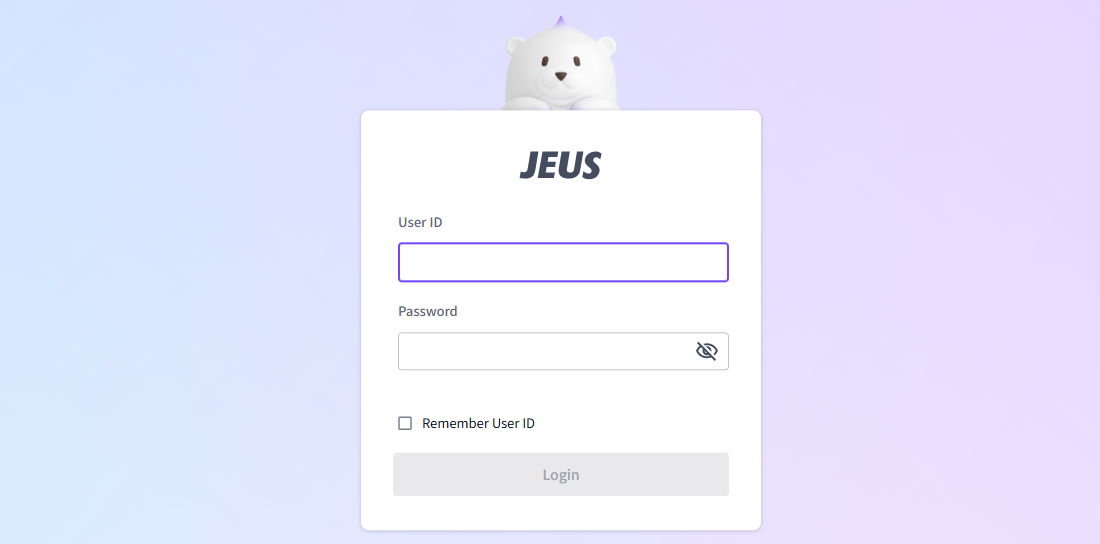 WebAdmin Login
 -
You can manage JEUS in WebAdmin.
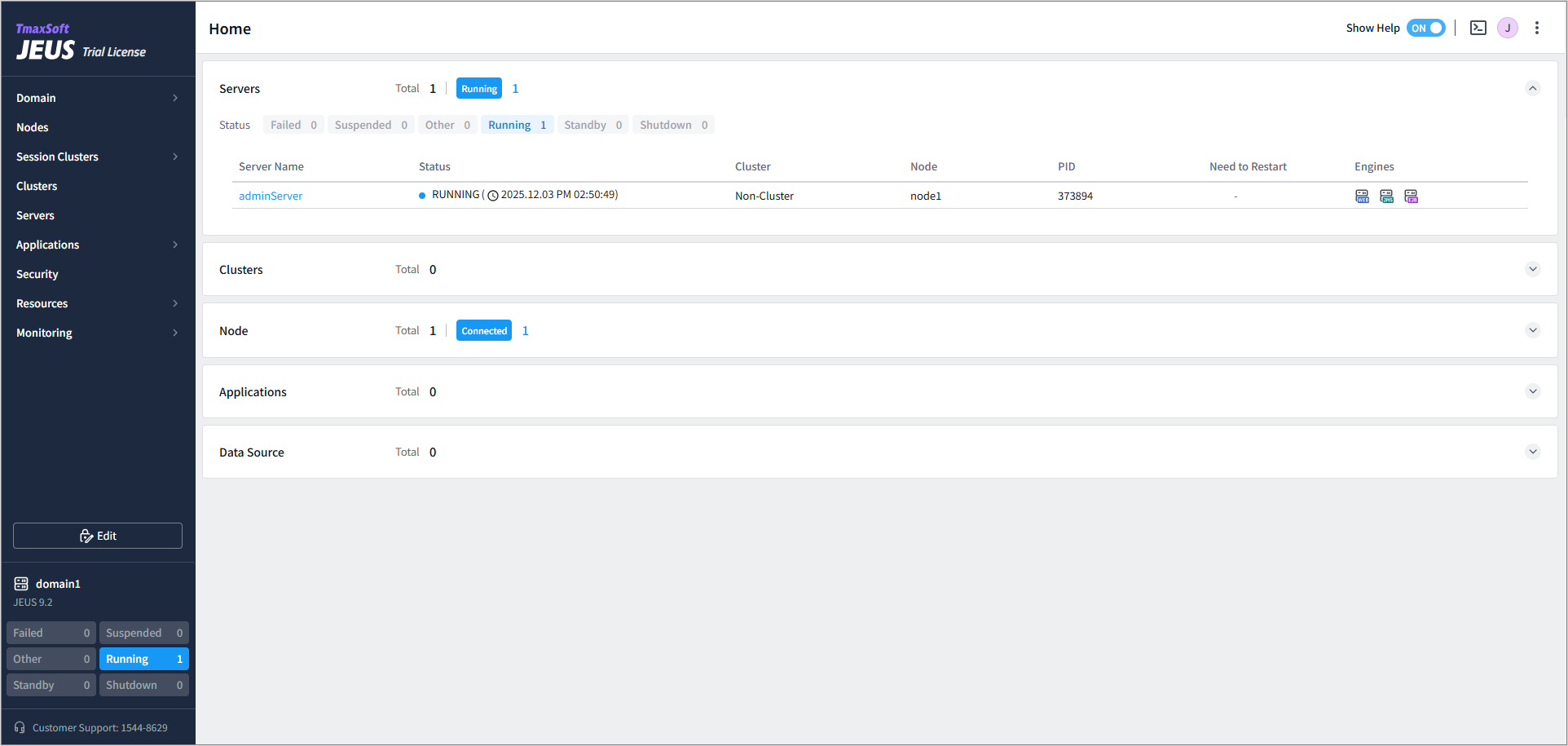 WebAdmin Main Screen
 -
Log in to jeusadmin at the console. The JEUS server can be controlled by using the local-start-server and local-shutdown commands of the tool. To terminate a JEUS server, enter local-shutdown command.
[MASTER]jeus_domain.adminServer>local-shutdown
Executing this command affects the service. Do you want to continue? (y/n)y
The server [adminServer] has been shut down successfully.
-
To terminate jeusadmin, run the exit command.
offline>exit
4. Registering and Deleting a Windows Service
JEUS is designed to run as a service on Windows operating systems. To enable this feature, run the service located in the JEUS installation folder. This section describes the process of registering and removing JEUS to run as a Windows NT service.
4.1. Registering a Windows Service
The following describes the process of registering a Windows service.
-
Go to the bin directory under %JEUS_HOME% where svcinstall.exe is located. (Default: C:\TmaxSoft\JEUS9\bin)
-
Run .svcinstall.exe to register JEUS as a service in Windows.
svcinstall <jeus.ini> <id> <password>
The <jeus.ini> file under %JEUS_HOME%\bin is a configuration file used when running JEUS as a Windows NT service. The jeus.ini file name (registered under the name jeus) is set as the service name. This file stores configuration information such as JEUS_HOME and JAVA_HOME. For more information about the service configuration file, see Windows Service Configuration.
The following is an example of using the svcinstall command.
C:\TmaxSoft\JEUS9\bin>svcinstall jeus.ini administrator <password>
...
JEUS Service[jeusservice-jeus] installed
4.2. Verifying Service Registration
There are two ways to check service registration:
-
Using the GUI mode
Click the [Start] > [Settings] > [Control Panel] > [Administrative Tools] > [Services] menu in Windows to check whether the JEUS service exists in the Services window.
-
Using the command prompt
To check the service, use the following command prompt:
svcremove -list
The following is an example of checking the service:
C:\TmaxSoft\JEUS9\bin>svcremove -list

** JEUS Services **
----------------------------
- jeus

Total count: 1
You can see the result message that a total of 1 Windows service has been registered.
4.3. Restarting the Service
In Windows, select [Start] > [Settings] > [Control Panel] > [Administrative Tools] > [Services], and double-click the service name (default: JEUS9 Windows service) in the Services window. The [Start], [Stop], [Pause], and [Continue] buttons are displayed. To restart the service, click [Stop] to stop it, and then click [Start] to start it again. Restarting the service will load the engine and other components registered in the installation file.
|
If you modify the account information, you must restart the Master using the new account so that the updated account information is applied to the node manager. You must also restart the Windows service to update the account information stored in the node manager. |
4.4. Deleting a Windows Service
To stop a service, select [Start] > [Settings] > [Control Panel] > [Administrative Tools] > [Services] in Windows and click [Stop] to stop the service.
To permanently remove a service, run svcremove.exe in the %JEUS_HOME%\bin directory. Use the service name as an argument.
C:\TmaxSoft\JEUS9\bin> svcremove.exe jeus
...
Removing windows service 'jeus'...
Successfully done.
5. Uninstallation
The following is the process of uninstalling JEUS.
-
Terminate all JEUS programs, including startMasterServer, startManagedServer scripts, and WebAdmin.
-
Run Uninstall.exe from the UninstallerData\JEUS9 directory in the JEUS home directory (e.g. C:\TmaxSoft\JEUS9\UninstallerData\JEUS9), or select [Start] > [Programs] > [TmaxSoft] > [JEUS9] > [Uninstall] from the Windows menu.
-
The initial uninstallation screen appears as follows.
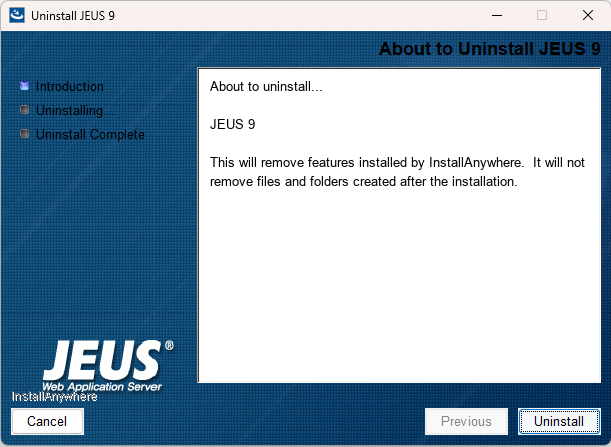 Uninstallation on Windows - Uninstallation Screen
 -
Read the message on the uninstallation screen and if you are ready to remove JEUS, click [Uninstall]. To exit the program without uninstalling JEUS, click [Cancel].
-
The screen for removing the JEUS Windows service appears. This option is available only in the installation file for Windows.
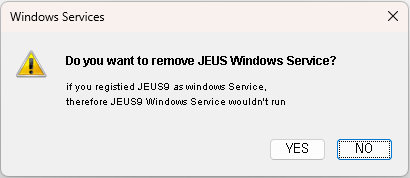 Uninstallation on Windows - Option to Delete JEUS Windows Service
 -
You can check the progress of uninstalling JEUS on the Uninstall JEUS screen.
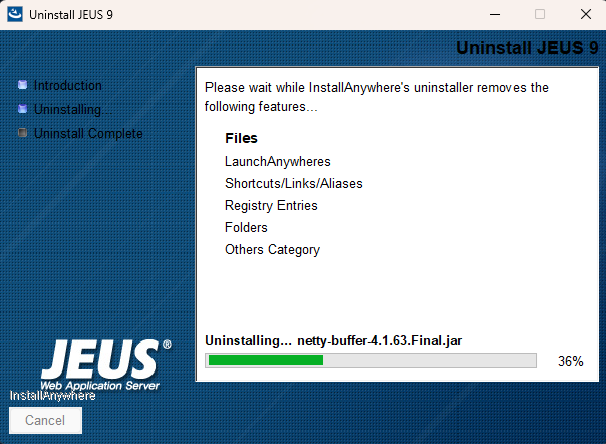 Uninstallation on Windows - Uninstall JEUS
 -
Wait until the Uninstall Complete screen appears.
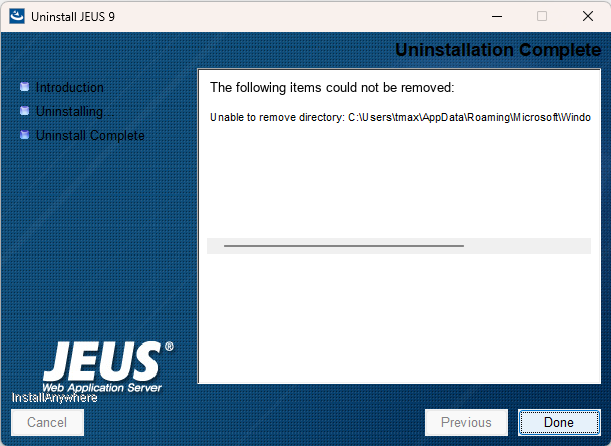 Uninstallation on Windows - Uninstall Complete
Files created after JEUS installation are not removed by the uninstaller. You can either leave these files as they are or delete them manually.
-
Click [Done] to exit the JEUS Uninstaller.
-
Restart your computer, or log off and log back in, to apply the changes.
5.1. Verifying Uninstallation
The following describes how to verify that JEUS has been uninstalled.
-
Files and Directories
Check that all files and folders under the %JEUS_HOME% directory (Default: C:\TmaxSoft\JEUS9) have been removed. Files created after JEUS installation are not deleted automatically, so you must manually delete them.
-
Shortcuts
Confirm that any shortcuts created during installation (such as items in the Programs menu) have been removed.
-
Environment Variables
Verify that the following environment variables have been removed. If necessary, manually remove them from the Windows menu by selecting [Start] > [Settings] > [Control Panel] > [System] > [Advanced] > [Environment Variables]. You can check the variables using the set command in the Windows Command Prompt. If you restart your computer after uninstalling JEUS, the variables should already be updated.
-
PATH
The JEUS path (e.g. C:\TmaxSoft\JEUS9) no longer appears in the system path variable.