General Batch
This chapter describes the concept of general batch, characteristics of architecture, and the process of creating, testing, and debugging the general batch.
1. Overview
General batch is the most general type of batch and a batch program executed by UNIX Command.
Unlike online services, general batch processes large amounts of data, performs repetitive tasks, and returns results.
| Online Service | Generic Batch | |
|---|---|---|
Data processing unit |
1 case |
N case(s) |
Transaction management unit |
1 case |
N case(s) |
Result response |
Immediate response after processing a case |
After processing N case(s) |
Basic Structure
The general batch architecture follows the hierarchical structure of online services. It means that there is a hierarchical structure because there are pre/post-processing modules of the system based on the general batch module. And most of DBIO, FileIO and common utilities used in the online service module are also used in the general batch module.
In general batch, a batch program is created by separating the script layer and the business layer.
| Layer | Description |
|---|---|
Script Layer |
Creates input processing, branch of business, and other environment settings necessary for general batch server. |
Business Layer |
Controls transaction of batch parameters and internal flow of batch server as an execution program necessary to call the business module. |
In general batch, roles are divided by layer to support efficient general batch programs.
The following describes the structure of a general batch program and the process between each component.
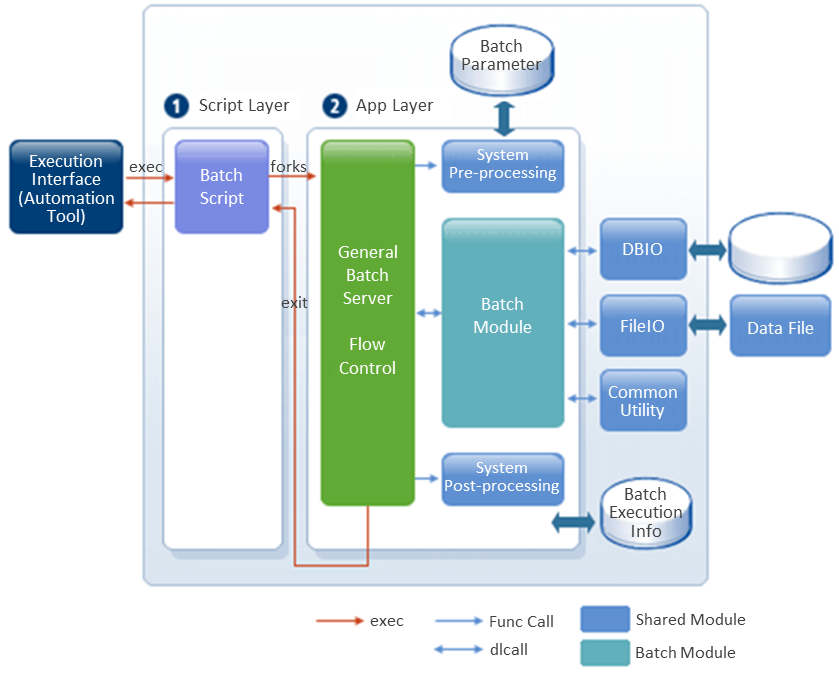
-
Execution Interface
Executes a batch program in UNIX Command or by using the JOB scheduler.
-
Batch Script
Executes the batch server and performs the batch server’s argument processing and business branching, except for the structured tasks such as SQL (Structured Query Language).
-
General Batch Server
Performs initialization logic for such as database access, CommBuff, log, and global variables, and provides work customization area using flow processing.
-
Flow Control
Controls the calling order of batch modules.
-
Batch Parameter
Controls the batch services developed by ProFrame.
-
Batch Module
Performs the batch program.
-
System Pre/Post Processing
Performs processing such as loading batch parameters and transaction control, setting CommBuff job data, and writing start and end information of batch job information.
2. Creating General Batch
As mentioned in Batch Creation Process, general batch creation is divided into three stages of creating a general batch server, creating a general batch module, and confirming the creation of a general batch.
The following is a detailed procedure for creating a general batch.
-
Creating a general batch server
-
Configuration for general batch server
If the environment setting of the general batch server provided by ProFrame is used as it is, this step can be omitted.
-
Creating a general batch server
-
-
Creating a general batch module
-
Configuration for general batch module
If the environment setting of the general batch module provided by ProFrame is used as it is, this step can be omitted.
-
Creating a general batch module
-
-
Conforming a general batch creation
-
Testing a general batch module
-
Debugging
If an error occurs in the created general batch module, the process of modifying the general batch module is repeated until the error is resolved.
-
The following section describes how to create a general batch.
2.1. Creating a General Batch Server
Configuration for General Batch Server
The following is the procedure to check and set configuration information on general batch server of WebAdmin.
-
Enter the following URL in the address bar of your Internet browser.
http://IP_ADDRESS:PORT/pfmdevsvr/login.jsp
'IP_ADDRESS' is the IP address of the host where the integration server is installed, and 'PORT' is the listen port number of the integration server set in WEBMain.xml.
-
Following is the login screen of WebAdmin.
When there is no account setting, you can use the default ID and password.
Default ID and password are ‘Tester’ and ‘1234’, respectively. Select the 'PROJECT ID' of the project you want to access, enter the 'ID' and 'PW', and click the [Login] to access WebAdmin.
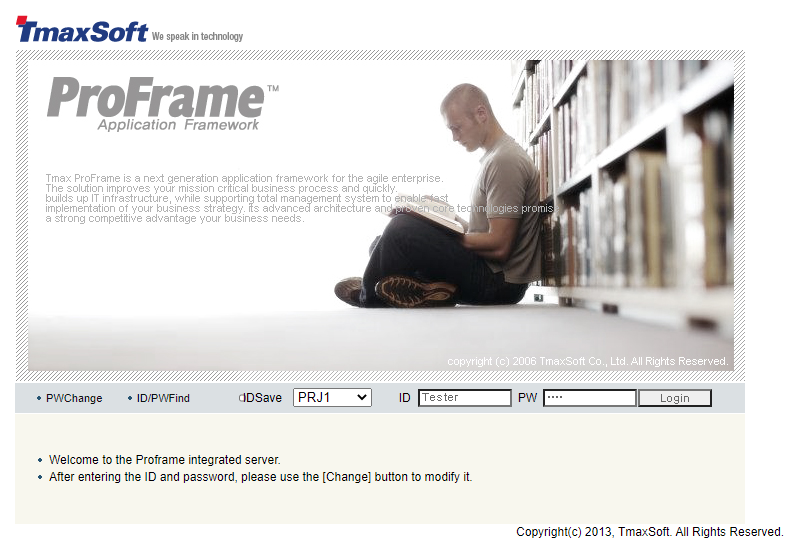 WebAdmin – Login Screen
 -
When the login is successfully completed, the main screen of WebAdmin appears.
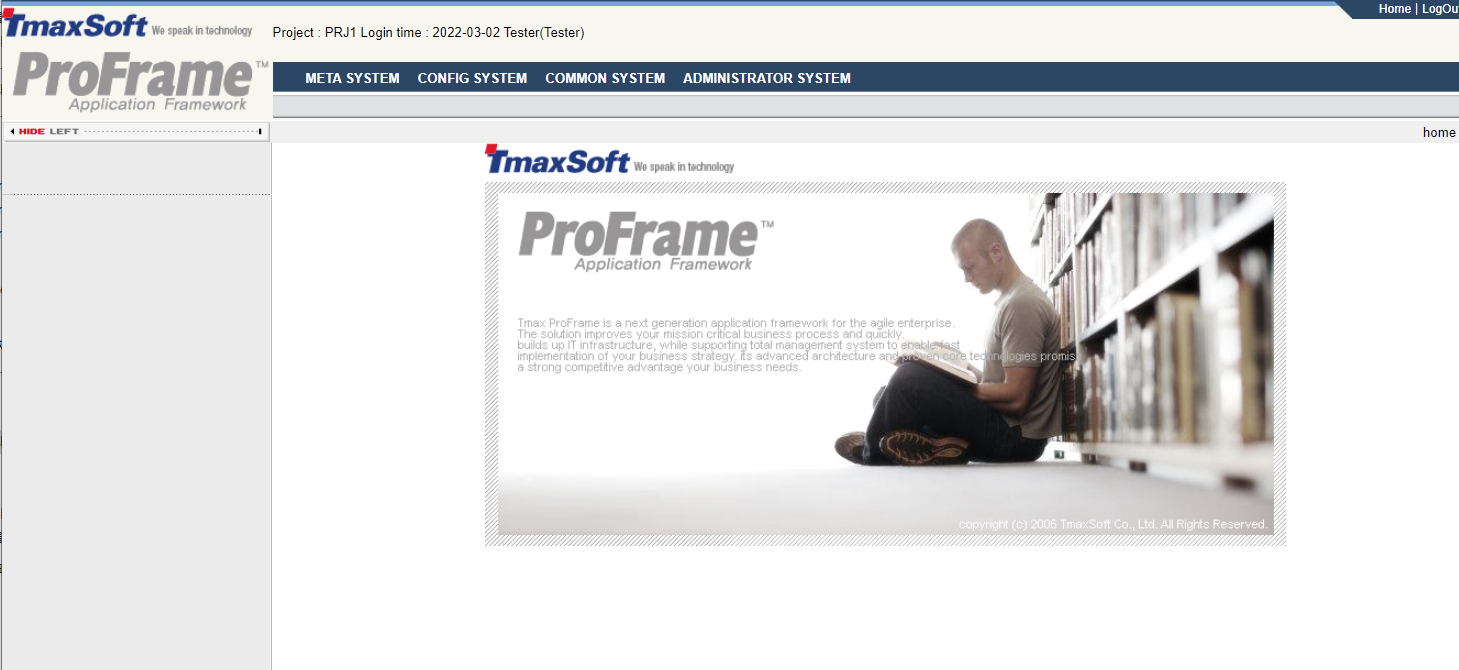 WebAdmin – Main Screen
 -
Select [CONFIG SYTEM] > [CONFIG MANAGEMENT] > [ConfigMgmt] > [ConfigMgmt] on the connected WebAdmin main screen.
-
When the ConfgMgmt screen appears, select 'COMPILE_CONFIG' in the 'ConfigGroup'.
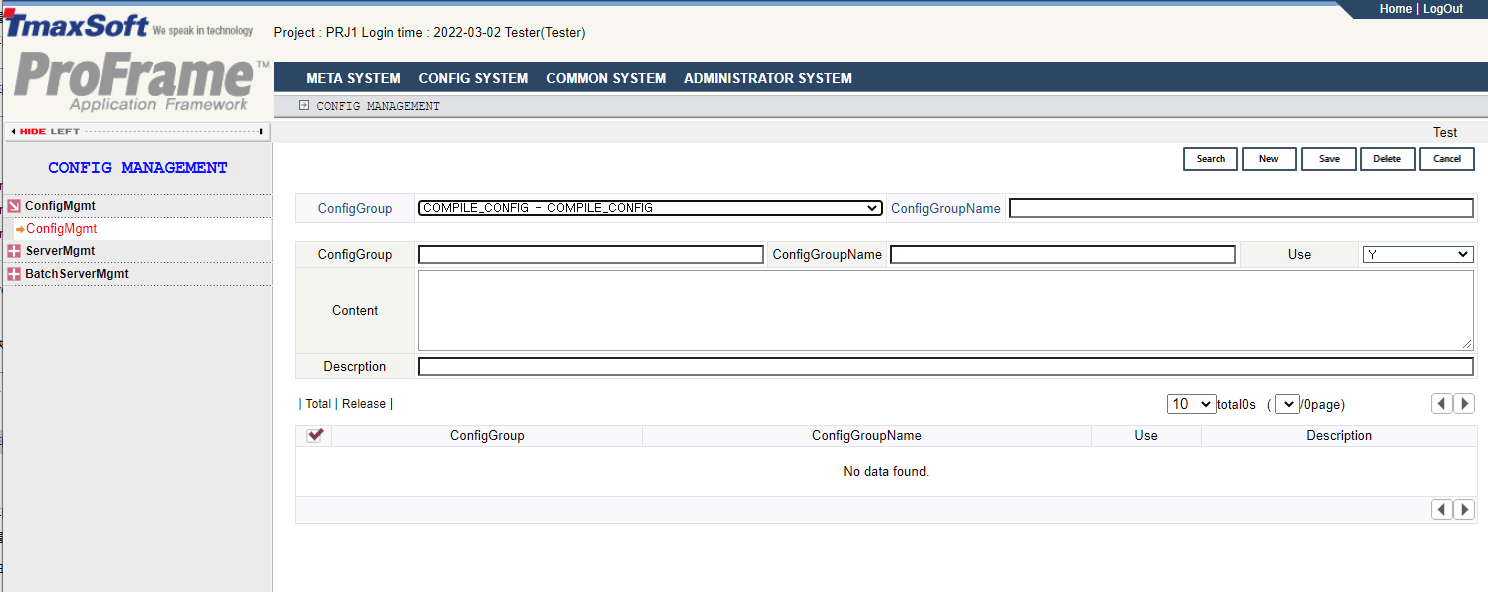 WebAdmin – Basic Configuration Management Screen
COMPILE_CONFIG is a configuration group that includes preferences related to general batch server creation. These preferences can be customized to the actual business processes.
-
If you select the COMPILE_CONFIG configuration group, the currently set configuration information is automatically displayed as follows. The number of result inquiry can be adjusted up to 100 cases.
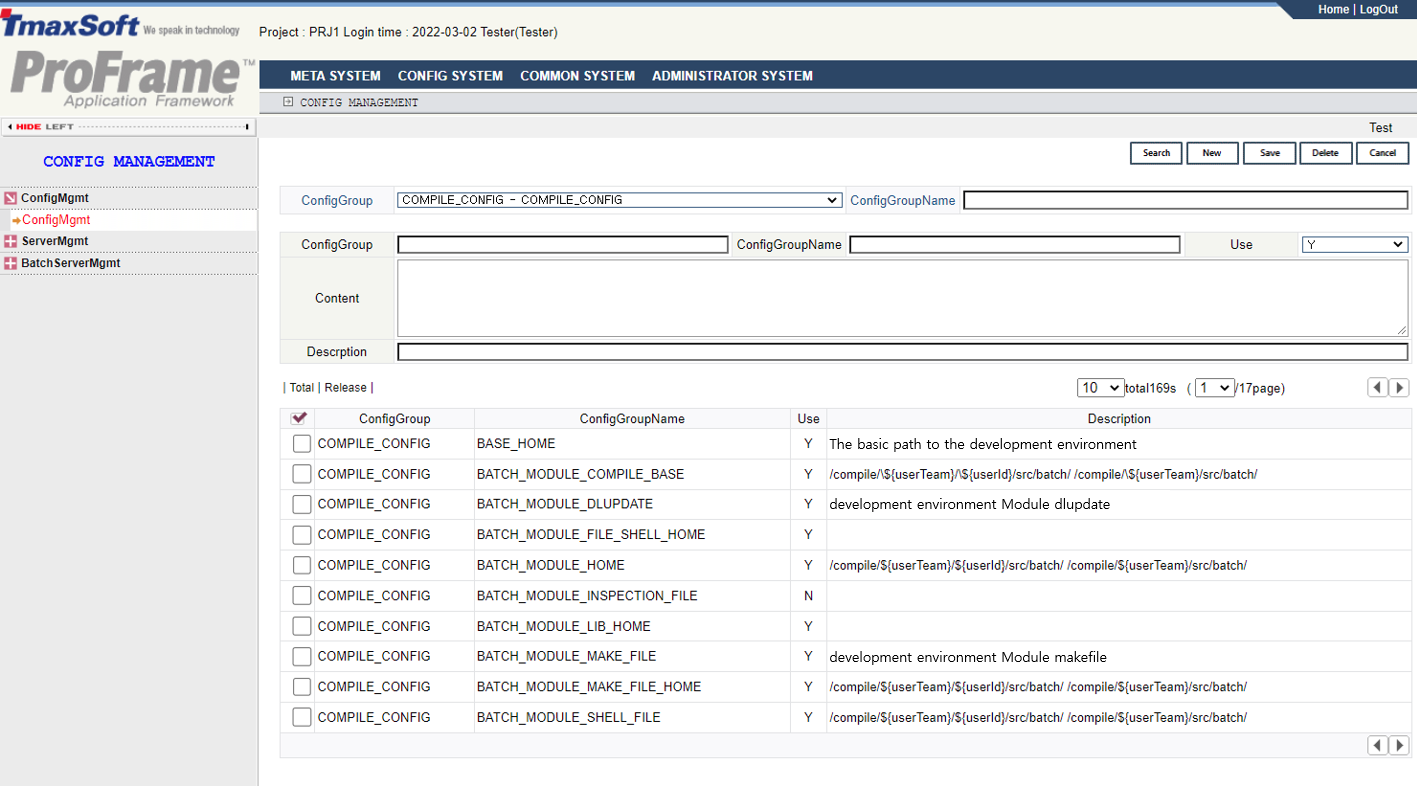 WebAdmin – COMPILE_CONFIG Inquiry Result Screen
The following is a description of each items.
Item Description GENERAL_BATCH_SERVER_COMPILE_BASE
Specifies the compile directory path of the general batch server. Enter the directory path in the Content as follows.
(Example: /compile/${resourceGroup}/src/batchServer/gen/)
GENERAL_BATCH_SERVER_HOME
Specifies the home directory path where the general batch server is created.
(Example: /compile/${resourceGroup}/src/batchServer/gen/)
GENERAL_BATCH_SERVER_LIB_HOME
Specifies the library directory path of the general batch server.
(Example: /release)
GENERAL_BATCH_SERVER_MAKE_FILE
Specifies the command to make a general batch server.
(Example: make -f ${sourceFile}.mk)
GENERAL_BATCH_SERVER_MAKE_FILE_HOME
Specifies the directory path where the make file of the general batch server is created.
(Example: /compile/${resourceGroup}/src/batchServer/gen/)
GENERAL_BATCH_SERVER_SHELL_FILE
Specifies the directory path where the shell file of the general batch server is created.
(Example: /compile/${resourceGroup}/src/batchServer/gen/)
GENERAL_BATCH_SERVER_SHELL_FILE_HOME
Specifies the home directory path where the shell file of the general batch server is created. (Example : /compile/${resourceGroup}/src/batchServer/gen/)
GENERAL_BATCH_SERVER_SOURCE_HOME
Specifies the directory path where the source of the general batch server is created.
(Example: /compile/${resourceGroup}/src/batchServer/gen/)
GENERAL_BATCH_SERVER_TEMPLATE_BASE
Specifies the directory path where the templates of the general batch server are created.
(Example: /compile/${resourceGroup}/src/batchServer/gen/)
-
Check the 'Content' value of each configuration item among the search results, and modify it to the value to be changed.
-
Select the configuration item to change.
-
Check the selected configuration information.
-
Click [Save] after modifying the information('Use', 'Content' and 'Description') of the configuration to be changed .
-
After inquiring the modified configuration items again, check the changed contents.
-
|
For more about WebAdmin, refer to ProFrame Administrator Guide. |
Creating a General Batch Server
The following is an example of the procedure for creating a general batch server.
-
Right-click on the workspace navigator and select [New] > [Server] menu.
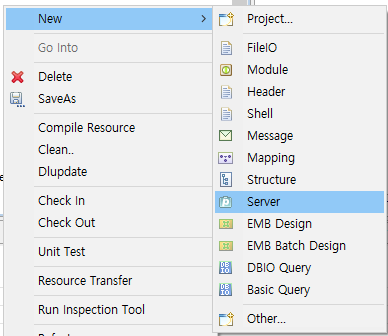 Server Menu
 -
Following New Server Project Creation dialog box pops up. Each item is required to create a general batch server.
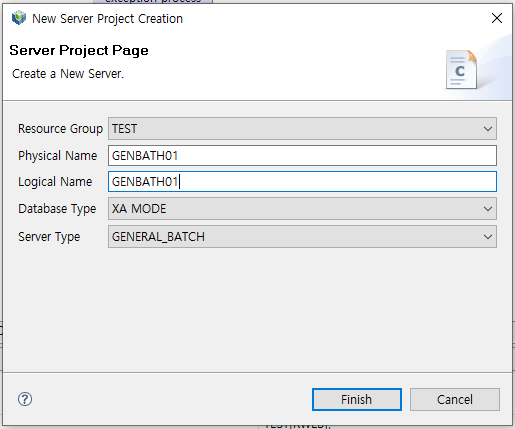 General Batch Server – New Server Project Creation Dialog
The following is a description of each item in the new server project dialog box.
Item Description Resource group
Only resource groups registered in WebAdmin are displayed and this is a required item. If there is no resource group to select, you can add it in WebAdmin.
Connect to WebAdmin and select [MetaMgmt] > [MetaSystem] > [ResourceGroupMgmt] to add a resource group. Check the currently set resource group and register the resource group to be added in the ResourceGroupMgmt.
Physical name
Physical name of general batch server.
Logical name
Logical name of a general batch server.
Database type
Select XA MODE or NON-XA MODE.
-
XA MODE: Select this when connecting to XA of TP service. Actually, the main purpose is to execute the TP service by additionally calling the pfmTpStart() function.
-
NON-XA MODE: Common database connection method.
Regardless of whether the database type is XA MODE or NON-XA MODE in the batch, the inside of the batch connects the database in the NON-XA MODE method.
In this guide, the database type is selected as XA MODE as an example, but users must note that XA MODE is used for the purpose of connecting to XA of TP service.
Server type
Select GENERAL_BATCH to create a general batch server.
-
GENERAL_BATCH: Select this when creating a general batch server. For more information, refer to General Batch.
-
RESIDENT_UCS_BATCH: Select when creating a residential batch server. For more information, refer to Residential Batch.
-
POD_BATCH: Select when creating a POD batch server. For more information, refer to POD Batch.
-
-
If you click [Finish] after setting all the required items, a total of 3 files that are the result of creating a general batch server appear as follows:
Source file name Description Server Source
Source file of the general batch server.
Make File
Make file of general batch server.
Shell File
Shell file for executing a general batch.
These files are the source files provided by ProFrame by default, and the developer can customize it to the actual business process. In this guide, the example illustrates to use the source file as it is without customization.
main(int argc, char *argv[]) { long rc = RC_NRM; int a = -1; PfmBatchContext _ctx; PfmBatchContext *ctx; bzero( ctx, sizeof(PfmBatchContext) ); /* Initializing batch : DB access(XA, NAA), Load bat_flow.cfg */ rc = pfmBatchInit( argc, argv ); if( rc != RC_NRM ) { ctx->err_ret_flag = rc; goto PFM_CATCH; } /* Executing real batch flow */ PFM_STRY (pfmBatchFrameControlProcessing( ctx, &flow_cfg ) ); /* Release post-batch processing DB connection, memory release, etc.*/ pfmBatchFini(); return (int)RC_NRM; PFM_CATCH; pfmBatchFini(); return (int)ctx->err_ret_flag; } -
Select the general batch server resources created in the workspace navigator, right-click, and select [Compile Resource].
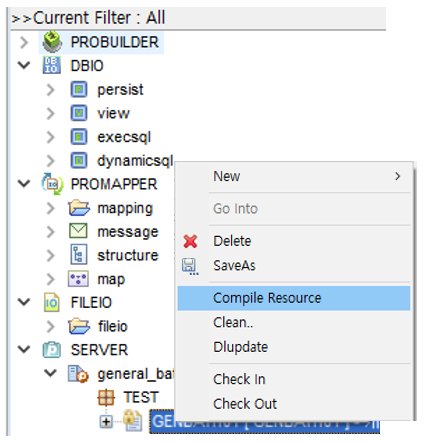 General Batch Server – Compile Resource
 -
The Compile Resource window shows the compile progress as follows:
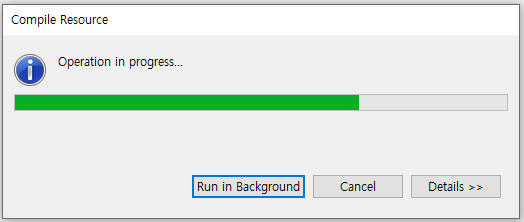 General Batch Server – Compile Resource Window
Whether compile state is displayed in the studio console view as follows:
====> Complete ExitCode = [0]
-
If the compile is completed successfully, a general batch server is created. The results can be checked in the directory containing the source files related to the general batch.
[pfmtpqa@fwsol:/home2/pfmtpqa/proframe5.0/compile/team/src/batchServer/gen]$ ls –al
Total 88
drwxrwxrwx   2 pfmtpqa  qa   512   Oct  7th  16:21 .
drwxrwxrwx   4 pfmtpqa  qa   512   Oct  7th  16:19 ..
-rwxrwxrwx   1 pfmtpqa  qa   36256 Oct  7th  16:21 GENBATCH01
-rw-rw-rw-   1 pfmtpqa  qa    2545 Oct  7th  16:19 GENBATCH01.c
-rwxrwxrwx   1 pfmtpqa  qa    1443 Oct  7th  16:19 GENBATCH01.mk
-rwxrwxrwx   1 pfmtpqa  qa      37 Oct  7th  16:19 GENBATCH01.sh
File Name Description GENBATCH01
Created general batch server.
GENBATCH01.c
Source file of created general batch server.
GENBATCH01.mk
Make file of created general batch.
GENBATCH01.sh
Shell file of created general batch.
2.2. Creating General Batch Module
Configuration for General Batch Module
In this section, the WebAdmin access process mentioned in Creating a General Batch Server is partially omitted and only the procedure for checking and setting configuration information related to the general batch module is described.
The following describes procedure to check and set configuration information related to general batch module in WebAdmin.
-
Select [CONFIG SYSTEM] > [CONFIG MANAGEMENT] > [ConfiMgmt] > [ConfMgmt] on the WebAdmin screen.
-
When the ConfiMgmt screen appears, select 'COMPILE_CONFIG' in 'ConfiGroup'. COMPILE_CONFIG is an environment configuration group that includes not only the general batch server, but also the configurations related to the general batch module. These preferences can be customized to the actual business processes.
Configuration for General Batch ModuleThe following is a description of the configurations related to the general batch module among the search result items in the figure.
Item Description BATCH_MODULE_COMPILE_BASE
Sets the directory path where general batch modules are compiled.
(Example: /compile/${resourceGroup}/src/batch/)
BATCH_MODULE_DLUPDATE
Sets the command to dlupdate the generated general batch module.
(Example: pfmdlupdate lib${sourceFile}.so)
BATCH_MODULE_HOME
Sets the home directory path of the general batch module.
(Example: /compile/${resourceGroup}/src/batch/)
BATCH_MODULE_LIB_HOME
Sets the library path of the general batch module.
(Example: /release)
BATCH_MODULE_MAKE_FILE
Sets the command to make general batch module.
(Example: make_bm.sh ${sourceFile})
BATCH_MODULE_MAKE_FILE_HOME
Sets the path where the make file of the general batch module is created.
(Example: make_bm.sh ${sourceFile})
BATCH_MODULE_SHELL_FILE
Sets the directory path where the shell file of the general batch module is created.
(Example: /compile/${resourceGroup}/src/batch/)
BATCH_MODULE_SHELL_HOME
Sets the home directory path where the shell file of the general batch module is created.
(Example: /compile/${resourceGroup}/src/batch/)
-
Check the 'Content' value of each configuration item among the search results as above, and modify it to the value to be changed.
-
Select the configuration item to change.
-
Check the selected configuration information.
-
After editing the information ('Use', 'Content', 'Description') of the configuration to be changed, click [Save].
-
After inquiring the modified configuration items again, check the changed contents.
-
|
For details on WebAdmin, refer to ProFrame Administrator Guide. |
Creating General Batch Module
The following is an example of the procedure for creating a general batch module.
-
Create DBIO using the built-in DBIO editor of the studio.
-
Create a database table. In this example, a database table required to CRUD (CREATE, READ, UPDATE, DELETE) a specific value when executing a general batch is created.
The following is an example of creating a table script.
CREATE TABLE EMP (
  EMPNO NUMBER(4) NOT NULL,
  ENAME VARCHAR(10),
  JOB VARCHAR(9),
  MGR NUMBER(4)
)
-
Create the DBIO module of the created database table.
To create DBIO, the following information must be entered. Each item is mandatory. For details on creating DBIO, refer to ProFrame DBIO Developer Guide.
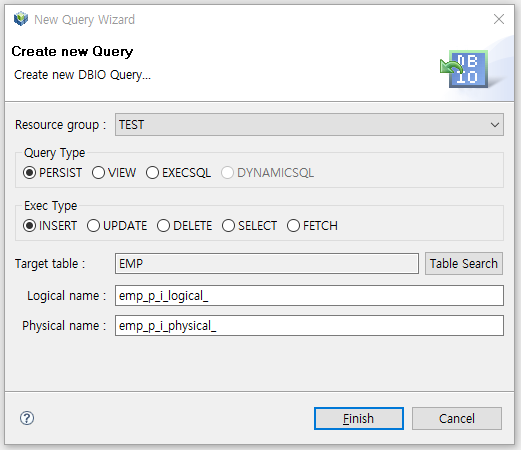 General Batch Module – Creating DBIO
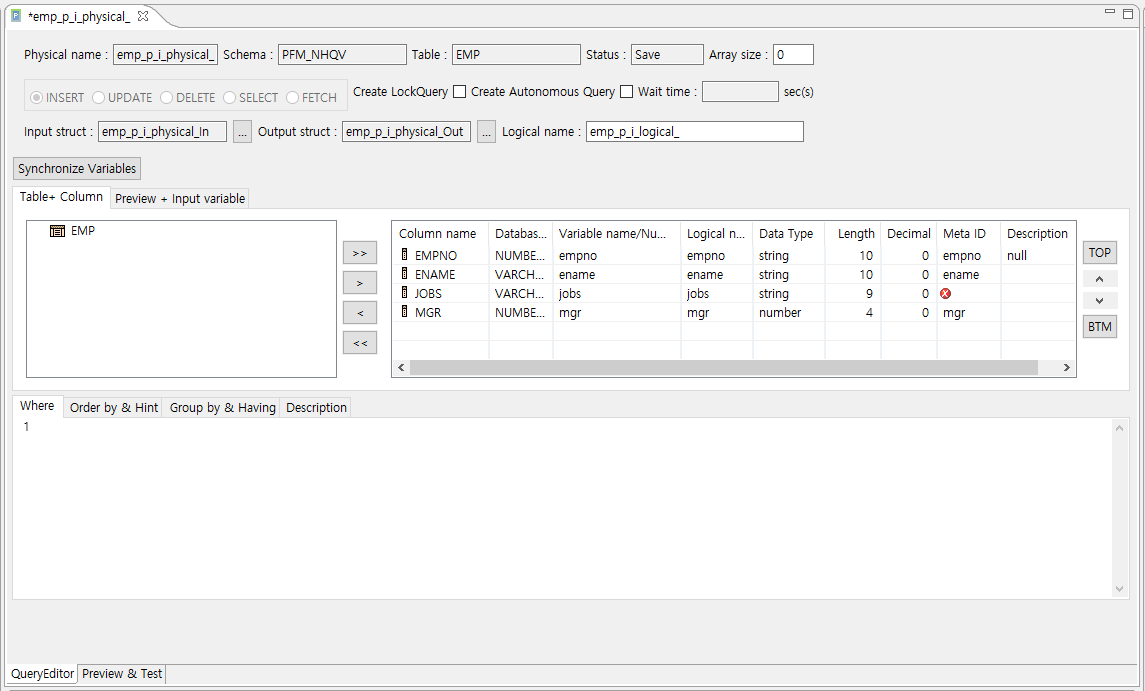 General Batch Module – DBIO Editor
 -
Compile the DBIO written as above. When compile is complete, the following result appears in the console view of the studio.
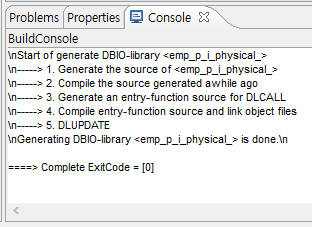 General Batch Module – Creating DBIO
General batch module – A .pc file of the registered physical name on the DBIO creation screen is created. Depending on each DBMS vendor, the file extension is different. For example, .pc is created for Oracle, .tbc for Tibero, .cp for Sysbase, and .sqc for DB2.
-
-
Create an input/output structure using the ProMapper editor built into the studio.
-
Enter the required information for each item and click [Finish].
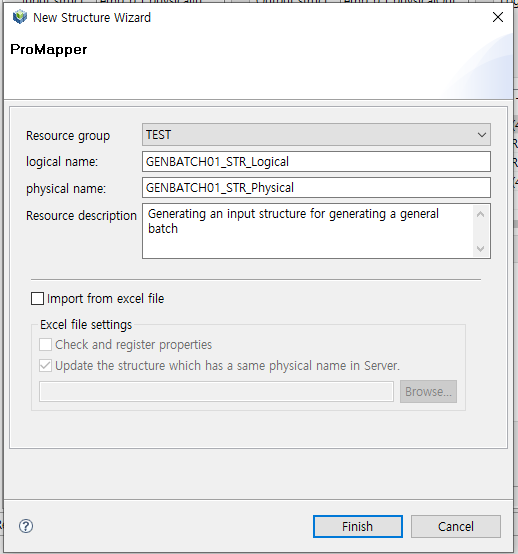 General Batch Module – Creating Input Structure
 -
Following ProMapper editor screen is displayed.
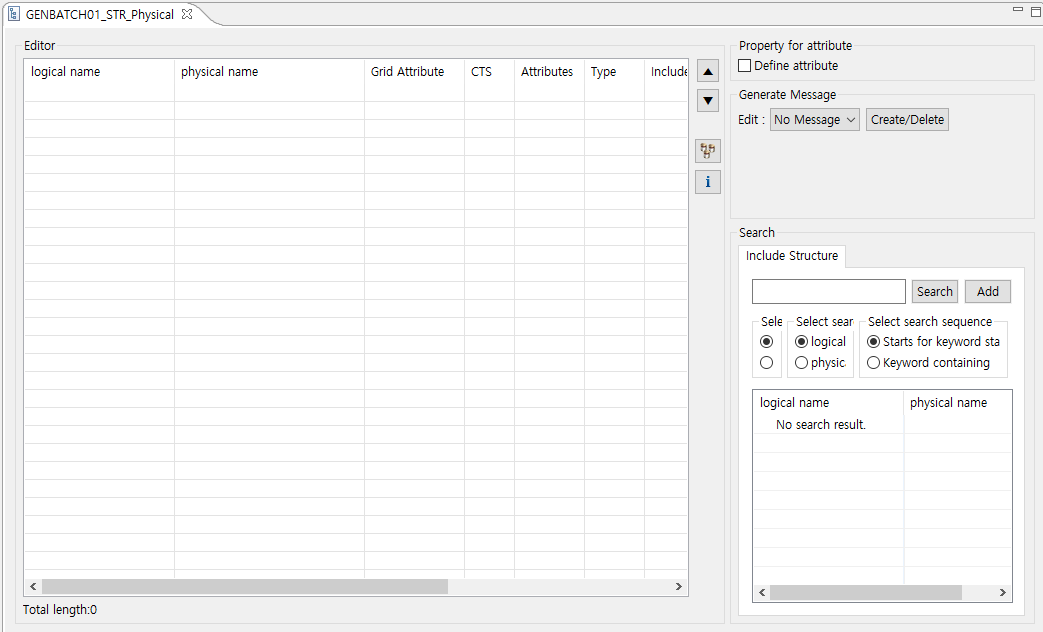 General Batch Module – ProMapper Editor
Add required column information to ProMapper editor. There are two ways to add column information.
How to add Property Pool
Drag and drop the column to be added from the Property Pool View with the mouse to add it to the ProMapper editor. The added column is set by selecting the Delimiter batch input type.
Include Structure
Retrieve the structure and add it to the ProMapper editor.
If you select the 'Delimiter' message type in the Generate Message area, a message based on the structure is created. If you want to edit the message created by default, follow the procedure described below.
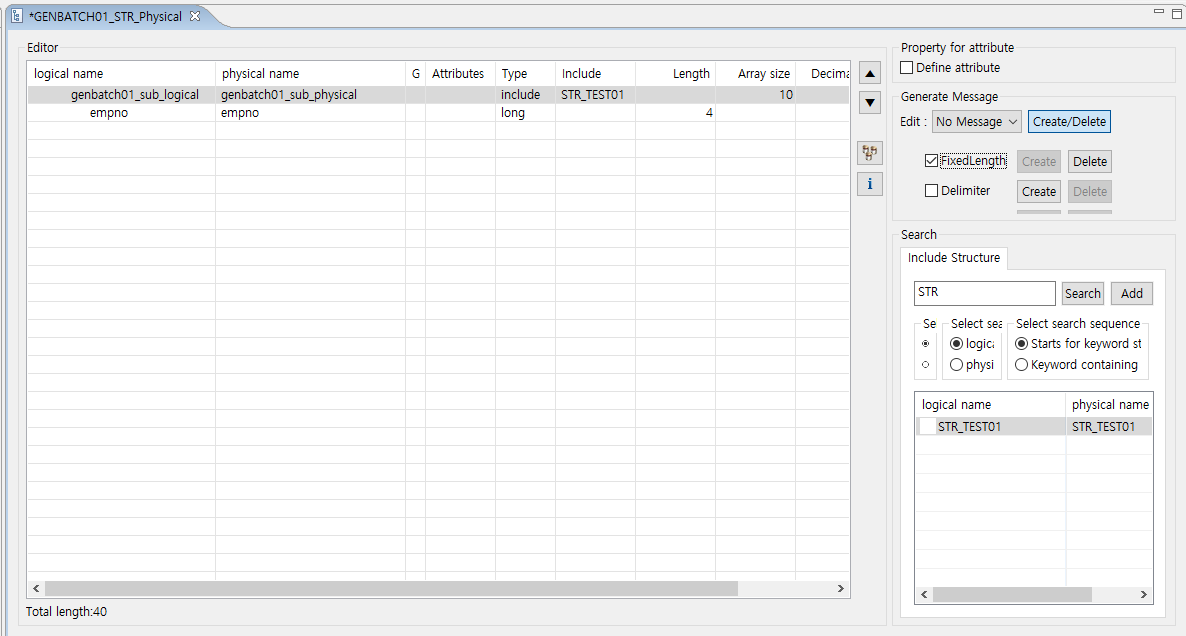 General Batch Module – Adding Structure
 -
Edit the message created by default. To edit a full message, select the message type (FixedLength, Delimiter) displayed in the message creation area.
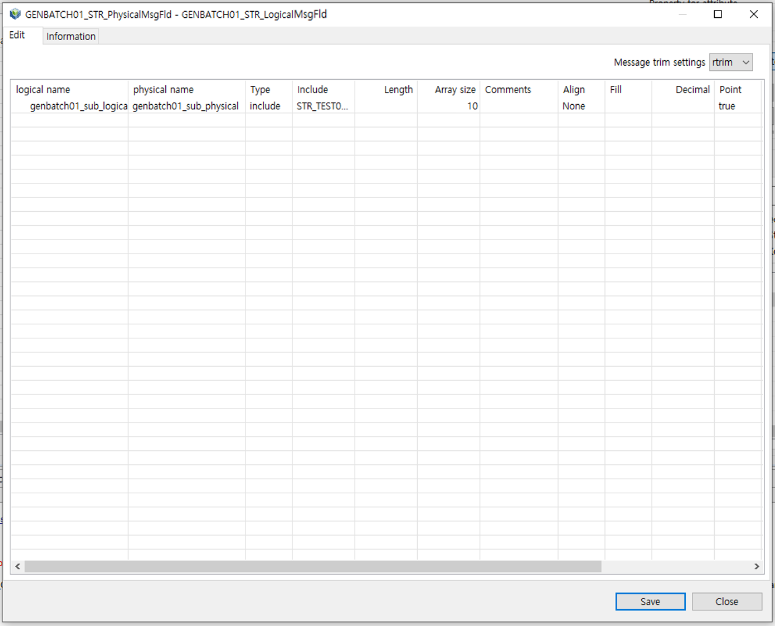 General Batch Module – Editing Message
Depending on the selected message type, the combo box value of [Edit] or the value to be set also varies. If you click the [Save] after editing the message created by default, the source for the modified message is created. If you do not modify the message created by default, you can omit this process.
-
Create an output structure.
Creating an output structure is meaningless in a general batch. Because the general batch processes only the database and files, and returns only the result value for whether it is normal or abnormal after processing, there is no need to create an output structure. For more about creating structure.m refer to ProFrame ProMapper Developer Guide.
-
Compile and Dlupdate the created I/O structure. At the end of this process, the creation of the input/output structure is completed.
-
-
Design a general batch using the EMB Designer built into the studio.
-
Right-click on the workspace navigator and select [New] > [EMB Batch Design].
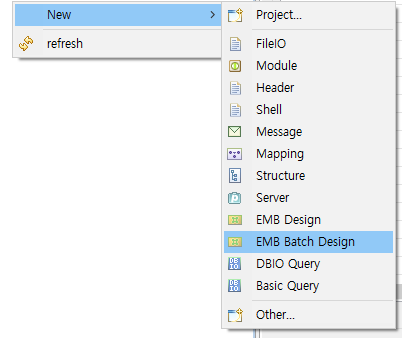 General Batch Module – EMB Batch Design Menu
 -
Following new batch module creation dialog box is displayed.
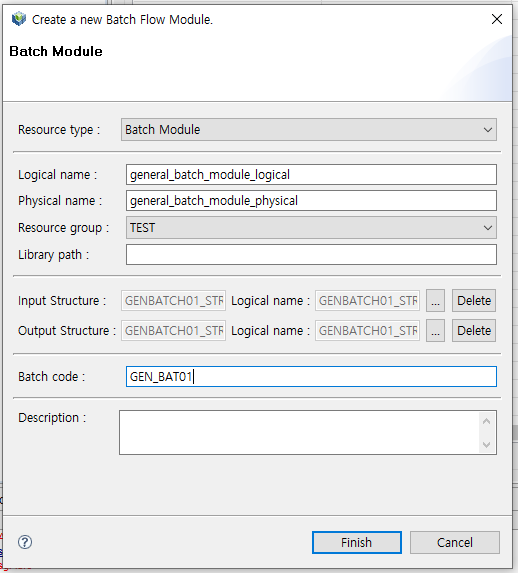 General Batch Module – Create a New Batch Flow Module Screen
Item Description Resource type
Select the resource of the batch module to create.
-
Batch Module: It is used to create a batch module.
-
Batch Template: It is used when creating a template for creating a batch module.
Logical name
Enter the logical name of the resource of the batch to create.
Physical name
Enter the physical name of the resource of the batch to create.
Resource group
A resource group is a kind of folder in which resources are classified for the convenience of development, and only resource groups registered in WebAdmin are displayed. If the desired resource group does not exist, you can add it in WebAdmin.
To add a resource group, connect to WebAdmin and select [Meta Mgmt] > [MetaSystem] > [ResourceGroupMgmt] > [ResourceGroupMgmt]. In the resource group management screen, check the currently set resource group and register the resource group to be added.
Library path
Set the directory path where the library of the external module exists.
Input Structure, Output Structure
Specify the structure to be used as the I/O parameter of the batch module. In this example, select and set the I/O structure created in General Batch Module – ProMapper Editor.
Batch code
Specify the code for executing the batch module. This batch code is a key value for inquiring batch parameters and plays a very important role.
Description
Enter a supplementary description for the batch module to create.
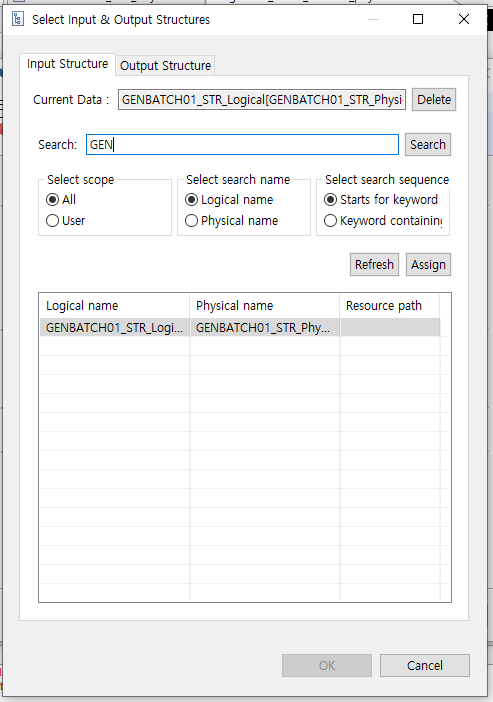 General Batch Module – Select Input & Output Structures Screen
 -
-
After setting all basic information for general batch module creation in the new batch module creation dialog box as above, click [OK]. Then, it moves to the EMB Designer screen where you can design a general batch module.
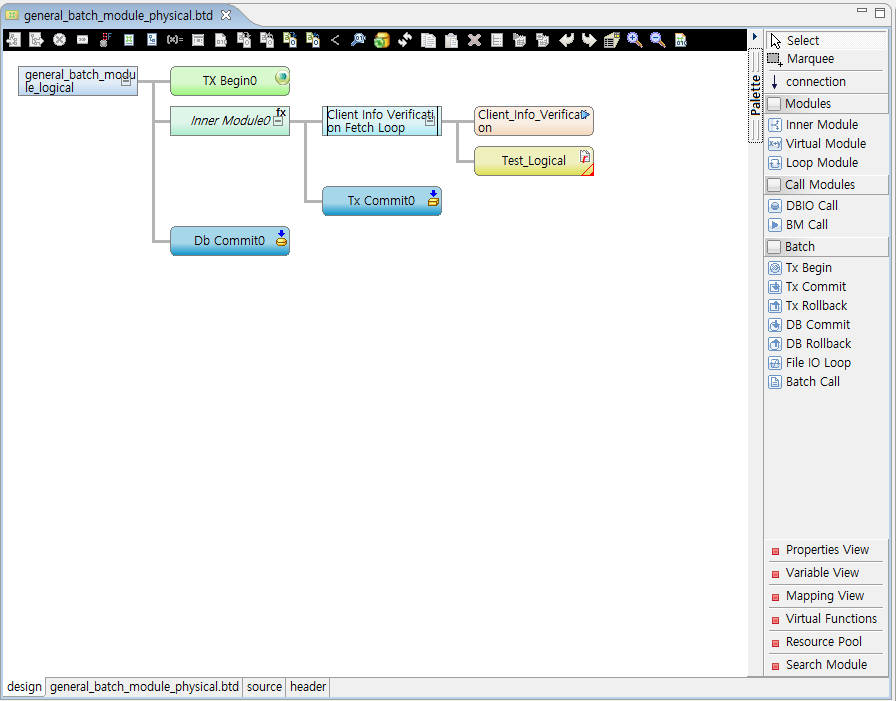 General Batch Module – Batch Design
The process of creating and designing the general batch module is the same as the method of creating the service module of the online service. For details on creating service module in online services, refer to ProFrame EMB Developer Guide.
Unlike the online service module, the batch module has a batch item added to the [Palette] of the EMB Designer built into the studio.
The above items are added because the batch module can manage database transaction internally. In general batch, the TX related API is an API for managing the transaction of the TP service when connecting to the TP-Monitor, and the DB related API is an API for managing the transaction of the database to which the batch server is directly connected.
The [File IO Loop] item is used to make a File IO Loop, and the [Batch Call] item is used to directly call another batch.
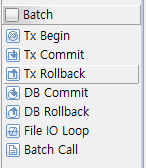 EMB Designer – Batch of [Palette] Menu
Item Description Tx Begin
Creates an API used to start a transaction when connecting to the service of TP-Monitor’s XA server.
Tx Commit
Creates an API used to commit a transaction when connecting to TP-Monitor’s XA server service.
Tx Rollback
Creates an API used to rollback a transaction when connecting to the service of TP-Monitor’s XA server.
DB Commit
Creates an API for committing the database directly connected to the batch server.
DB Rollback
Creates an API to perform rollback of the database directly connected to the batch server.
File IO Loop
Creates a Loop module when using File IO.
Batch Call
Creates a source to call other batch programs that exist on the same server.
-
2.3. General Batch Creation Check
Module Testing for General Batch
There are two ways to test the general batch module created.
-
Test by running the general batch shell created from UNIX Command.
-
After running the created general batch server, check the batch log.
|
To accumulate batch processing information in database, you need to Dlupdate pfmBatchEx of Customizing Source. Also, set JOB_INFO_FLAG (1: Batch Logging Off, 0: Batch Logging On[Default]) of the corresponding batch module to 0 (On) in the PFM_BATCH table. The batch processing results of the processing time and number of processing information details are accumulated in the PFM_BATCH_JOB table. |
In this example, the first method is to test a general batch module.
Create and test a shell file for executing general batch as follows:
./GENBATCH01 -c 'GEN_BAT01' -d 'GEN;01;TEST;'
| Item | Description |
|---|---|
GENBATCH01 |
Server name of general batch. |
-c |
Parameter to enter the batch code. |
Gen_bat01 |
Batch code. If there is none, the general batch server name is considered as batch code. |
-d |
Delimiter type input data. |
When calling the batch module created in the WorkSpace in the RI/WS reflected ProFrame, add the following phrase to the shell and test it.
### When calling a batch module in the Work Space area
export PFM_WS_DLCALL_YN=Y

### When calling a batch module in the Release Image area
export PFM_WS_DLCALL_YN=N
The following is a description of the supported general batch parameters when testing a general batch module.
-
Usage
[Batch server name] ] [-f [data]_] [-c ] [-N]
Parameter Description - d [data]
When input data is the delimiter message type.
- f [data]
When input data is the fixed length text type.
- c
When it is a batch code input data. The default batch code is the file name of the batch server.
- N
When there is no input/output business data.
-
Example
The following is an example of executing general batch according to the type of general batch parameter.
-
Enter a delimiter
[Batch server name] –d ’data1;data2;data3;’
-
Enter a fixed length
[Batch server name] –f ’data1 data2 data3 ’
-
Enter a delimiter and batch code at the same time
[Batch server name] –d ’data1;data2;data3;’ –c ‘batchcode1’
-
When there is no input/output data
[Batch server name] –N
-
Example of entering batch code without input/output data
[Batch server name] –N –c ‘batchcode1’
-
Debugging General Batch
If debugging is required after testing the general batch module, check the batch log file. The batch log file is located in the directory set in the environment variable PFM_BAT_LOG_DIR and is created as “batch server name_bat_yyyymmdd.log”.