Studio Installation
ProFrame Studio is a client program that provides an integrated development environment for various applications based on ProFrame. This chapter describes how to install ProFrame Studio.
1. Installation Using GUI Tool
To install Studio, you must know the JDK installation path.
The following are the steps for installing ProFrame Studio by using a GUI installation tool.
-
Insert ProFrame Studio CD and go to the installer directory. Skip this step if the installer is not provided with CD.
-
Execute ProFrame_Studio_C_5_0_Fix_1.exe.
-
Installer Manager opens. When the installation preparation is complete, it automatically proceeds to the next step.
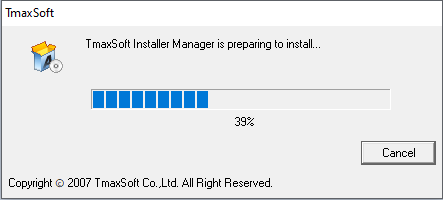 ProFrame Studio Installer – Installer Manager
 -
The window where ProFrame and its Studio are introduced is displayed.
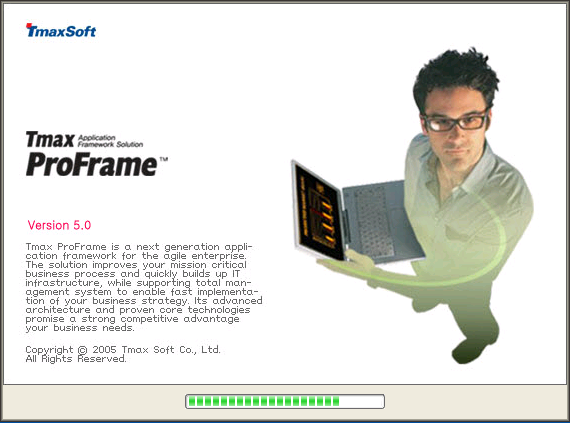 ProFrame Studio Installer – Installer Start Page
Read the introduction and then click [Next].
To go to the previous step, click [Previous]. To end the installation, click [Cancel].
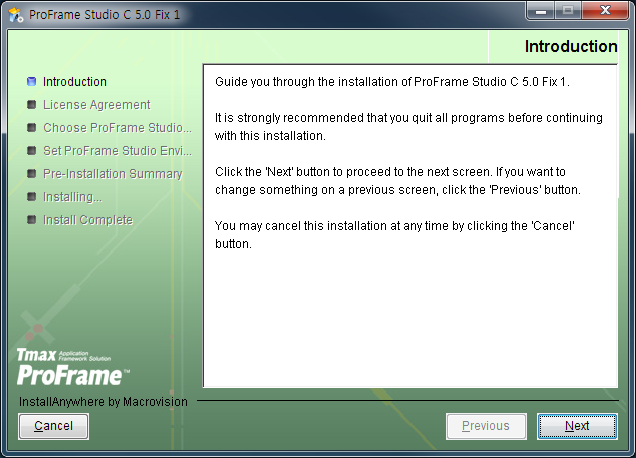 ProFrame Studio Installer – Introduction
 -
Check the license agreement and then select "I accept the terms of the License Agreement" and click [Next].
If you do not agree with the license agreement, the installation is ended.
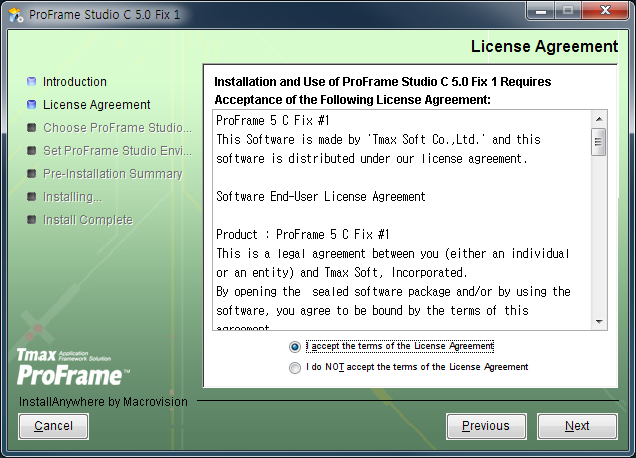 ProFrame Studio Installer - License Agreement
 -
Set the installation directory.
The default installation directory is C:\TmaxSoft\ProFrame Studio C5.0\Fix 1. You can select a desired directory by clicking [Choose…]. To restore the default installation directory, click [Restore Default Folder]. Click [Next].
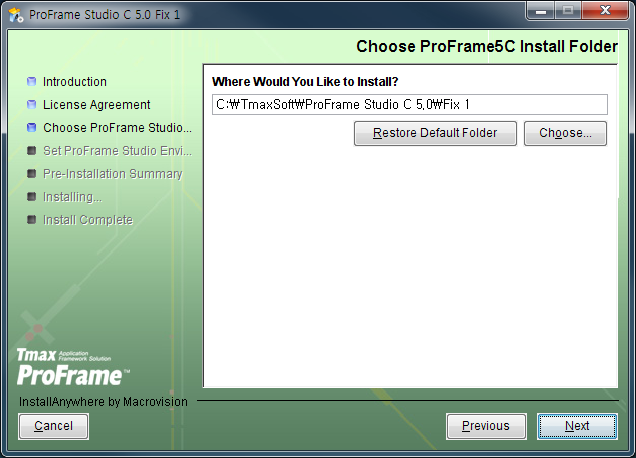 ProFrame Studio Installer - Choose ProFrame5C Install Folder
 -
Before the actual installation, check whether the installation information such as the installation directory is correct. To modify the information, go to a previous screen by clicking [Previous] and modify it. To start the installation, click [Install].
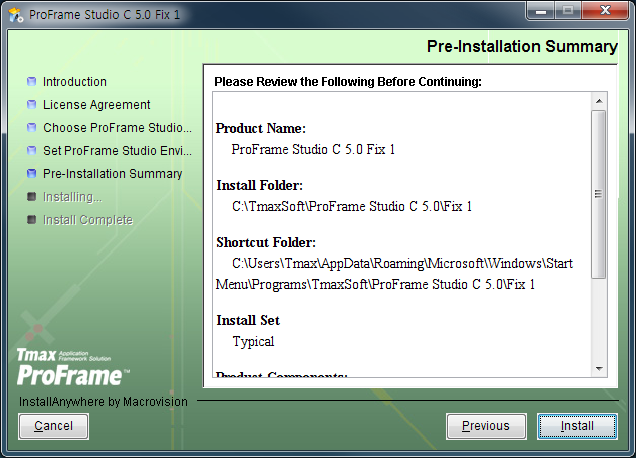 ProFrame Studio Installer - Pre-Installation Summary
 -
The progress bar shows the installation status.
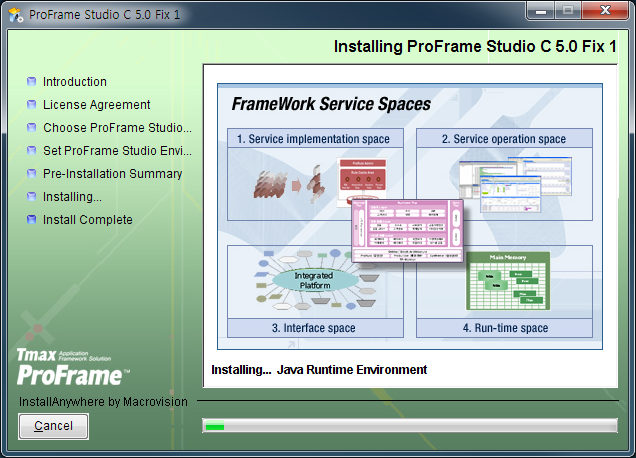 ProFrame Studio Installer – Installing ProFrame Studio 5.0
 -
Confirm that Studio installation is complete and then click [Done].
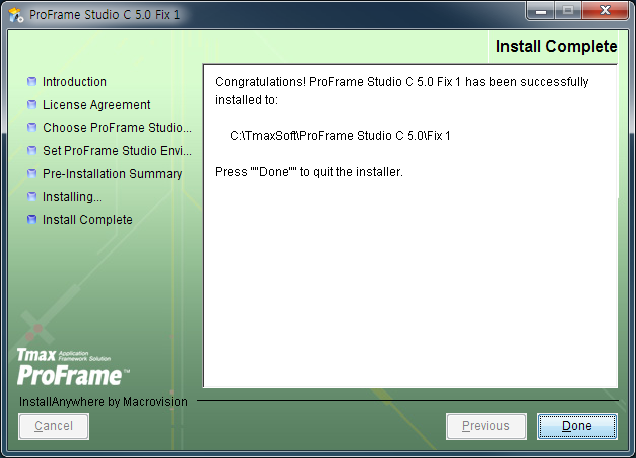 ProFrame Studio Installer - Install Complete
 -
After the installation, the ProFrame Studio shortcut is created in desktop.
The shortcut name is "ProFrame Studio C 5.0 Fix 1".