POD Batch
This chapter describes the concept of POD batch and the characteristics of the architecture, and how to create a POD batch. And the test and debugging process necessary to apply the created POD batch to work is also described.
1. Overview
POD batch is a batch designed using POD server of Tmax to solve the database transaction consistency problem that occurs when connecting to online services in general batch. Unlike the Tmax Control Server (TCS) online service where the process always resides, the process is created only when a service request is received, and the process is terminated after performing the batch service.
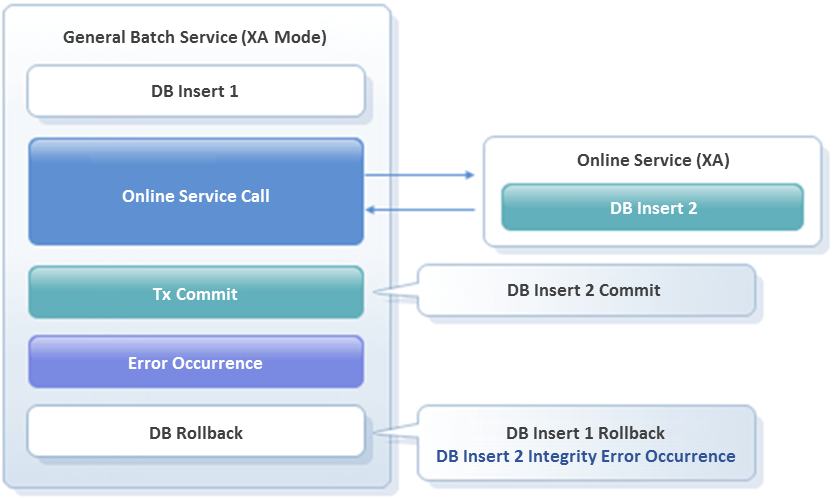
The consistency problem of database transaction in general batch occurs when XA transaction provided by TP-Monitor is unable to connect when connecting to online service in general batch. In other words, the consistency problem occurs due to the reason that the database result worked on the online service and the database result worked inside the batch cannot be processed as “1-transaction”.
Basic Structure
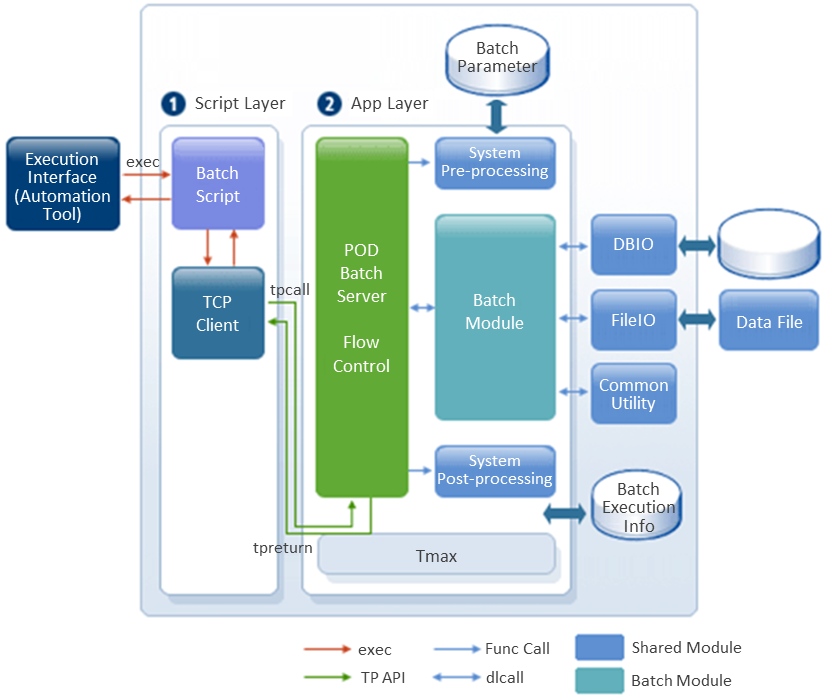
The following describes the features and components of the POD batch architecture.
-
TP Client
Tmax client file for performing TP service.
-
POD Batch Server
Server of Tmax for performing initialization logic for database access, CommBuff, log, and global variables.
-
Providing a customized area using flow processing
-
|
The components of the POD batch architecture are the same as some of the general batch architecture described in Basic Structure. This section describes the rest except for the same parts as the general batch architecture. |
2. Creating a POD Batch
As mentioned in Batch Creation Process, POD batch creation process is divided into 3 steps of creating a POD batch server, creating a POD batch module, and confirming the creation of a POD batch.
The following is a detailed procedure.
-
Creating a POD batch server
-
Configuration for POD batch server
If you use the configuration of the POD batch server provided by ProFrame as it is, this step can be omitted.
-
Creating a POD batch server
-
-
Creating a POD batch module
-
Creating a POD batch module
-
-
Conforming a POD batch creation
-
POD batch module test
-
Debugging
If an error occurs in the created POD batch module, the process of modifying the POD batch module is repeated until the error is resolved.
-
The following section describes how to create a POD batch.
2.1. Creating a POD Batch
Configuration for POD Batch Server
This section describes the WebAdmin access process in Creating a General Batch Server is partially omitted and only the procedure to check and set the configuration information related to the POD batch server.
|
For more about WebAdmin, refer to ProFrame Administrator Guide. |
The following is the procedure to check and set the configuration information related to the POD batch server in WebAdmin.
-
Select [CONFIG SYSTEM] > [CONFIG MANAGEMENT] > [ConfigMgmt] > [ConfigMgmt] in the WebAdmin screen.
-
When the Config Mgmt screen appears, select 'COMPILE_CONFIG' in the CofigGroup. These preferences can be customized to actual business processes.
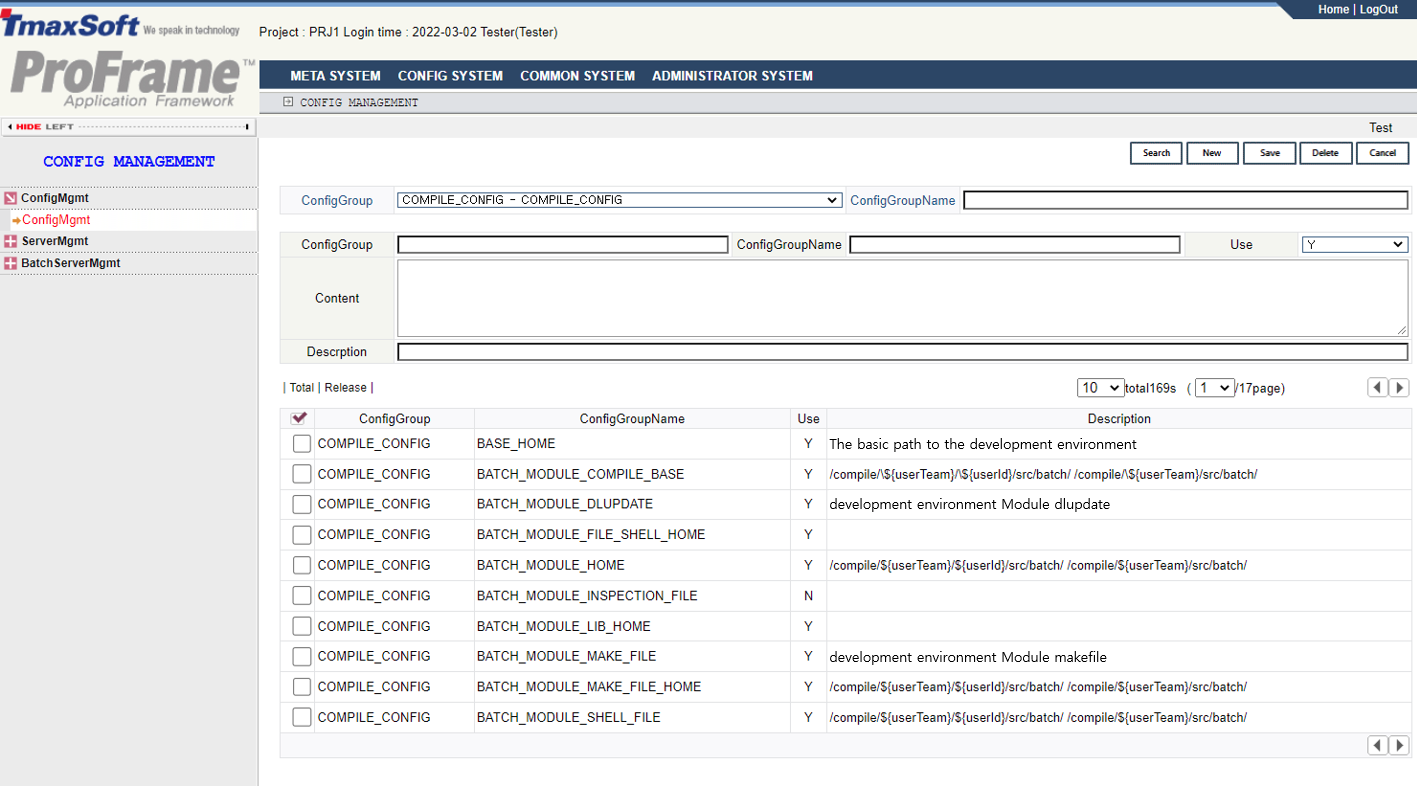 POD Batch Server Configuration
The following describes the configuration related to the POD batch module among the search result items in the figure above.
Item Description POD_BATCH_MODULE_COMPILE_BASE
Directory path where the POD batch server is compiled.
(Example: /compile/${resourceGroup}/src/batchServer/pod/)
POD_BATCH_SERVER_HOME
Home directory path where the POD batch server is created.
(Example: /compile/${resourceGroup}/src/batchServer/pod/)
POD_BATCH_SERVER_LIB_HOME
Library path for POD batch server.
(Example: /release)
POD_BATCH_SERVER_MAKE_FILE
Command to make the POD batch server.
(Example: make -f ${sourceFile}.mk
POD_BATCH_SERVER_MAKE_FILE_HOME
Home directory path where the Make file of POD batch server is created.
(Example: /compile/${resourceGroup}/src/batchServer/pod/)
POD_BATCH_SERVER_SHELL_FILE
Shell file name of the POD batch server.
(Example: ${sourceFile}.sh)
POD_BATCH_SERVER_SHELL_FILE_HOME
Home directory path where the shell file of POD batch server is created.
(Example: /compile/${resourceGroup}/src/batchServer/pod/)
POD_BATCH_SERVER_SOURCE_HOME
Home directory path where the source file of POD batch server is created.
(Example: /compile/${resourceGroup}/src/batchServer/pod/)
POD_BATCH_SERVER_TEMPLATE_BASE
Home directory path where the template server source file of POD batch server is created.
(Example: /compile/${resourceGroup}/src/batchServer/pod/)
-
Check the 'Content' value of each configuration item among the search results, and modify it to the value to be changed.
-
Select the configuration item to change.
-
Check the selected configuration information.
-
After modifying the configuration information to be changed ('Use', 'Content', 'Description'), click [Save].
-
After inquiring the modified configuration items again, check the changed contents.
-
Creating a POD Batch Server
The following is an example of the procedure for creating a POD batch server.
-
After right-clicking in the workspace navigator, select [New] > [Server], and a new server project dialog box appears as follows:
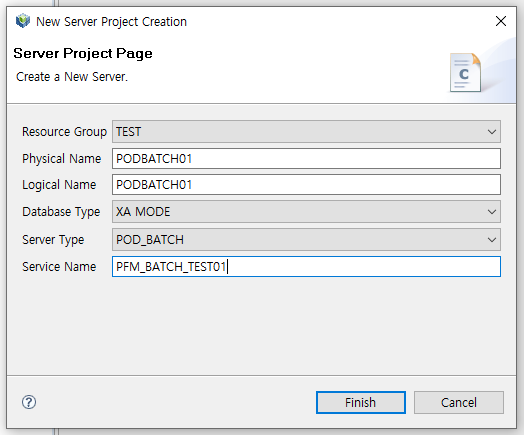 POD Batch Server – New Server Project Creation Dialog
All items in this dialog are required to create a POD batch server.
Item Description Database Type
Select XA MODE or NON XA MODE.
-
XA MODE: Select this when linking XA of TP service. It connects to the database with the pfmTxOpen() function.
-
NON XA MODE: A general database connection method.
Server Type
To create a POD batch server, select “POD_BATCH”.
Service Type
Enter the name of the TP service. 'Service name' is displayed only when 'Server type' is selected as POD_BATCH.
For items not described in this section, refer to the general batch server creation part of Creating a General Batch Server.
-
-
If you click [Complete] after setting all the required items, a total of 4 files resulting from the creation of the POD batch server is displayed as follows:
Source File Name Description Server Source
Source file of POD batch server.
Make File
Make file of POD batch server.
Shell File
Shell file for executing the POD batch.
Modify this file when a POD batch execution script is required.
Service
Service file to be registered in Tmax server.
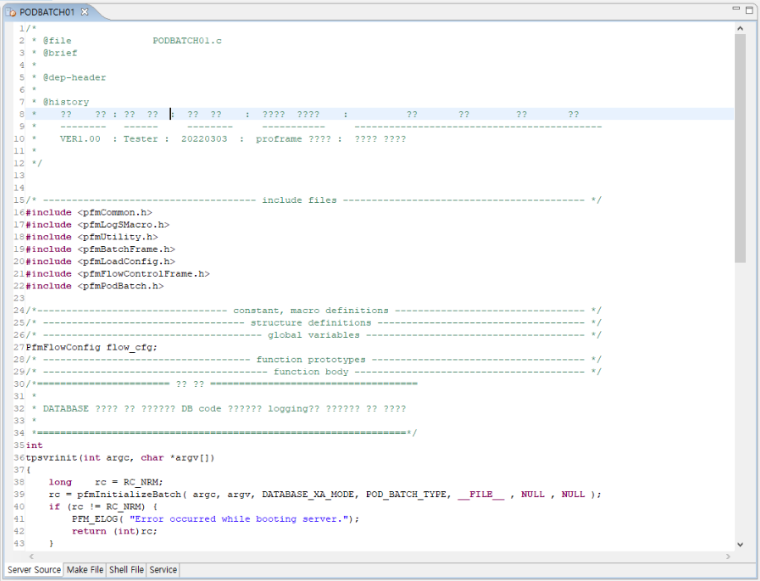 POD Batch Server – Source File Creation
 -
Before compiling the POD batch server, register the following items in the configuration file of Tmax server. In this example, the sample.m file in the $TMAXDIR/config directory is changed to the tmconfig.m file and the PODBATCH01 server and service are added.
*SERVER
TPFMIPPR             SVGNAME = svg1
BONL02CN             SVGNAME = svg2
UONL01CN             SVGNAME = svg1, SVRTYPE=UCS
TPFMADM02            SVGNAME = svg1
TPFMADM03            SVGNAME = svg1

UCSBATCH             SVGNAME = svg1, SVRTYPE=UCS
### PODBATCH server(Physical name of POD batch server)
PODBATCH01        SVGNAME = svg2, MIN=0, MAX=1, LIFESPAN=IDLE_0
QPSTEST              SVGNAME = svg2

*SERVICE
SPFMIPPR             SVRNAME = TPFMIPPR
TESTSVC01            SVRNAME = BONL02CN
TESTSVC02            SVRNAME = BONL02CN
PFMADMSVC31          SVRNAME = TPFMADM03
PFMADMSVC11          SVRNAME = TPFMADM02

PFM_BATCH_TEST01  SVRNAME = PODBATCH01
QPSTEST1             SVRNAME = QPSTEST
QPSTEST2             SVRNAME = QPSTEST
-
To apply the residential batch server and service added to the tmconfig.m file to the Tmax server, execute the following.
[pfmtpqa@fwsol:/home2/pfmtpqa/proframe5.0/package/tmax/config]$ cfl -i tmconfig.m
CFL is done successfully for node(tmconfig)
[pfmtpqa@fwsol:/home2/pfmtpqa/proframe5.0/package/tmax/config]$ gst
SVC tables are successfully generated
GST is successfully done
After executing cfl and gst, Tmax Down and Boot must be applied. For details, refer to the Tmax Administrator Guide.
-
Select the created POD batch server resource in the workspace navigator, right-click, and select [Compile Resource].
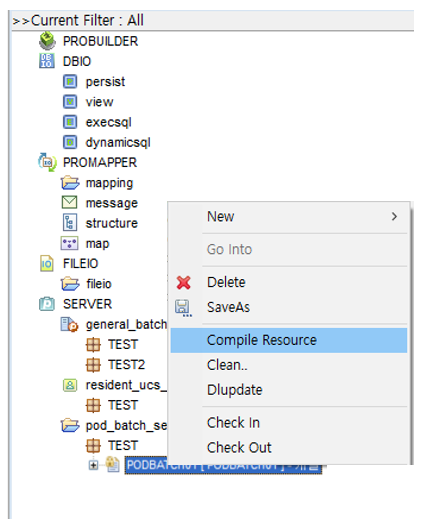 POD Batch Server – Compile Resource
 -
When compile is complete, a POD batch server is created. The results are displayed in the directory containing the source files related to the POD batch.
[pfmtpqa@fwsol:/home2/pfmtpqa/proframe5.0/compile/team/src/batchServer/pod]$ ls -al
Total 92
drwxrwxrwx   2 pfmtpqa  qa     512 Oct  7th  19:54 .
drwxrwxrwx   5 pfmtpqa  qa     512 Oct  7th  19:50 ..
-rwxrwxrwx   1 pfmtpqa  qa   38664 Oct  7th  19:54 PODBATCH01
-rw-rw-rw-   1 pfmtpqa  qa    2558 Oct  7th  19:52 PODBATCH01.c
-rwxrwxrwx   1 pfmtpqa  qa    1449 Oct  7th  19:52 PODBATCH01.mk
-rwxrwxrwx   1 pfmtpqa  qa      76 Oct  7th  19:52 PODBATCH01.sh
File Name Description PODBATCH01
Created POD batch server.
PODBATCH01.c
Source file of created POD batch server.
PODBATCH01.mk
Make file of created POD batch server.
PODBATCH01.sh
Shell file of created POD batch.
The created batch server must be copied to the APPDIR set in the Tmax configuration file, which is the directory that loads the server of Tmax (the default directory of Tmax configuration is $TMAXDIR/appbin).
2.2. Creating a POD Batch Module
Creating a POD Batch Module
The process of creating a POD batch module is the same as the process of creating a general batch module. However, if the POD batch is defined by changing some properties of the batch module in the EMB Designer built into the studio, the developer or batch manager can define the desired POD batch. This section describes the process of designing the POD batch in EMB Designer.
To create a POD batch module, design a POD batch using the EMB Designer built into the studio.
The following is an example of the process of creating a POD batch module.
-
Right-click on the workspace navigator and select [New] > [EMB Batch Design], then the Create new Batch Flow Module dialog box appears as follows:
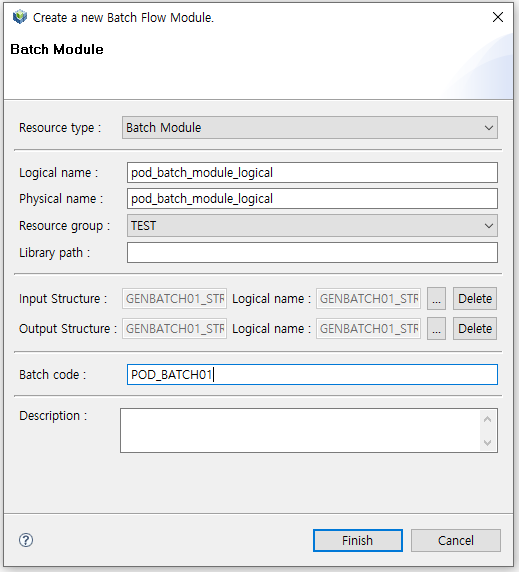 POD Batch Module – Create a New Batch Flow Module Dialog
 -
After setting all basic information for POD batch module creation in the new batch module creation dialog box, click [Complete] to move to the EMB Designer screen where you can design the POD batch module.
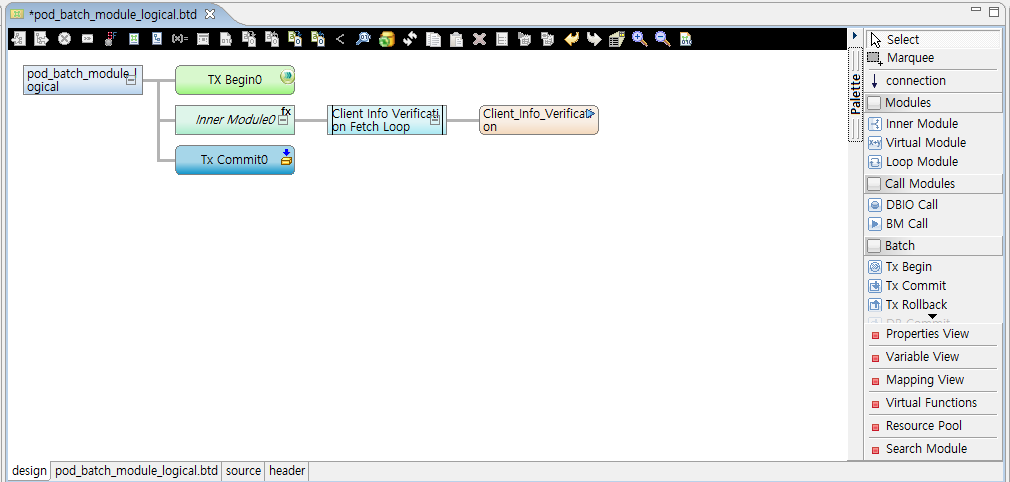 POD Batch Module – Batch Design
The process of creating and designing a POD batch module is the same as the method of creating a service module of an online service. For more about creating an online service module, refer to ProFrame EMB Developer Guide.
-
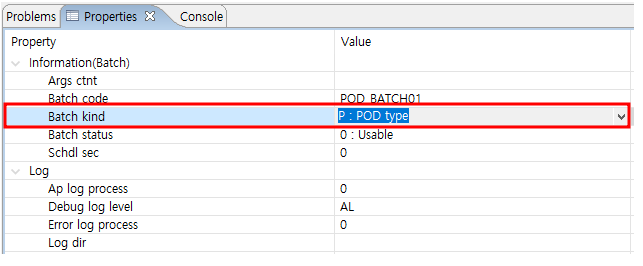
As mentioned in Creating a POD Batch Module, the POD batch module is created when the 'Batch kind' property is changed from 'G: Normal type' to 'P: POD type' for a batch module designed like POD Batch Module – Batch Design.
 POD Batch Module – Batch Kind Property Change
Unlike the general batch module, the POD batch module has a different purpose of using the batch module item in the [Palette] menu of the EMB Designer in the studio. The general batch is a Tmax client program and a POD batch is a Tmax server program.
| Module | Description |
|---|---|
General batch |
Tmax client program, which can control the XA transaction with and cannot connect to itself as an XA. |
POD batch |
Tmax server program,which not only controls the XA transaction, but also binds itself to the XA transaction for an access. |
|
For more details, refer to Tmax Application Development Guide. |
In POD batch, the TX-related API is used to manage the transactions of one’s own server with other XA services that are linked in the case of a POD server as "1-transaction". If the POD server is NON-XA, it is used only for the purpose of controlling the transactions of other XA services that are connected.
Database-related APIs in POD batch cannot be used in POD XA server, whereas POD NON-XA server can be used, and can control only the transactions of its database.
2.3. Conforming POD Batch Creation
POD Batch Module Test
A POD batch module is created as a Tmax service. Therefore, it must execute POD batch by performing tpcall as a Tmax client. The POD batch module is executed using the pfmtcl utility provided by ProFrame.
The following describes how to use the pfmtcl utility.
$> pfmtcl –P [POD batch input file]When calling the batch module created in RI/WS of WorkSpace provided by ProFrame, add the following sentence to the shell and test it.
### When calling a batch module in the Work Space area
export PFM_WS_DLCALL_YN=Y

### When calling a batch module in the Release Image area
export PFM_WS_DLCALL_YN=N
The POD batch process loads the environment of tmboot, so after exporting the RI/WS CALL option, you need to work with the following command.
tmdown -S [POD batch server name]
tmboot -S [POD batch server name]
The following is how to write a batch input file.
# podbatch_test.dat
# SVC_NAME={POD batch service name}
[Pfm2pcBatchHeader]
batch_code      24 = {POD batch code name}
global_id       32 = {global ID}
data_type       1  = {D|F}
send_rspn_type  1  = {S|R}
err_flag        1  = 0
err_code        9  =
data_len        9  = {AP input data length}
reserved        51 =
[user data]
user_data       {AP input data length} = {AP input data}
The following is a description of each item in the batch input file.
| Item | Length | Description |
|---|---|---|
#SVC_NAME |
16 characters or less |
Service name of POD batch. |
[PfmPodBatchHeader] |
No limit |
Name of POD Batch Header. (Title to distinguish Headers) |
batch_code |
24 |
Batch code required to execute the batch. |
global_id |
32 |
Global_id. (Optional) |
data_type |
1 |
Conversion type of user input data.
|
send_rspn_type |
1 |
Delimiter for input or output.
|
err_flag |
1 |
A flag for normal or error when an output response is received.
|
err_code |
9 |
Error code value when the output response is an error. |
data_len |
9 |
Input user data length. |
reserved |
51 |
Temporary item. |
user_data |
User input |
AP input data. |
In this example, a batch input file is created as follows:
#SVC_NAME=POD_BAT01
[PfmPodBatchHeader]
batch_code      24 = POD_BAT01
global_id       32 = global_id
data_type       1  = D
send_rspn_type  1  = S
err_flag        1  = 0
err_code        9  =
data_len        9  = 30
reserved        51 =
[user data]
user_data       30 = POD;10;TEST;
The following is an example of POD batch being executed.
[pfmtpqa@fwsol:/home2/pfmtpqa/proframe5.0/compile/team/src/batchServer/pod]$ ./PODBATCH01.sh
<<<<<<<<<<<<<     [Tmax Client 2005-12-30]     >>>>>>>>>>>>>
START......
------------------------------[2PC BATCH Header]------------------------
batch_code      = [POD_BAT01               ]
global_id       = [global_id               ]
data_type       = [D]
send_rspn_type  = [S]
err_flag        = [0]
err_code        = [         ]
data_len        = [       30]
reserved        = [         ]
-------------------------------------------------------------------------
---------------------------------[Input  Data]---------------------------
__v____1____v____2____v____3____v____4____v____5____v____6____v____7____v
____8____v____9____v____0
POD;10;TEST;
-------------------------------------------------------------------------
TP GetUser Code [0]
-------------------------------[2PC BATCH Header]------------------------
batch_code      = [POD_BAT01               ]
global_id       = [global_id               ]
data_type       = [D]
send_rspn_type  = [R]
err_flag        = [0]
err_code        = [         ]
data_len        = [        0]
reserved        = [                        ]
------------------------------------------------------------------------
--------------------------------[Output  Data]---------------------------
__v____1____v____2____v____3____v____4____v____5____v____6____v____7____v
____8____v____9____v____0
-------------------------------------------------------------------------
Debugging POD Batch
If debugging is required after testing the POD batch module, check the batch log file. The batch log file is located in the directory set in the environment variable of PFM_BAT_LOG_DIR and is created as “[batch server name]_bat_yyyymmdd.log”.