Configuring ProMapper
This chapter describes how to check and set ProMapper-related information in Studio and WebAdmin.
1. Studio
The following are the steps for checking and setting ProMapper preferences in Studio.
-
Select [Window] > [Preferences] from the main menu. In the open Preferences widow, select [ProFrame] > [ProMapper].
-
In the open dialog box, set desired items and click [OK].
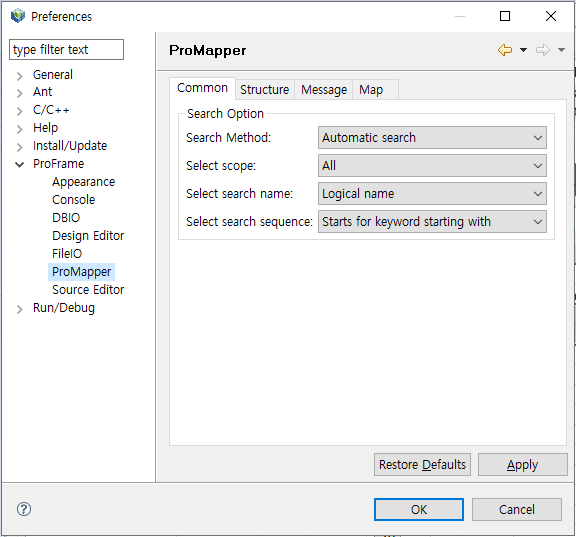 Studio – ProMapper Configuration
The dialog box provides the following tabs.
Type Tab Common
Common
ProMapper Resource Types
Structure
Message
Map
-
Select a desired tab and set items. To apply changes without closing the Preferences dialog box, click [Apply]. To restore the default settings, click [Restore Defaults].
[Common]
You can set search options for ProMapper editor.
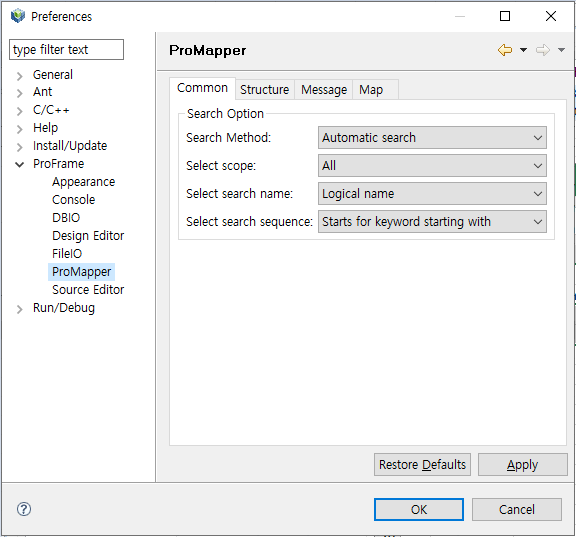
The following describes each item. The settings are used to search meta and structures.
| Item | Description |
|---|---|
Search Method |
Search method.
|
Select scope |
Search scope.
|
Select search name |
Either logical or physical name used to search for resources.
|
Select search sequence |
Location of a search word.
|
[Structure]
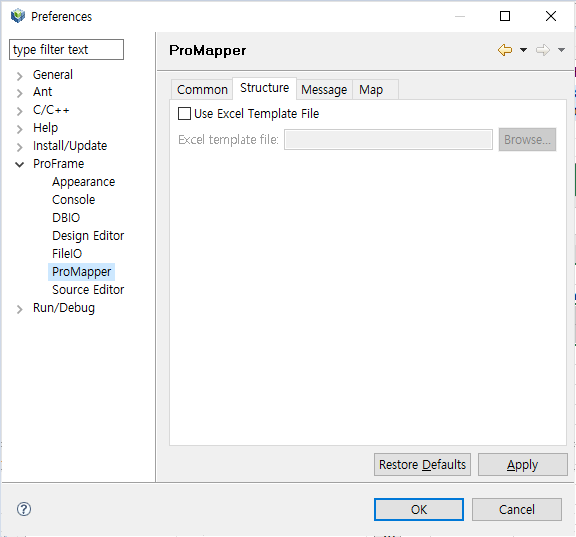
You can set information required to create structures.
| Item | Description |
|---|---|
Use Excel Template File |
If selected, a specific template can be exported to an Excel file. |
[Browse…] |
Searches for an Excel file in user’s local computer. |
[Message]
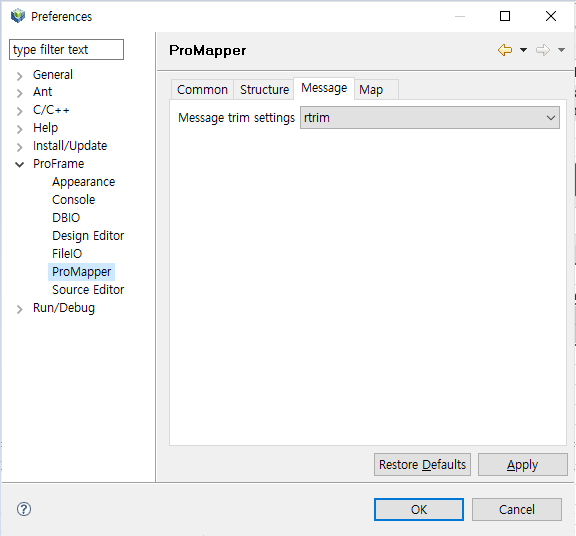
You can set how to trim messages in message editor.
| Item | Description |
|---|---|
Message Trim settings |
How to trim messages.
|
[Map]
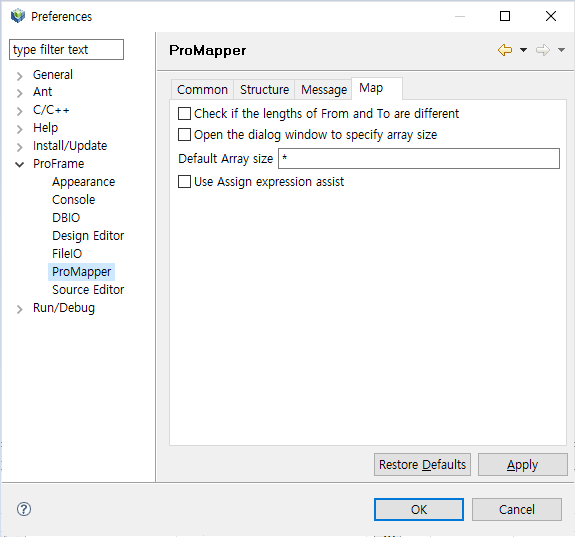
You can set constraints used when editing maps in ProMapper editor.
-
Check if the lengths of From and To are different
The field length of a Source can be different from that of a Target during field mapping. It is the option to notify the information in map editor.
-
Open the dialog window to specify array size
Option to open a dialog box where you can set the array size when entering the information in map editor.
Default Array Size Description *
Field delimiter used when getting fields to map in map editor if the array size is defined.
-
Use Assign expression assist
Option to use Expression Assist in map editor.
2. WebAdmin
The following are the steps for checking and setting ProMapper preferences in WebAdmin.
-
Enter the following URL in the address bar of your browser.
http://IP_ADDRESS:PORT/pfmdevsvr/login.jsp
'IP_ADDRESS' is the IP address of the host where the integrated server is installed, and 'PROT' is the listen port number of the integrated server set in WEBMain.xml.
-
The following WebAdmin login screen is displayed.
To log in to WebAdmin, select a project from 'PROJECT ID', enter your ID and password in the 'ID' and 'PW' text boxes, and then click [Login]. You can also use the default ID and password. The default ID is 'Tester' and password is '1234'.
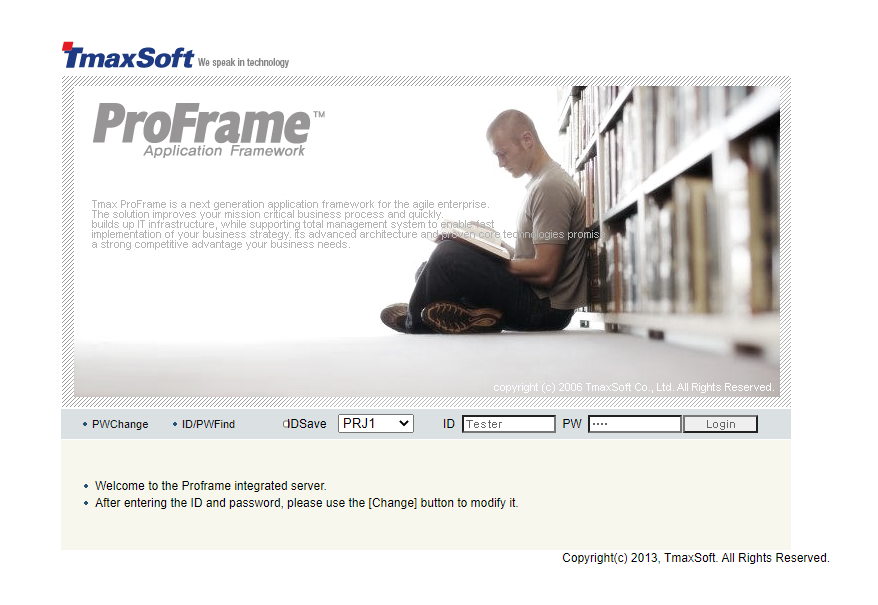 WebAdmin – Login Screen
 -
The following WebAdmin main screen is displayed.
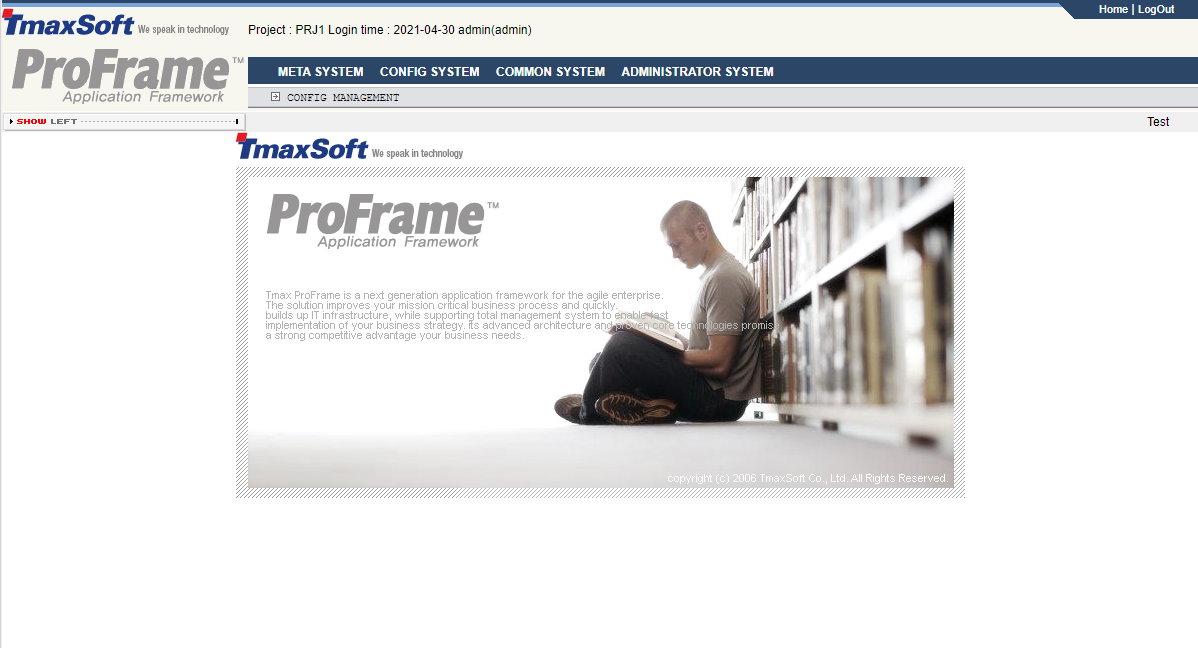 WebAdmin – Main Screen
 -
Select [CONFIG SYSTEM] from the main screen and then select [CONFIG MANAGEMENT] > [ConfigMgmt] > [ConfigMgmt].
-
In the ConfigMgmt screen, select 'PRO_MAPPER_STUDIO' from 'ConfigGroup' from the ConfigGroup combo box.
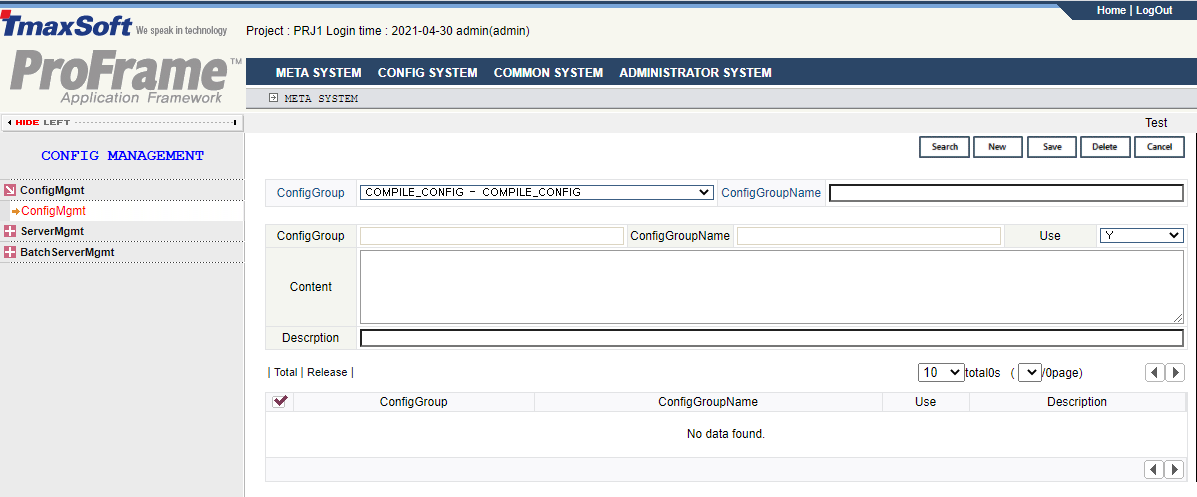 WebAdmin – ConfigMgmt
PRO_MAPPER_STUDIO is a configuration group that includes configuration data related to ProMapper operation. It includes data in the DEV_CONFIG table. The data can be added, modified, and deleted.
-
The following shows the results. The displayed number of results can be set up to 100.
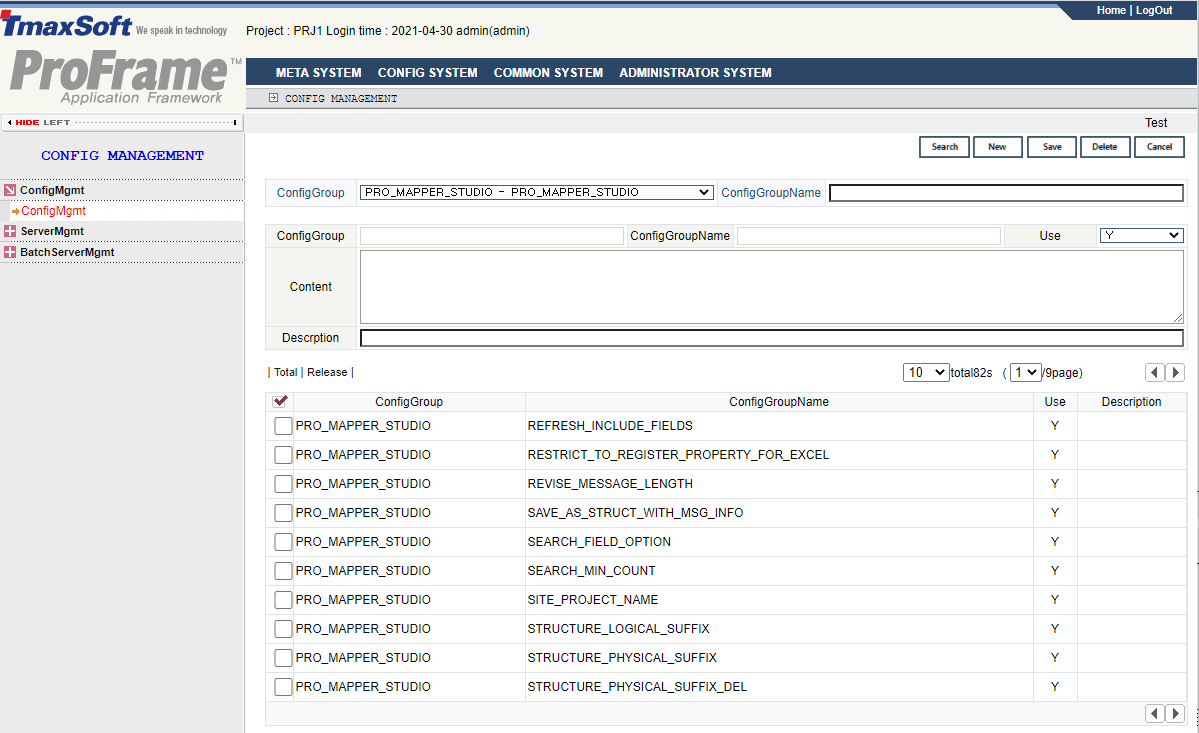 WebAdmin – PRO_MAPPER_STUDIO Search Results
The following describes each configuration item.
Item Description APPLY_DEFAULT_MESSAGE
Option to automatically create a default message when creating a structure by using the value set in DEFAULT_MESSAGE_TYPE.
-
true: Creates a message when creating a structure.
-
false: Does not create a message when creating a structure. However, developers can manually create a message.
APPLY_DELETE_MAP_RESOURCE_ FOR_TRANSFORMATION
Option to delete map resources when deleting a map data in EMB Designer by clicking [Delete map] in Map Dialog.
-
true: Deletes EMB module’s map data along with maps registered in the server.
-
false: Deletes only EMB module’s map data and does not delete maps registered in the server.
APPLY_ERROR_FOR_ASSING_ LENGTH
Option to notify an error that occurs when the length of Source is larger than that of Target during Assign mapping.
-
true: Notifies the error and prevents the map creation.
-
false: Has no length constraints.
APPLY_FIELD_TYPE_LENGTH_ NOT_EDITABLE
Option to enable editing field type and length when editing a structure.
-
true: Editable.
-
false: Not editable.
APPLY_NOT_CHECK_PROPERTY
Option to display an error mark (
 ) when a field has no MetaID.
-
true: Does not cause an error and display the error mark, and prevents saving the field.
-
false: Causes an error and displays the error mark.
APPLY_NULL_FIELD_LENGTH_ OF_STRUCTURE
Option to set the field length of a structure as a required item when editing the structure.
-
true: Sets it as a required item.
-
false: Sets it as an optional item.
APPLY_SRC_GEN
Option to generate ProMapper source in Studio.
-
true: Generates the source in Studio.
-
false: Does not generate the source in Studio.
APPLY_SRC_UPLOAD
Option to upload ProMapper source generated in Studio to a server. This item is available only when APPLY_SRC_GEN is set to true.
-
true: Uploads the source.
-
false: Does not upload the source.
CHECK_CHANGED_INFO_MAP
Option to display information as shown in previous Map Dialog when field information (such as length and array size) used for mapping changes.
-
true: Displays information as shown in previous Map Dialog.
-
false: Displays changed information in Map Dialog.
DBIO_READ_ONLY
Option to use an automatically created DBIO module’s input/output structures as read-only in structure editor.
-
true: Read-only.
-
false: Editable.
DEFAULT_DELIMITER
Default delimiter used in message editor.
(Example: ;)
DEFAULT_MESSAGE_TYPE
Type of a message to create when creating a structure.
-
FixedLength: Fixed-length type. Fields are identified based on the fixed length.
-
Delimiter: Variable-length type. Fields are identified with a delimiter.
DEFAULT_VALUE_OF_MSG_ POINT
Option to set the Point property’s default value to true when creating a first message for a structure.
-
true: Set it to true.
-
false: Set it to false.
DISABLE_TRANSFORMATION
Option to show [Transformation] in Map Dialog of EMB modules.
-
true: Does not show the button. Transformation is disabled.
-
false: Shows the button. Transformation is enabled.
EXCEL_IMPORT_CHECK_LIST
Option to import an Excel file in the structure creation dialog box when property values do not match.
-
true: Cannot import the file if property values do not match.
-
false: Can import the file even if property values do not match.
For decimal values, it is regarded that no value is the same as -1.
(Example: true:length:type:decimal)
FIELD_STRUCTURE_ATTRIBUTE_ SETTING
Columns (field properties) shown in structure editor. Usage and read-only properties are set together.
The following is the value format.
Field_name,Option_to_use,Option_to_set_as_read-only
(Example: logicalName,true,false:physicalName,true,false:fieldType,true,
false: include,true,false:length,true,false:array,true,false:decimal,true,
false:comments,true,false)
FIELD_MSG_ATTRIBUTE_SETTING
Columns (field properties) shown in message editor. The value format is the same as in 'FIELD_STRUCTURE_ATTRIBUTE_SETTING'.
(Example: logicalName,true,true:physicalName,true,true:fieldType,true,true: include,true,true:length,true,false:array,true,false:decimal,true, true:comments,true,true:align,true,true:fill,true,true:point,true, false:sign,true,true:delimiter,true,true:encodeOption,true,true)
FIELD_MSG_EDITOR_ATTRIBUTE_ SETTING
Columns (field properties) shown by message editor.
Set the same fields as set in 'FIELD_MSG_ATTRIBUTE_SETTING'. Modify the usage and read-only properties if necessary.
(Example: logicalName,true,true:physicalName,true,true:fieldType,true,true: include,true,true:length,true,false:array,true,false:decimal,true, false:comments,true,false:align,true,false:fill,true,false:point, true,false:sign,true,false:delimiter,true,false:encodeOption,true, false)
FIELD_TYPE_LIST
Data types to select when editing fields.
(Example: string,number,include,binary,pointer,date,short,int,long,float, double,Short,Integer,Long,Double,BigInteger,BigDecimal,char, boolean,byte,Calendar,ArrayStart,ArrayEnd,StructStart,StructEnd)
FORCE_STR_LENGTH_TO_MSG_ LENGTH
Option to set the field length of a message to the length of corresponding structure field.
-
true: Sets the field length of a message to the length of corresponding structure field. The field length cannot be modified in Message Dialog.
-
false: The field length of a message can be different from the length of corresponding structure field.
IN_LOGICAL_SUFFIX
Logical suffix of input.
(Example: In)
IN_PHYSICAL_SUFFIX
Physical suffix of input.
(Example: In)
IS_READ_ONLY_FOR_ STRUCTURE_EDITOR
Option to forcibly set structure editor as read-only.
-
true: Forcibly sets structure editor as read-only. However, messages can be edited in Message Dialog.
-
false: Sets structure editor as editable.
MAP_LOGICAL_SUFFIX
Suffix for maps' logical names.
(Example: Map)
MAP_PHYSICAL_SUFFIX
Suffix for maps' physical names.
(Example: Map)
MAX_LENGTH_OF_MAP_NAME
Maximum length of map names. The length of structures or messages cannot be set.
(Example: 128)
MCA_READ_ONLY
Option to set structure editor as read-only for structures registered in MCA.
-
true: Sets structure editor as read-only.
-
false: Sets structure editor as editable.
MESSAGE_LOGICAL_SUFFIX
Suffix of messages' logical names.
(Example: Msg)
MESSAGE_LOGICAL_SUFFIX_DEL
Suffix of the Delimiter type for messages' logical names.
(Example: Del)
MESSAGE_LOGICAL_SUFFIX_FDL
Suffix of the FDL type for messages' logical names.
(Example: FDL)
MESSAGE_LOGICAL_SUFFIX_FLD
Suffix of the FixedLength type for messages' logical names.
(Example: Fld)
MESSAGE_LOGICAL_SUFFIX_NV
Suffix of the NameValue type for messages' logical names.
(Example: Nv)
MESSAGE_LOGICAL_SUFFIX_RULE
Suffix of messages' logical names among ProRule’s input/output when you are using modules created in TmaxSoft ProRule.
(Example: ProRule)
MESSAGE_LOGICAL_SUFFIX_VO
Suffix of the ValueObject type for messages' logical names.
(Example: Vo)
MESSAGE_LOGICAL_SUFFIX_XML
Suffix of the XML type for messages' logical names.
(Example: Xml)
MESSAGE_PHYSICAL_SUFFIX
Suffix of messages' physical names.
(Example: Fld)
MESSAGE_PHYSICAL_SUFFIX_DEL
Suffix of the Delimiter type for messages' physical names.
(Example: Del)
MESSAGE_PHYSICAL_SUFFIX_FDL
Suffix of the FDL type for messages' physical names.
(Example: FDL)
MESSAGE_PHYSICAL_SUFFIX_FLD
Suffix of the FixedLength type for messages' physical names.
(Example: Fld)
MESSAGE_PHYSICAL_SUFFIX_NV
Suffix of the NameValue type for messages' physical names.
(Example: Nv)
MESSAGE_PHYSICAL_SUFFIX_RULE
Suffix of messages' physical names among ProRule’s input/output when you are using modules created in TmaxSoft ProRule.
(Example: ProRule)
MESSAGE_PHYSICAL_SUFFIX_VO
Suffix of the ValueObject type for messages' physical names.
(Example: Vo)
MESSAGE_PHYSICAL_SUFFIX_XML
Suffix of the XML type for messages' physical names.
(Example: Xml)
NOT_CCHECKOUT_MESSAGE
Option to automatically check out messages when the development type is AUTO_START.
-
true: Does not check out messages.
-
false: Checks out messages.
OUT_LOGICAL_SUFFIX
Logical suffix of output.
(Example: Out)
OUT_PHYSICAL_SUFFIX
Physical suffix of output.
(Example: Out)
PREFIX_FOR_FILE
Prefix for a file name to create.
(Example: PfmMapper)
PROPERTY_CONTAIN_BUTTON
Option to show [include the search string] in Property Pool.
-
true: Shows the button.
-
false: Does not show the button.
REFRESH_INCLUDE_FIELDS
Option to show information re-retrieved from a server when you check internal fields of the include field in structure editor.
-
true: Shows information re-retrieved from a server.
-
false: Does not show information re-retrieved from a server.
REVISE_MESSAGE_LENGTH
Option to show [Include sign] and [Include decimal point] buttons in a message editing dialog box. Clicking [Include Sign] increases the field length by 1 for a sign of number type data. Clicking [Include Decimal Point] increases the field length by 1 for a decimal point if a decimal is larger than 0.
-
true: Shows the button.
-
false: Does not show the button.
SAVE_AS_STRUCT_WITH_MSG_INFO
Option to save message information when saving a structure with "Save as".
-
true: Saves message information.
-
false: Does not save message information.
SEARCH_FIELD_OPTION
UI options (based on the field type) of search fields shown at the right of structure editor.
-
0: Shows the options as like general columns.
-
1: Uses the field type as the first column and displays only the first character by narrowing the column width.
(Example: 's'-string, 'i'-integer)
SEARCH_MIN_COUNT
Minimum number of characters that must be entered when searching for resources.
(Example: 2)
SITE_PROJECT_NAME
Name of a project to be used when exporting to an Excel file.
(Example: TEST)
STRUCTURE_LOGICAL_SUFFIX
Suffix of structures' logical names.
(Example: Str)
STRUCTURE_PHYSICAL_SUFFIX
Suffix of structures' physical names.
(Example: Str)
STRUCTURE_PHYSICAL_SUFFIX_DEL
Suffix of the Delimiter type for structures' physical names.
(Example: Del)
STRUCTURE_PHYSICAL_SUFFIX_FLD
Suffix of the FixedLength type for structures' physical names.
(Example: Fld)
STRUCTURE_PHYSICAL_SUFFIX_NV
Suffix of the NameValue type for structures' physical names.
(Example: Nv)
STRUCTURE_PHYSICAL_SUFFIX_VO
Suffix of the ValueObject type for structures' physical names.
(Example: Vo)
STRUCTURE_PHYSICAL_SUFFIX_XML
Suffix of the XML type for structures' physical names.
(Example: Xml)
SUPPORT_FDL_MSG
Option to use FDL type messages in Tmax server.
-
true: Uses FDL type messages.
-
false: Does not use FDL type messages.
USE_LOGICAL_NAME_DUP_CHECK
Option to check duplicate logical names when creating a new structure.
-
true: Checks duplicate logical names.
-
false: Does not check duplicate logical names.
USE_PROPERTY_INFO
Option to display the result of comparison between structure fields and registered property information.
-
true: Displays a warning if structure fields in structure editor are different from property information registered in the server.
-
false: Does not display the comparison result because it does not compare structure fields in structure editor and property information registered in the server.
USE_RSC_COPY_SHELL
Option to execute pmap_rsc_copy.sh that creates a directory for each team name and copies mapper source.
-
true: Executes the file.
-
false: Does not execute the file.
-
-
Check the values in 'Content' and modify them if necessary.
The following are the steps for modifying the configuration items.
-
Select a configuration item to modify.
-
Check the values set in the item.
-
Modify the values ('Use', 'Content', 'Description') and then click [Save].
-
Confirm the modified values.
-
|
For more information about WebAdmin, refer to ProFrame administrator’s Guide. |