Configuring DBIO
This chapter describes how to check and set information about DBIO queries in Studio and WebAdmin.
1. Studio
The following are the steps for checking and setting DBIO preferences in Studio.
-
Select [Window] > [Preferences] from the main menu. In the open Preferences widow, select [ProFrame] > [DBIO].
-
In the open dialog box, set desired items and click [OK].
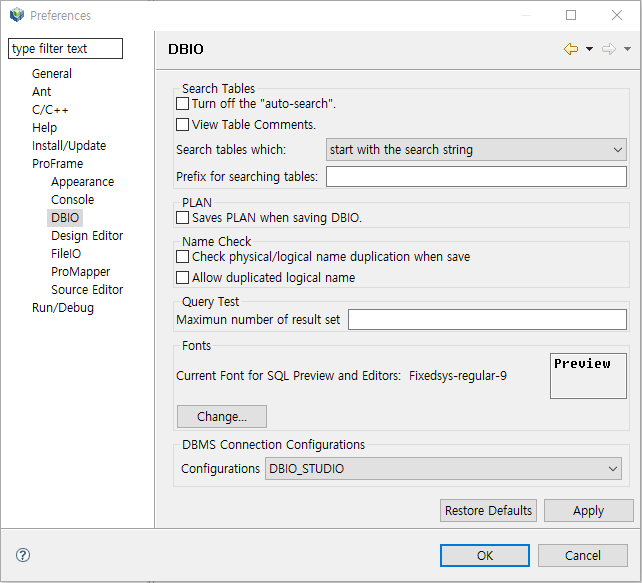 Studio – DBIO Configuration
The following describes each item.
-
Search Tables
Set properties of tables used to create DBIO queries.
Item Description Turn off the "auto-search"
Disables to automatically list table names that include the search word.
View Table Comments
Shows table comments in the dialog box where you can select a table.
Search tables which
Searches for tables whose name starts with or includes the search word.
Prefix for searching tables
Search word used to search for tables.
-
PLAN
Item Description Saves PLAN when saving DBIO
Automatically saves plan information to the DEV_DBIO_PLAN table when saving a DBIO query.
-
Name Check
Item Description Check physical/logical name duplication when save
Checks if physical and logical names that are entered when creating a DBIO query already exist. If selected, this is checked when clicking [Finish] in New Query Wizard.
Allow duplicated logical name
Allows to use a logical name that already exists.
-
Query Test
Item Description Maximum number of result set
Maximum number of result sets to display when testing a created DBIO query.
-
Fonts
Font used in the DBIO editor. To change the font, click [Change…] and set desired font.
-
DBMS Connection Configurations
Item Description Configurations
From this combo box, you can check configuration groups with a database connection account set in WebAdmin.
Select a configuration group where desired database connection account is set.
-
Buttons
Button Description [Restore Defaults]
Restores the default settings.
[Apply]
Applies changes without closing the Preferences dialog box.
Changing the value in Configurations displays a warning message that says "You must restart ProFrame Studio due to the change on DBMS Connection Configuration. Would you restart now?". To close Studio and restart ProFrame, click [OK].
-
2. WebAdmin
The following are the steps for checking and setting DBIO preferences in WebAdmin. For more information about how to use WebAdmin, refer to ProFrame Administrator Guide.
-
Enter the following URL in the address bar of your browser.
http://IP_ADDRESS:PORT/pfmdevsvr/login.jsp
'IP_ADDRESS' is the IP address of the host where the integrated server is installed, and 'PROT' is the listen port number of the integrated server set in WEBMain.xml.
-
The following WebAdmin login screen is displayed.
To log in to WebAdmin, select a project from 'PROJECT ID', enter your ID and password in the 'ID' and 'PW' text boxes, and then click [Login]. You can also use the default ID and password. The default ID is 'Tester' and password is '1234'.
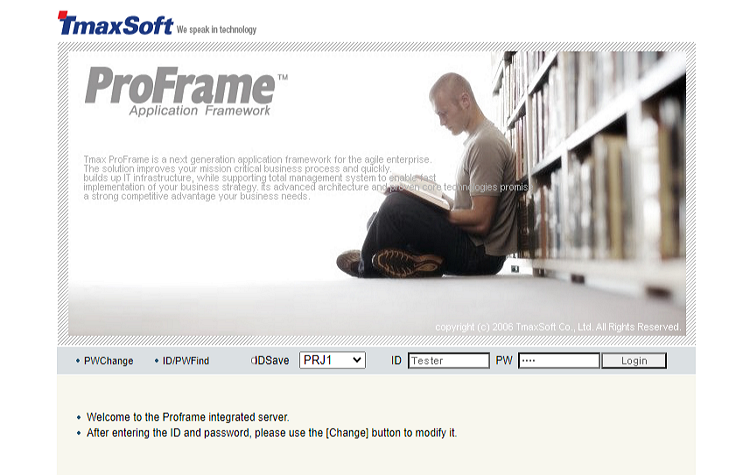 WebAdmin – Login Screen
 -
The following WebAdmin main screen is displayed.
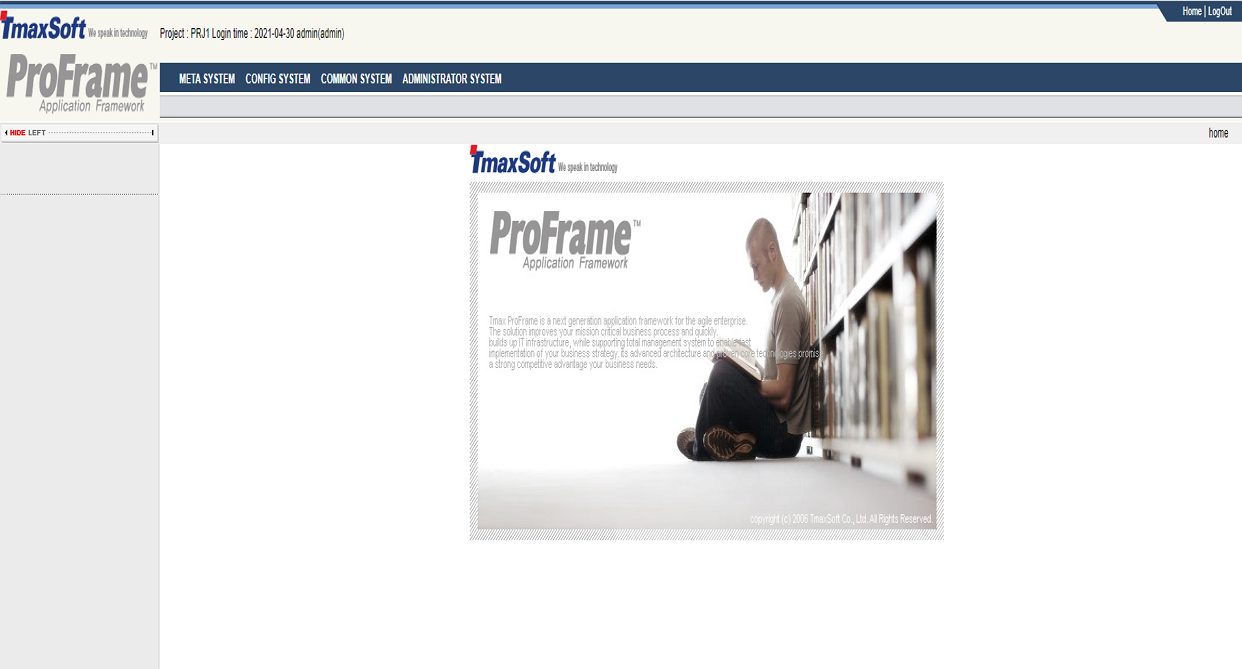 WebAdmin – Main Screen
 -
Select [CONFIG SYSTEM] from the main screen and then select [CONFIG MANAGEMENT] > [ConfigMgmt] > [ConfigMgmt].
-
In the ConfigMgmt screen, select 'DBIO_STUDIO' from 'ConfigGroup' from the ConfigGroup combo box.
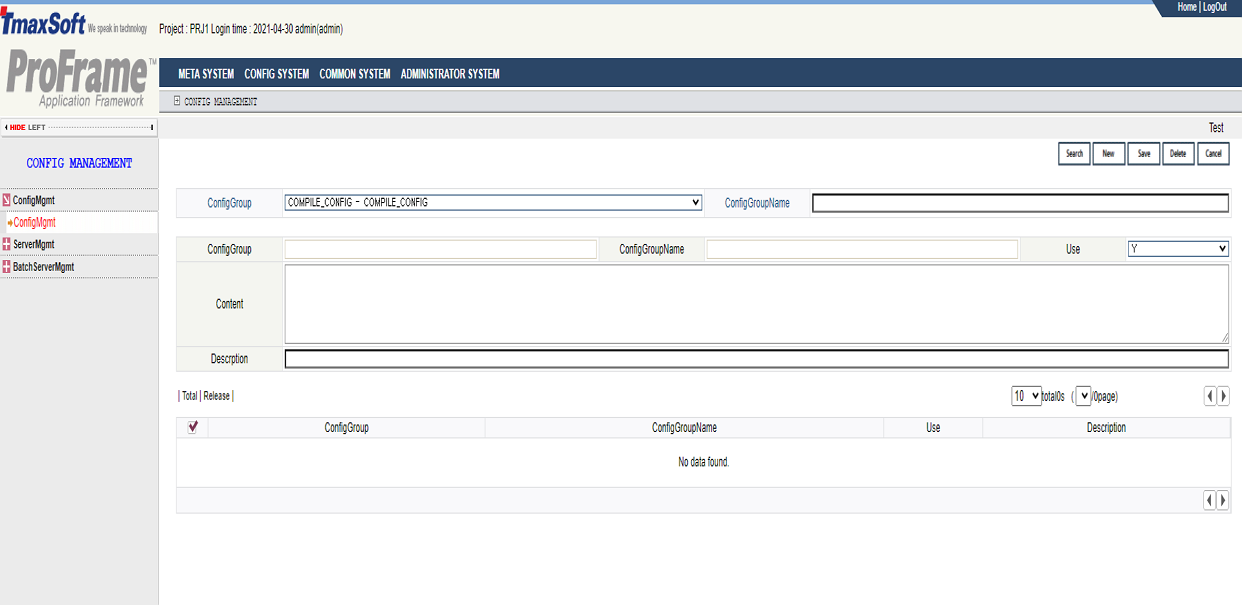 WebAdmin – ConfigMgmt
DBIO_STUDIO is a configuration group that includes configuration data related to DBIO operation. It includes data in the DEV_CONFIG table. The data can be added, modified, and deleted.
-
The following shows the results. The displayed number of results can be set up to 100.
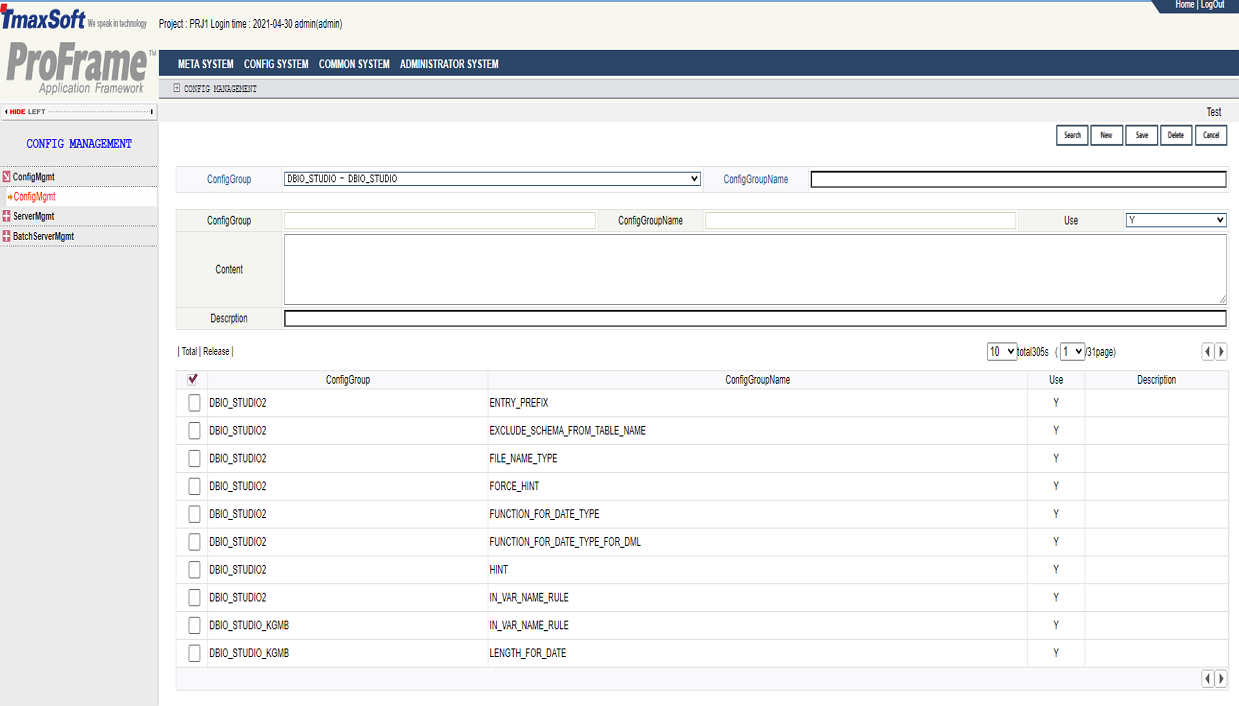 WebAdmin – DBIO_STUDIO Search Results
The following describes each configuration item.
Item Description AUTO_HINT
Automatically inserts a hint to a DBIO query. Enter a hint to insert in Content as follows:
-
${MAP_ID}: Currently, only ${MAP_ID} is available. The value (MAP_ID) enclosed in braces is inserted as a hint.
BASIC_QUERY_NAME_DELETE
Name appended after the name of a DELETE Exec table when creating a basic query.
(Example: _pd000)
BASIC_QUERY_NAME_FETCH
Name appended after the name of a FETCH Exec table when creating a basic query.
(Example: _pf000)
BASIC_QUERY_NAME_INSERT
Name appended after the name of a INSERT Exec table when creating a basic query.
(Example: _pi000)
BASIC_QUERY_NAME_SELECT
Name appended after the name of a SELECT Exec table when creating a basic query.
(Example: _ps000)
BASIC_QUERY_NAME_UPDATE
Name appended after the name of a UPDATE Exec table when creating a basic query.
(Example: _pu000)
BASIC_QUERY_USE_META
Option to use properties set in WebAdmin when creating a basic query.
-
Y: Uses meta information for variables when creating an output variable or a PERSIST DML column list. (Default value)
-
N: Ignores meta information when creating an output variable or a PERSIST DML column list.
-
MID: Uses meta information preferentially when creating an output variable or a PERSIST DML column list, but use database information for data length and type.
BEFIMG_TBL_SUFFIX
Suffix appended after the name of a table to which BEFORE IMAGE is saved, when using the BEFORE IMAGE function.
(Example: _BEF)
CAN_PAGE
Option to use the button that automatically inserts paging code in the editor screen when changing DBIO data of the VIEW query type.
-
Y: Uses it.
-
N: Does not use it.
COLUMN_NAME_RULE
How to display columns when retrieving DBIO data of the PERSIST query type in the preview screen of the DBIO editor.
-
NONE: Displays as it is entered.
-
LOWER_CASE: Displays in lowercase.
-
UPPER_CASE: Displays in uppercase.
-
CAP_ALL: Capitalizes every word.
-
CAP_EXCEPT_FIRST: Capitalizes every word except for the first word.
COMMON_COLUMNS
Columns to which a common column applies. Use a semicolon (;) as a delimiter.
A common column is a column that must be inserted to a system to be updated for tables set in WebAdmin when creating PERSIST DBIO queries of the INSERT, UPDATE, and FETCH Exec types. Target tables, common columns, and actual data to insert to the common columns are set in WebAdmin.
The following are the steps for using a common column.
-
Set target tables to apply the common column to. You can set them in the DBIO_COMMON_COLUMN_TABLES configuration group of WebAdmin.
There are following two methods for setting the tables.
-
Table name: Lists target table names. A table name is set as ConfigGroupName in DBIO_COMMON_COLUMN_TABLES. Nothing can be set. The setting must be done repeatedly as many times as the number of target tables. It is recommended to use this method when there are a few target tables.
-
Prefix: Uses a prefix for target table names. Create USE_TABLE_PREFIX in DBIO_COMMON_COLUMN_TABLES and then set it to 'Y'. Also create TABLE_PREFIX in DBIO_COMMON_COLUMN_TABLES and then set it to prefixes delimited by a comma (,). For example, if TABLE_PREFIX is set to 'PFM, TEST', tables whose name starts with PFM or TEST become the target tables.
-
-
Set the target column.
(Example: DATE_COLUMN;INT_COLUMN)
COMMON_COLUMN_DATA
Actual data for each 'COMMON COLUMNS'. (Example: SYSDATE;0)
COMMON_COLUMNS_FOR_INSERT
Common columns to apply to INSERT when applying different common columns to INSERT and UPDATE. Use a semicolon (;) as a delimiter.
(Example: COMMON_VC;COMMON_INT)
COMMON_COLUMNS_FOR_INSERT _DATA
Formula to apply to an INSERT common column when applying different common columns to INSERT and UPDATE. Use a semicolon (;) as a delimiter.
The number of formulas must be equal to that of columns set in 'COMMON_COLUMNS_FOR_INSERT'.
(Example: insert_common_vc;insert_common_int)
COMMON_COLUMNS_FOR_UPDATE
Common columns to apply to UPDATE when applying different common columns to INSERT and UPDATE. Use a semicolon (;) as a delimiter.
(Example: COMMON_VC;COMMON_INT)
COMMON_COLUMNS_FOR_UPDATE _DATA
Formula to apply to an UPDATE common column when applying different common columns to INSERT and UPDATE. Use a semicolon (;) as a delimiter.
The number of formulas must be equal to that of columns set in 'COMMON_COLUMNS_FOR_UPDATE'.
(Example: update_common_vc;update_common_int)
CREATE_DWIO_UNCONDITION
Option to insert DWIO logic to source regardless of DWIO target tables when SourceGen is for Java.
-
Y: Inserts the logic.
-
N: Does not insert the logic.
DATABASE_DRIVER_URL
Database connection address used to create output variables and test queries in the DBIO editor.
(Example: jdbc:oracle:thin:@192.168.14.193:1521:ORADB10G)
DATABASE_NAME
Database name used to create output variables and test queries in the DBIO editor.
(Example: ORADB10G)
DATABASE_PASSWD
Database password used to create output variables and test queries in the DBIO editor.
(Example: PFM4_TMAXH6_TM4)
DATABASE_URL
Database name set in the jeusMain.xml configuration file.
(Example: Pfmdevsvr)
DATABASE_USER
Database user name used to create output variables and test queries in the DBIO editor.
(Example: PFM4_TMAXH7_TM4)
DATABASE_VENDOR
Database vendor name used to create output variables and test queries in the DBIO editor.
(Example: ORACLE, SYBASE)
DBIO_CURTAIL
Number of last characters of a physical name. It is used to group multiple DBIO objects into a single library.
(Example: If set to 6, the emp_v_s01 DBIO is grouped with other DBIO objects that use emp as libpfmDbioemp.so.)
DBIO_META_SYNC_VISIBLE
Option to show the button that synchronizes meta of DBIO editor’s output structure.
-
true: Shows the button.
-
false: Does not show the button.
DBIO_PREFIX
Prefix of API in Java source when DBIO SourceGen is for Java.
(Example: pfm, fwm)
DBIO_SOURCEGEN_TYPE
Language for which DBIO SourceGen is.
-
JAVA: Java.
DEFAULT_WAIT_TIME
Default waiting time to be displayed when creating a lock query.
(Unit: seconds, example: 3)
DISABLE_DYNAMICSQL_QUERY
Option to disable DYNAMIC query creation.
-
Y: Cannot create a DYNAMIC query.
-
N: Can create a DYNAMIC query.
DRIVER_CLASS_NAME
Database driver name used when DBIO access the database.
(Example: oracle.jdbc.driver.OracleDriver)
DWIO_DATE_TYPE_FORMAT
Format used when converting DATE type data to to_char type in DWIO.
(Example: dd.mm.yyyy hh24:mi:ss)
DWIO_TIMESTAMP_TYPE_FORMAT
Format used when converting TIMESTAMP type data to to_char type in DWIO.
(Example: YYYYMMDDHH24MISSFF)
ENTRY_PREFIX
Prefix of a .c file that is created when saving DBIOs to group as a single library during the library creation.
(Example: pdb_)
EXCLUDE_SCHEMA_FROM _TABLE_NAME
Option to exclude schema from a DBIO physical or logical name when creating the DBIO.
-
Y: Excludes a table name from a DBIO physical or logical name.
-
N: Includes a table name from a DBIO physical or logical name.
FILE_NAME_TYPE
Type to use for the version name when creating a proc file.
-
TIME: Uses sysdate.
-
VERSION: Uses the DBIO resource version.
FORCE_HINT
Option to save DBIO after checking whether a hint exists.
-
Y: Saves DBIO only when a hint exists.
-
N: Saves DBIO regardless of the existence of a hint.
FUNCTION_FOR_DATE_TYPE
Function to replace columns of the DATE type among output variables of PERSIST, SELECT, and FETCH. This item is available only when 'USE_FUNCTION_FOR_DATE_TYPE' is set to 'Y'.
(Example: TO_CHAR(${COLUMN}, 'YYYYMMDD'))
FUNCTION_FOR_DATE_TYPE _FOR_DML
Function to replace columns of the DATE type among input variables of the PERSIST DML type. This item is available only when 'USE_FUNCTION_FOR_DATE_TYPE' is set to 'Y'. Include the input variables to the function.
(Example: TO_DATE(${COLUMN}, 'YYYYMMDD'))
HINT
Type of a hint to automatically insert to DBIO queries of the PERSIST type.
-
PN: Physical name
-
LN: Logical name
-
QT: PERSIST, VIEW, EXECSQL, DYNAMICSQL
-
ET: SELECT, INSERT, DELETE, UPDATE, FETCH
-
RG: Resource group
-
TN: Table name
(Example: PN,_,TN)
HIDE_LONG_TYPE_VAR_LENGTH
Option to hide the length of LONG variables in the DBIO editor.
-
Y: Hides the length.
-
N: Shows the length.
IN_VAR_NAME_RULE
Rule to apply to input variable names when creating a basic query.
-
NONE: Displays as it is entered.
-
LOWER_CASE: Displays in lowercase.
-
UPPER_CASE: Displays in uppercase.
-
CAP_ALL: Capitalizes all words and display them.
-
CAP_EXCEPT_FIRST: Capitalizes all words except for the first word and display them.
INCLUDE_LAST_GOOD_ONE
When compiling a created DBIO, targets to group into a library are searched from the DEV_RESOURCE table. This item is the option to exclude results whose STATUS column data has an error or include the last successful object when STATUS column data has an error.
-
Y: Includes the last successful object.
-
N: Does not include results with an error.
LENGTH_FOR_DATE
Length of an input variable for a DATE column.
(Example: 30)
LENGTH_FOR_TIMESTAMP
Length of an input variable for a TIMESTAMP column.
(Example: 20)
META_EDITABLE
Option to not allow to edit properties that are set in WebAdmin in the DBIO editor.
-
Y: Does not allow the edition.
-
N: Allows the edition. (Currently, if set to 'Y' or 'M', you can edit properties in the DBIO editor.)
-
M: Does not allow the edition of only Meta_ID.
NAMING_RULE
Naming rule for physical and logical names when creating a DBIO query.
-
TN: Table name.
-
QT: Query type by usage. There are following types: PERSIST, VIEW, EXEC, and DYNAMIC.
-
ET: Execution type. There are following types: SELECT, FETCH, INSERT, UPDATE, and DELETE.
(Example: TN,,QT,,ET)
NAMING_RULE_APPLIED
Target to apply the naming rule set in NAMING_RULE to.
-
P: Physical name.
-
L: Logical name.
-
B: Both physical and logical names.
NAMING_RULE_FOR_LOGICAL
Naming rule for logical names when creating a DBIO query.
-
TN: Table name.
-
QT: DBIO query type.
-
ET: Execution type. There are following types: SELECT, FETCH, INSERT, UPDATE, and DELETE.
(Example: TN,_,QT,_,ET)
NAMING_RULE_LOWERCASE
Option to use lowercase for DBIO names when applying the naming rule set in NAMING_RULE.
-
Y: Uses lowercase.
-
N: Uses uppercase.
NON_PERSIST_MAIN_TABLE
Option to select a table when creating DBIO of the non-PERSIST query type.
-
Y: Selects a table.
-
N: Does not select a table.
OUT_VAR_NAME_RULE
How to display output variable names when creating a basic query.
-
NONE: Displays as it is entered.
-
LOWER_CASE: Displays in lowercase.
-
UPPER_CASE: Displays in uppercase.
-
CAP_ALL: Capitalizes every word.
-
CAP_EXCEPT_FIRST: Capitalizes every word except for the first word.
QUERY_TIMEOUT
Maximum time (in seconds) to wait for a test result value after a query test.
(Example: 90)
SAVE_DBIO_QUERY
Option to use the function that extracts DBIO queries and saves them to the DEV_DBIO_QUERY table.
-
Y: Uses it.
-
N: Does not use it.
SCHEMA_LIST
List of database schemas to display in a screen where you can select tables when creating DBIO. The schemas are delimited by a comma (,). This item is available only when 'VEIW_SCHEMA_OPTION' is set to 'S'.
(Example: NPFM,CUSDB)
SHOW_PUBLIC_SYNONYM_TABLE
Option to include the PUBLIC SYNONYM table to target tables when creating a DBIO.
-
Y: Includes the PUBLIC SYNONYM table.
-
N: Does not include the PUBLIC SYNONYM table.
TABLE_NAME_RULE
How to display physical names of basic Exec queries and table names in a preview screen.
-
NONE: Displays as it is entered.
-
LOWER_CASE: Displays in lowercase.
-
UPPER_CASE: Displays in uppercase.
-
CAP_ALL: Capitalizes every word.
-
CAP_EXCEPT_FIRST: Capitalizes every word except for the first word.
TABLES_BEYOND_SCHEMA
Option to filter tables in a currently connected database schema when creating DBIO of the PERSIST query type.
-
Y: Filters the tables.
-
N: Does not filter the tables. It displays not only tables in a currently connected database schema but also tables with a privilege.
TYPE_FOR_DATE
Data type of the input/output variable used for DATE columns.
-
string: Character type.
TYPE_FOR_TIMESTAMP
Data type of the input/output variable used for TIMESTAMP columns.
-
string: Character type.
USE_AUTONOMOUS
Option to use autonomous transactions.
-
Y: Uses the transactions.
-
N: Does not use the transactions.
UPDATE_MESSAGE
Option to update message information along with input/output structure information updated when saving DBIO.
-
TRUE: Updates the information.
-
FALSE: Does not update the information. (Default value)
USE_DIFF_COMMON_RULE
Option to apply INERT and UPDATE differently to columns that are targets of a common column.
-
Y: Applys INSERT and UPDATE differently.
-
N: Applys INSERT and UPDATE equally. That is, INSERT and UPDATE are equally applied to columns listed in COMMON_COLUMNS.
USE_DOUBLE_AS_DEFAULT
C type for input/output variables with a decimal point.
-
TRUE: Uses the double type.
-
FALSE: Uses the number type.
USE_FUNCTION_FOR_DATE _TYPE
Option to replace input/output variables that use a DATE type column by the value set in FUNCTION_FOR_DATE_TYPE.
-
Y: Replaces the variables by the value set in FUNCTION_FOR_DATE_TYPE.
-
N: Does not replace the variables by the value set in FUNCTION_FOR_DATE_TYPE.
USE_META_INFO
Option to use property metadata when crating DBIO.
-
TRUE: Prioritizes metadata when creating output variables or Persist DML columns. (Default value)
-
FALSE: Ignores metadata when creating output variables or Persist DML columns.
-
MID: Prioritizes metadata when creating output variables or Persist DML columns, but use database data for the length and data type.
USE_MULTI_BYTE_DEL
Option to use 2-byte delimiters in DWIO.
-
Y: Uses 2-byte delimiters.
-
N: Does not use 2-byte delimiters.
USE_PARALLEL_HINT_CHECK
Option to check parallel hints.
-
Y: Checks the hints.
-
N: Does not check the hints.
VIEW_SCHEMA_OPTION
Option to filter database schemas to display in a screen where you can select tables when creating DBIO of the PERSIST query type.
-
A: Filters all schemas.
-
S: Filters schemas of the SCHEMA_LIST.
-
-
Check the values in 'Content' and modify them if necessary.
The following are the steps for modifying the configuration items.
-
Select a configuration item to modify.
-
Check the values set in the item.
-
Modify the values ('Use', 'Content', 'Description') and then click [Save].
-
Confirm the modified values.
-
|
For more information about WebAdmin, refer to ProFrame Administrator Guide. |