Performing Unit Test
This chapter describes how to perform unit test.
1. Basic Test
Basic test is for simply testing SMs and BMs that have been developed in Studio.
|
The procedures for testing SM and BM are not different. |
To perform basic test, enter input data of the input structure of the module to test.
To perform basic test in Studio, compile and Dlupdate the input/output structure of the selected module. When calling the module in Studio, the input message with FixedLength is sent to an application. The application performs logic of converting the message to a structure and automatically creates source code. Therefore, to use the structure, it must be compiled and Dlupdated. If the structure is not compiled and Dlupdated, no information is displayed in the input section of the unit test screen. This applies to both SM and BM.
1.1. Procedure
The following are the steps for performing basic test.
-
Enter data of the input structure of the module to test.
-
Click [SEND] to perform a unit test.
-
Check the information in the output section of the unit test screen.
-
To save the result as an Excel file in your local computer, select the 'Output To Excel' checkbox and click [SEND].
1.2. Example
The following describes how to perform a basic test with an example as described in Procedure.
|
To perform a unit test in Studio, the input/output structure of a module to test must be complied and Dlupdated. |
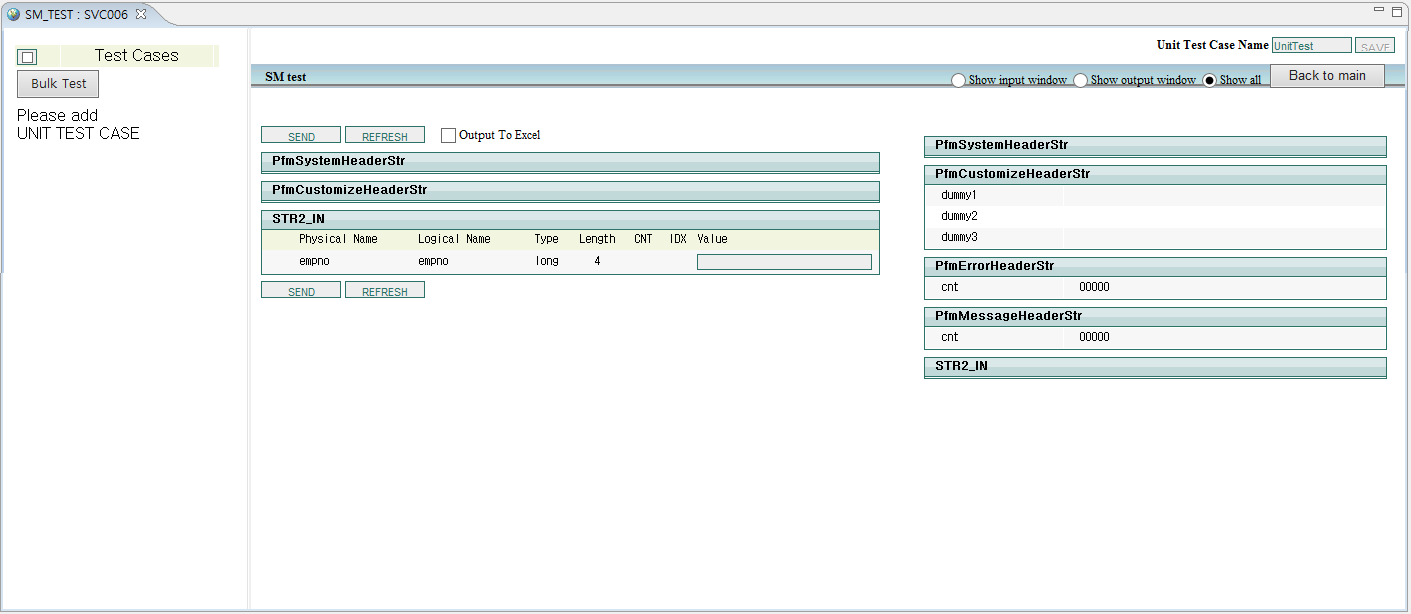
The following are the steps for performing a basic test.
-
Enter data of the input structure of the module. In this example, set 'empno', which is one of input structure information, to '3521'.
 Example of Input Structure Data
 -
Click [SEND] to perform a unit test.
-
Check the test result in the output section. header information and output data are displayed. In this example, header information is displayed in PfmSystemHeaderStr, PfmCustomizeHeaderStr, PfmErrorHeader, and PfmMessageHeaderStr and output data is displayed in the other areas.
If the target module is BM, test result code and log information is displayed in addition to the header information and output data.
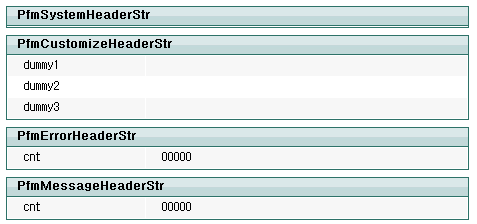 Example of Basic Test Result
 -
To save the result as an Excel file in your local computer, select the 'Output To Excel' checkbox and click [SEND].
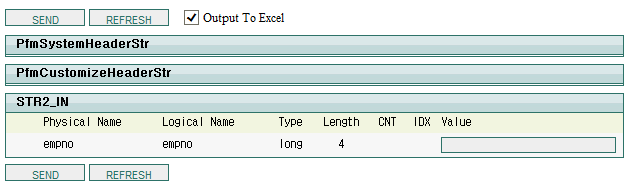 Example of Excel Output
The following File Download dialog box opens.
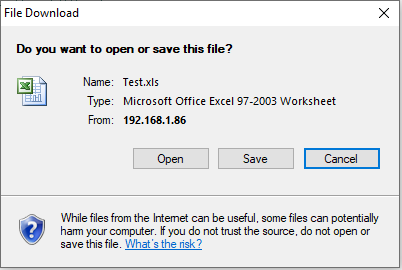 File Download Dialog Box
Check the test result from the Excel file (Test.xls).
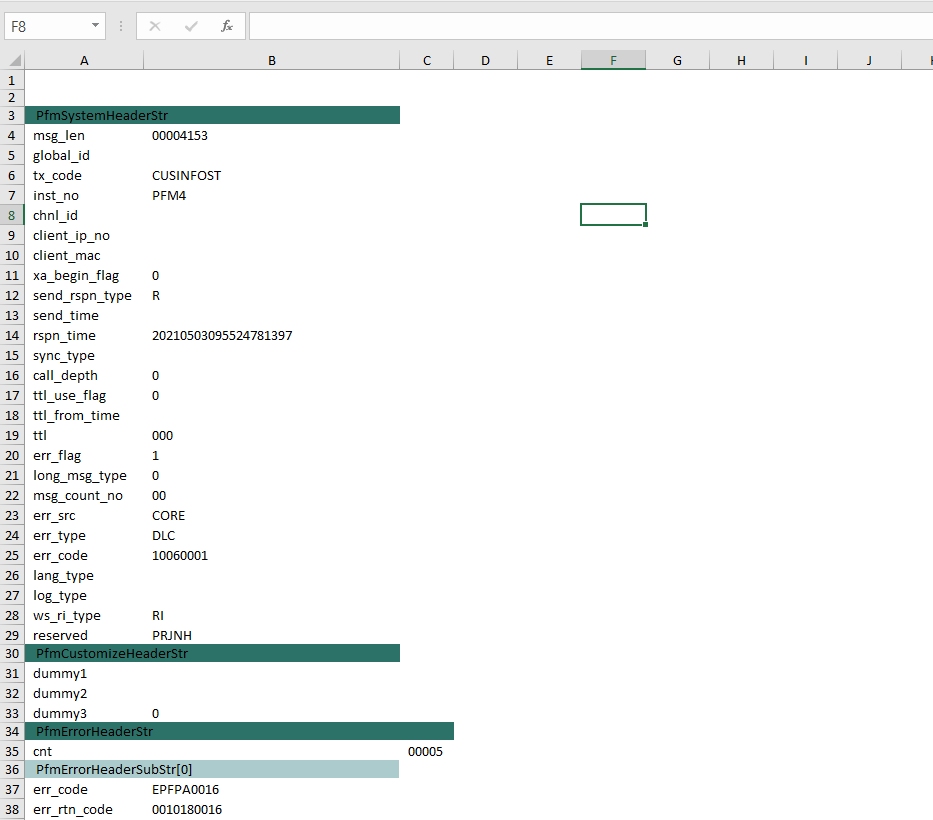 Example of Result File