Using FileIO
This chapter describes how to process files by using a FileIO module in the EMB Designer.
A FileIO module can be used in the following two ways.
-
Single file processing
-
Multiple file processing
|
The following describes how to use FileIO in an EMB module for each way. |
1. Single File Processing
Single file processing means that an application reads, writes, or appends file contents only once.
The following are the example steps for single file processing.
-
From Navigator or Resource Pool, search for a FileIO module to insert to an EMB module and place it in a desired position of the EMB Designer. If the FileIO module is searched from ProFrame Navigator or Resource Pool, operation area resources are referenced. If the module is searched from Workspace Navigator, workspace resources are referenced.
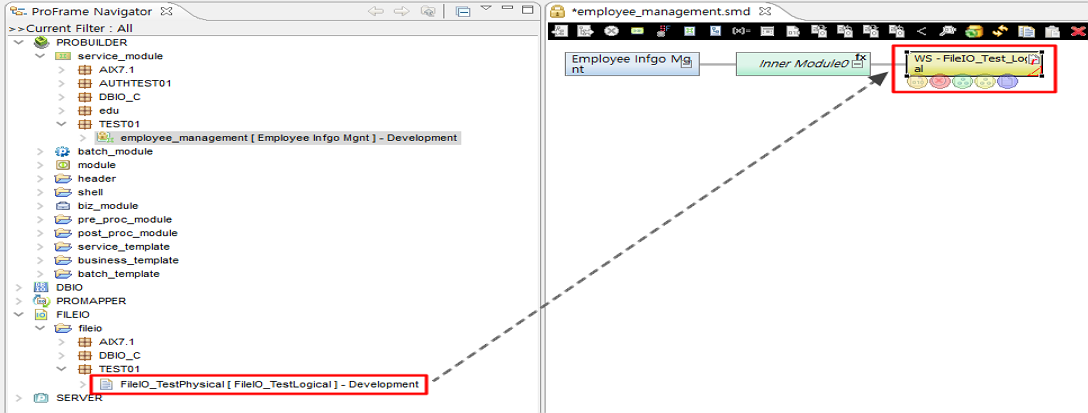 Adding FileIO Resource to EMB Module
 -
Drag and drop the FileIO module. The File Io Call Setting dialog box is displayed.
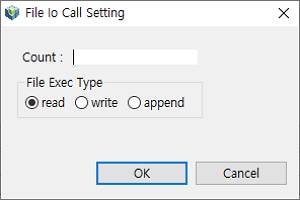 FileIO Call Setting
The following describes each item.
Item Description Count
Number of rows that FileIO reads from the file at a time, or the file pointer size to increase at a time.
File Exec Type
Operation mode used when accessing the file.
-
read: Reads data from the file.
-
write: Newly writes data to the file. If data already exists, it is overwritten.
-
append: Appends data to the file.
For example, if 'Count' is set to '3', FileIO reads 3 rows from a file at a time.
If FileIO resources are added to an EMB module for service, business, and batch modules, FileIO structures are declared in context variables. Manually modify the array size of the structures to the value set in Count.
-
-
Set Count and File Exec Type and then click [OK]. The Information window that says you can modify the value in Count is displayed. Click [OK] to complete setting FileIO calls.
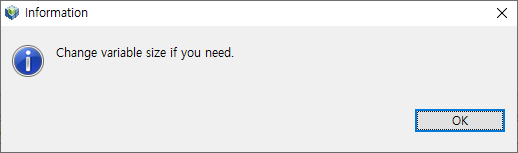 Information Window
 -
To check the information set in File Io Call Setting, select the FileIO module from the EMB Designer and click [Properties]. Check 'File exec type', 'Count', and 'File name'.
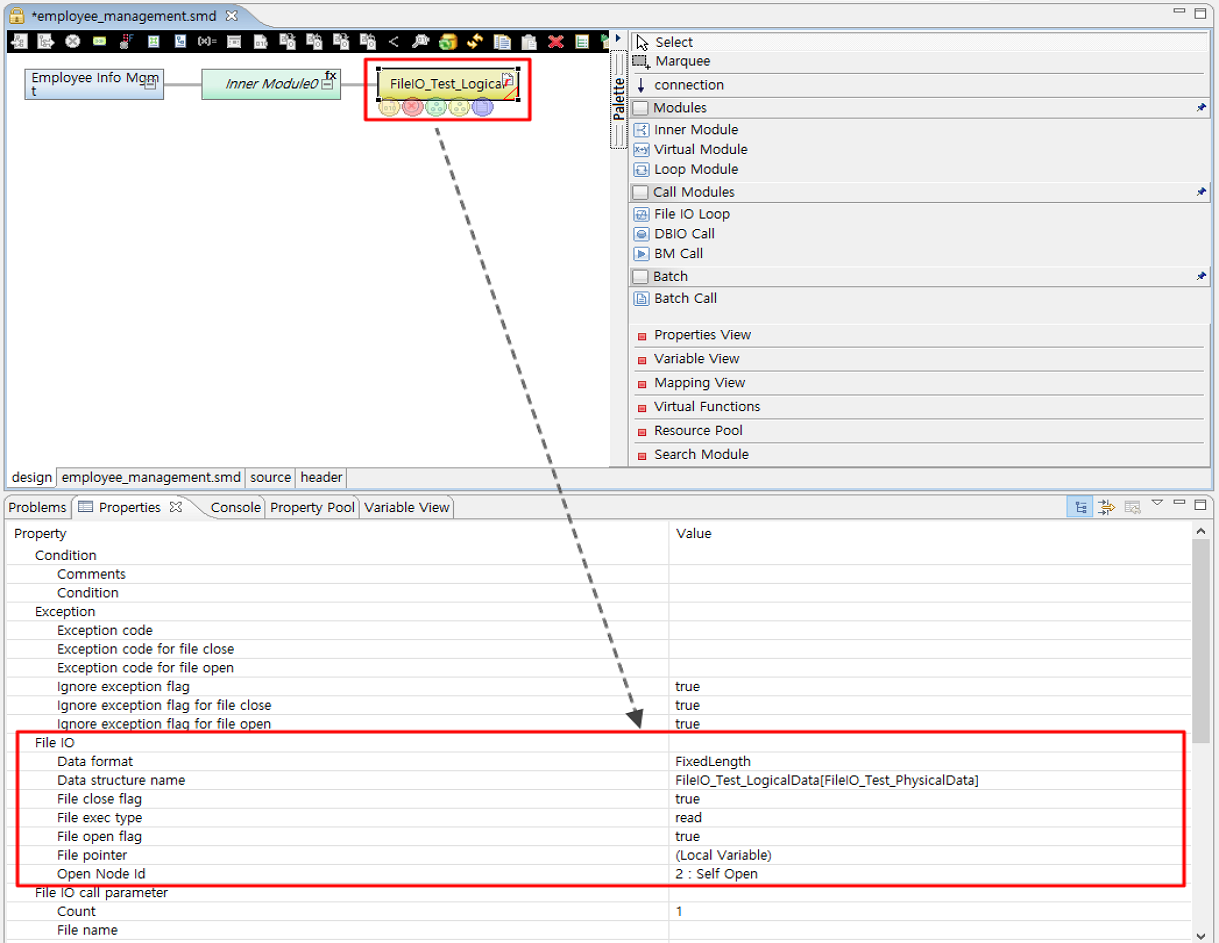 FileIO Information Check
'File exec type', 'Count', and 'File name' can be modified.
'File name' is the absolute path and name of a file to read and write. It can be set in [Properties]. If not set, an error occurs when compiling an EMB module.
The following sets 'File name' in [Properties].
-
Select the area of 'File name'.
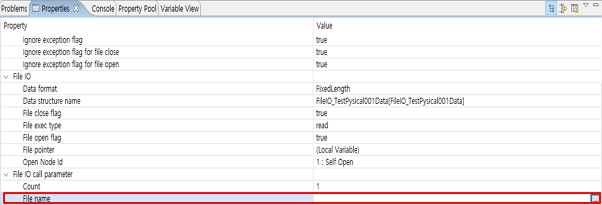 [Properties] - File name Setting
 -
Click the displayed […]. The File Name Definition dialog box is displayed.
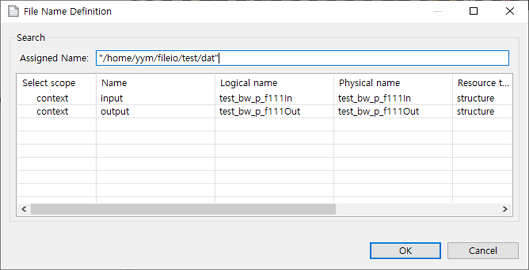 File Name Definition Dialog Box
Enter a value (the absolute path and name of the file) or double-click a target variable in the variable list.
To operate FileIO, 'File exec type', 'Count', and 'File name' must be set. If not set, an error occurs when compiling an EMB module.
-
-
Execute compilation and Dlupdate.
Save the created EMB module and then execute compilation and Dlupdate on the module. For information about compilation and Dlupdate, refer to Compilation and Dlupdate.
2. Multiple File Processing
Multiple file processing means that an application accesses a target file multiple times by using the FileIO Loop module embedded in Studio. A created FileIO module is inserted to the FileIO Loop.
The following are the example steps for multiple file processing.
-
Add the FileIO Loop module before the FileIO module that processes a file multiple times.
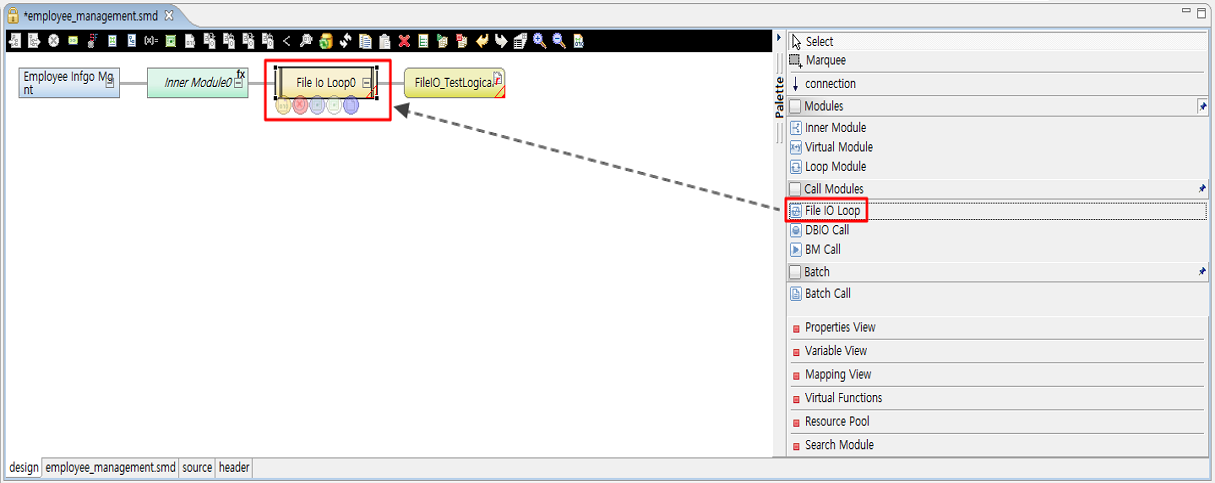 Adding FileIO Loop Module
Adding the module automatically creates source: while(1){…}.
-
Select the added FileIO Loop module and then set pre- and post-processing conditions. In other words, enter a repetition condition inside the parentheses of the while statement.
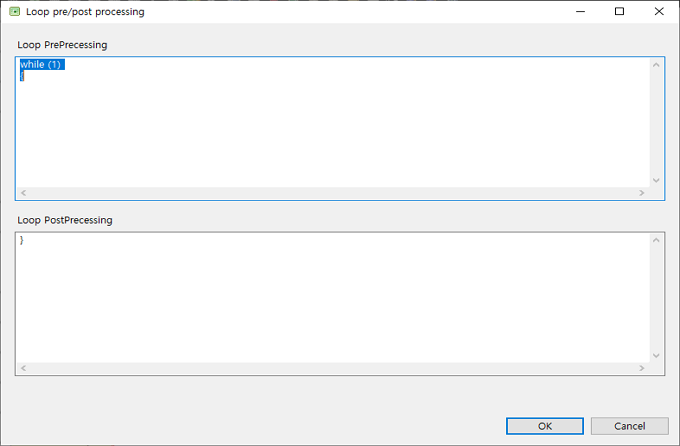 Pre- and Post-processing of FileIO Loop
 -
The added FileIO Loop module (FileIO Loop0) is displayed in 'Open Node Id' of [Properties].
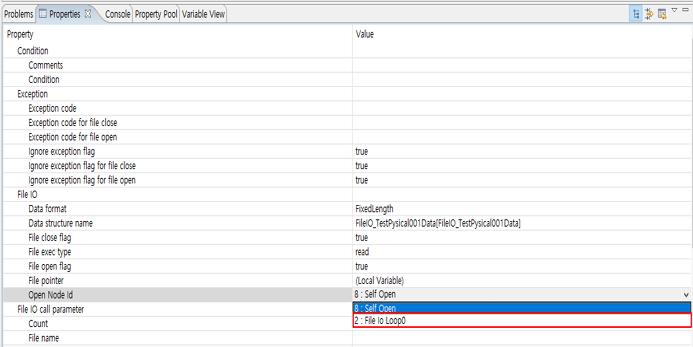 Added FileIO Loop Module
'Open Node Id' has the following properties.
Property Description Self Open
Uses the Count value set in the File Io Call Setting dialog box.
FileIO Loop
Uses n * the Count value set in the File Io Call Setting dialog box. A target file is opened before a loop statement and closed after the statement.