Starting FileIO
This chapter describes how to create FileIO and relevant details and functions.
|
This guide assumes that FileIO is created in Studio. |
1. Overview
This chapter describes the following for FileIO creation.
-
Adding FileIO basic information
The first step of creating FileIO. For detailed information, refer to Adding FileIO Basic Information.
-
Using the FileIO editor
FileIO editor’s screen layout and details. For detailed information, refer to Using FileIO Editor.
-
Creating FileIO
How to create FileIO. For detailed information, refer to Creating FileIO.
-
Compilation and Dlupdate
How to compile created FileIO and execute Dlupdate. For detailed information, refer to Compilation and Dlupdate.
2. Adding FileIO Basic Information
The following are the steps for adding basic information.
-
Select [New] > [FileIO] from the context menu of Workspace Navigator.
-
The following New FileIO Wizard opens. In this wizard, basic information required to create FileIO can be added.
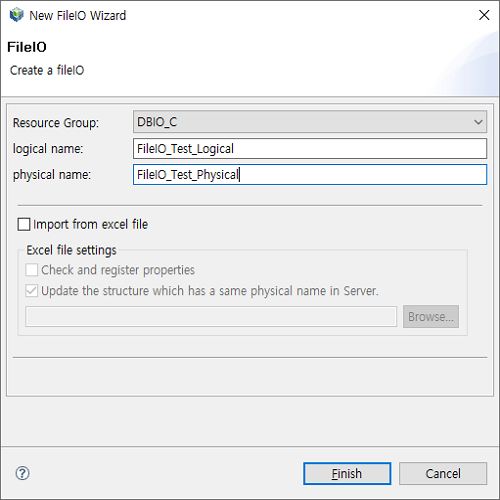 New FileIO Wizard
The following describes each item.
Item Description Resource Group
Resource group registered in WebAdmin. (Required)
If a desired resource group does not exist, add the resource group in WebAdmin. To add a resource group, log in to WebAdmin and select [META SYSTEM] from the main screen and then select [META SYSTEM] > [ResourceGroupMgmt]. In the ResourceGroupMgmt screen, check currently set resource groups and then register the resource group to add.
logical name
Logical name of FileIO to register.
physical name
Physical name of FileIO to register.
Import from excel file
Imports an Excel file that includes structure fields to the structure editor for structure creation.
If selected, Resource Group, logical name, physical name, and resource description items are disabled when adding basic information about a structure.
Check and register properties
Option to check and add metadata if a structure field defined in the Excel file does not exist in the server.
Update the structure which has a same physical name in Server.
Option to update the structure if its physical name is already in use in the server when importing the structure as an Excel file.
Browse…
Select an Excel file to import.
-
Set each item and click [Finish] to go to the screen where you can edit FileIO. For information about the FileIO editor, refer to Using FileIO Editor.
3. Using FileIO Editor
FileIO editor consists of the following 3 sections.
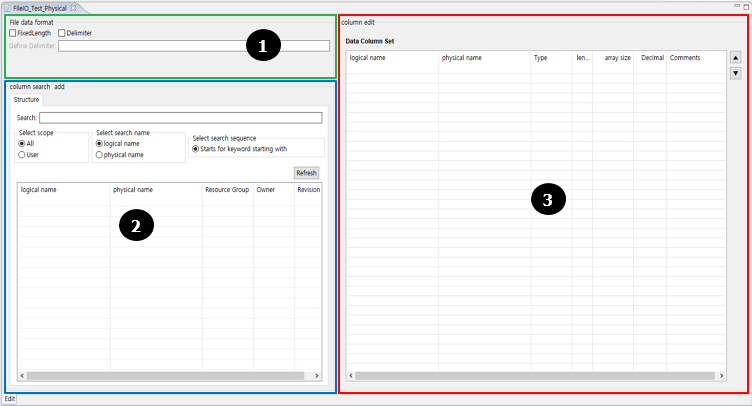
① File data format
② column search add
③ column edit
File data format
Set the unit data format for reading and writing data to a file. Since FileIO accesses a file by using a structured format, set an accessible file format.

The following describes each item.
| Item | Description |
|---|---|
FixedLength |
Separates fields based on field length. |
Delimiter |
Separates fields based on delimiter. If selected, Define Delimiter is enabled. |
column search add
Search for checked-in structures. If there are no structures to search for, create structures by using ProMapper, check in them, and search for them in this section.
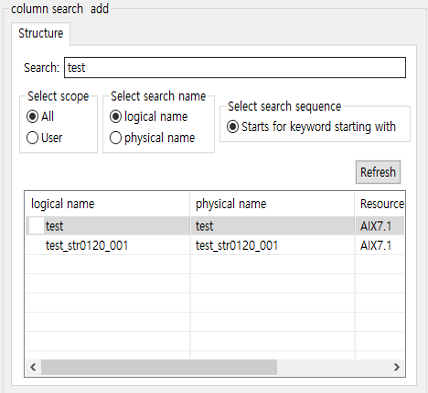
-
Search conditions
Item Description Search
Structure name to search for.
Select scope
Either All or User.
Select search name
Either logical name or physical name.
Select search sequence
Starts for keyword starting with.
-
Buttons
Button Description Refresh
Refreshes the search results.
-
Search results
Item Description logical name
Logical name of the resource.
physical name
Physical name of the resource.
Resource Group
Resource group that includes the resource.
Owner
Resource owner.
Revision
Cumulative number of changes to the resource.
column edit
Add columns by searching for them from the column search add section or by using Property Pool.
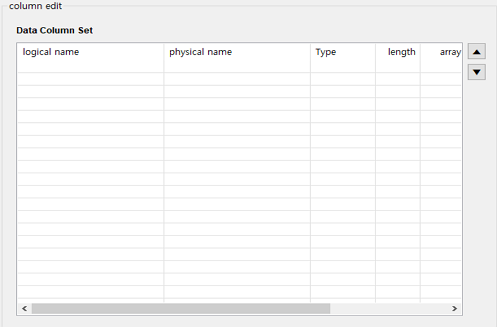
The following describes each item.
| Item | Description |
|---|---|
logical name |
Logical name of the field. |
physical name |
Physical name of the field. |
Type |
Field type. |
length |
Field length. |
array size |
Array size when using a field as an array. |
Decimal |
Number of digits after the decimal point. |
Comments |
Description about the field. |
[▲] |
Moves up the field. |
[▼] |
Moves down the field. |
The method of adding a column varies depending on the column search add section and Property Pool.
-
column search add
The following adds a structure by searching it from the column search add section.
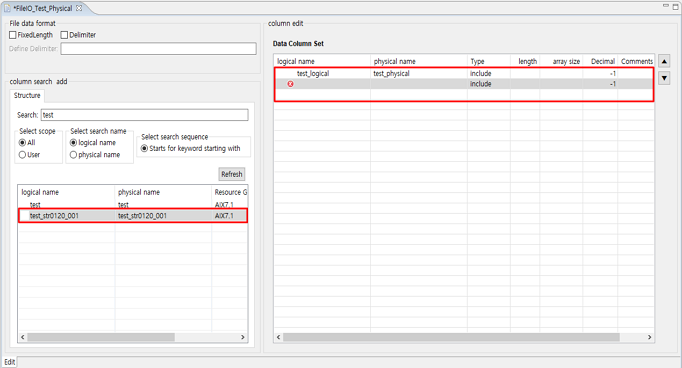 FileIO Editor – Structure Search
To add a found structure to Data Column Set, double-click or drag and drop it.
The following describes each icon in the logical name column of Data Column Set.
Item Description 
Metadata is not registered, or a structure field’s required input value is omitted. Hovering over displays a tooltip for troubleshooting.

Metadata registered in the server does not match structure field data. This issue occurs usually because their data type, length, or logical name does not match. To use matched data, check the data and modify the field data or metadata.
You can easily add and delete structures and columns by using the context menu of the column edit section.
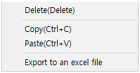 FileIO Editor – Column Edition Menu
Menu Description Delete(Delete)
Deletes a selected structure or column.
Copy(Ctrl+C)
Copies a selected structure or column.
Paste(Ctrl+V)
Pastes a copied structure or column.
-
Property Pool
The following adds a found structure by using Property Pool.
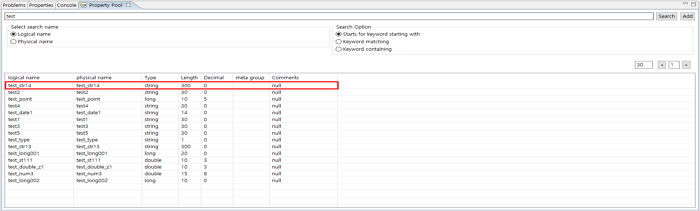 FileIO Editor – Property Pool
To add a found structure to Data Column Set, drag and drop it. Edit the columns of the added structure, which means the FileIO structure creation, and then save the FileIO.
4. Creating FileIO
The following are the steps for creating a FileIO module.
-
Select [New] > [FileIO] from the context menu of Workspace Navigator. The following New FileIO Wizard opens.
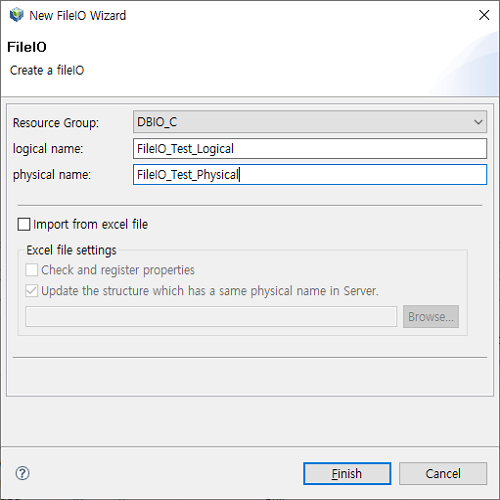 New FileIO Wizard
Enter basic FileIO information and then click [Finish].
Item Value Resource Group
DBIO_C
logical name
FileIO_Test_Logical
physical name
FileIO_Test_Physical
-
The FileIO editor is displayed.
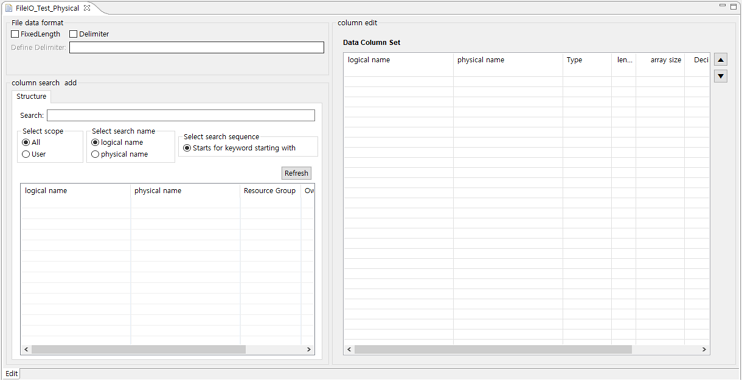 FileIO Editor Screen
 -
Select the Delimiter check box and enter a comma (,) to use it as a delimiter.
 FileIO Editor Screen – File data format
 -
Search for structures whose name starts with 'test' from the column search add section. Select a structure of the results and add it to the column edit section.
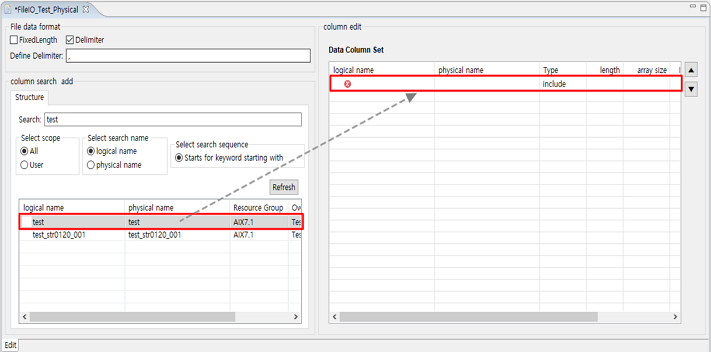 FileIO Editor Screen – column search add
 -
Search for structures whose name starts with 'test' from Property Pool. Select a column of the results and add it to the column edit section.
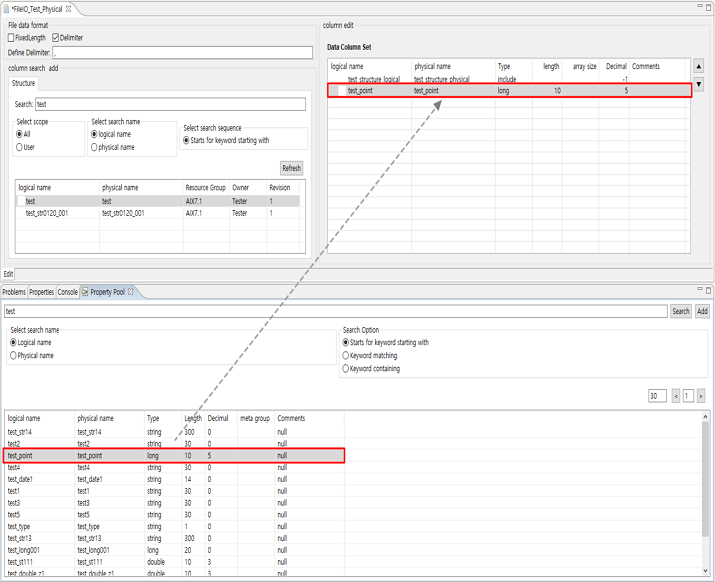 FileIO Editor Screen – Column Search
 -
Edit properties of the added structure and column and then save the FileIO module.
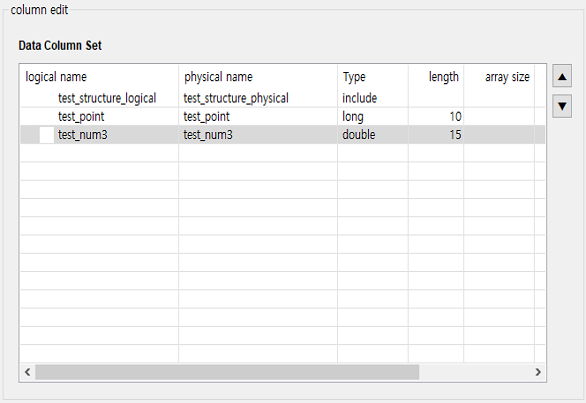 FileIO Editor Screen – column edit
5. Compilation and Dlupdate
FileIO modules are compiled in the following 2 steps.
-
Compilation
Compiles structures used in FileIO.
-
Dlupdate
Deploys compiled structures in shared memory.
Compiling FileIO does not create a module. Inserting a FileIO module to an EMB module creates source. Therefore, compiling the FileIO module is not necessary. It is necessary to compile ProMapper’s structures used for conversion in FileIO.
The following are the steps for compiling the FileIO module created in Creating FileIO.
-
Select a FileIO module to create from Workspace Navigator and right-click it to view its context menu. Select the Compile Resource menu.
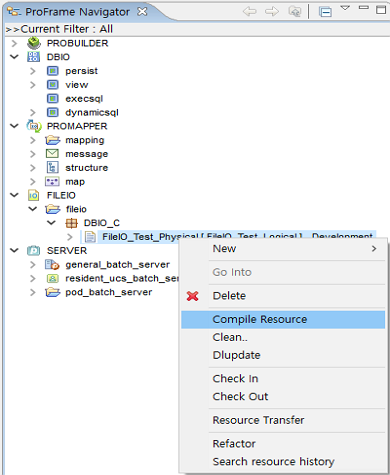 Compile Resource Menu
You can also select the FileIO module and press <Alt> + C or click the compilation icon.
-
The following Compile Resource window that shows the compilation progress is displayed.
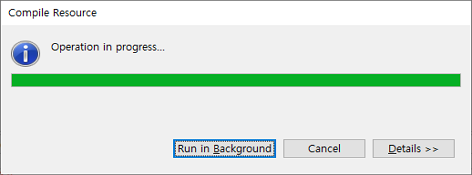 Compile Resource Window
 -
If the compilation is successfully complete, compilation log is displayed in the console.
-
Select and right-click the FileIO module to view its context menu. Select the Dlupdate menu.
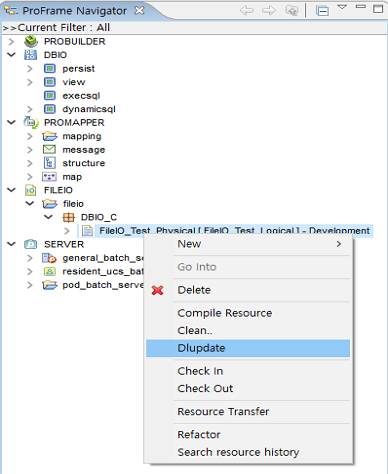 Dlupdate Menu
You can also select the FileIO module and press <Alt> + D or click the Dlupdate icon.