Additional EMB Functions
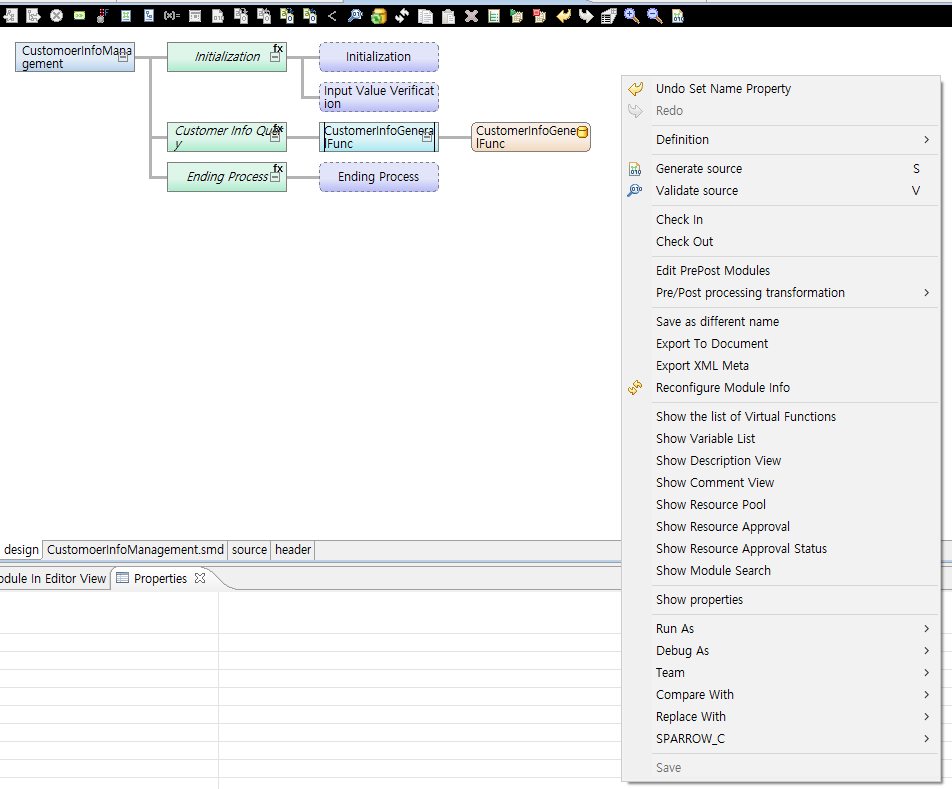
This appendix describes the context menu of EMB Designer’s module editor. They can be used to process EMB modules.
1. Basic Menu
The following describes each basic menu of module editor in EMB Designer.
| Menu | Description |
|---|---|
Generates source for a developed service flow through a source generation engine. |
|
[Validate source] |
Checks whether source has a syntax error or does not comply with ProFrame’s development rules. |
Moves a modified resource and its associated resources to ReleaseImage (RI) area and then executes compilation and Dlupdate on them. |
|
Copies a resource to modify and its associated resources from ReleaseImage (RI) area to WorkSpace (WS) area. |
|
[Edit Pre&Post Modules] |
Specifies application pre and post-processing modules. |
[Pre/Post processing transformation] |
Maps input/output structures and variables of the modules specified in [Edit Pre&Post Modules]. Selecting this menu shows [Pre Module Input Transformation], [Pre Module Output Transformation], [Post Module Input Transformation], and [Post Module Output Transformation]. With these menus, pre and post-processing input/output structures can be mapped to structures being used by resources. |
[Save as different name] |
Renames a resource that has the same name with a current resource. |
[Export To Document] |
Exports created resource information to a standard document. Selecting this menu opens a progress window. The window is closed when the export completes. The output file path can be checked by selecting [Window] > [Preferences] > [ProFrame] > [Design Editor]. The default path is C:\tmaxsoft\document\. If you copy an output template file provided by ProFrame C 5 (TechDoc-Template.xls) to this path, EMB module resource information is saved according to the template file format and the screen of module editor is saved as a .png file. |
[Export XML Meta] |
Exports a meta file of a selected EMB module to a local computer. Selecting this menu opens a dialog box where you can set the meta file path. The meta file (.smd) is saved in the path. |
[Reconfigure Module Info] |
Loads module information (logical name, input/output structure, revision, and others) from a server and update it. |
[Show the list of Virtual Functions] |
Enables the virtual function view. |
[Show Variable List] |
Enables the variable view. |
[Show Description View] |
Enables the description view. |
[Show Comment View] |
Enables the comment view. |
[Show Resource Pool] |
Enables the resource pool view. |
[Show Resource Approval] |
Enables the resource approval view. |
[Show Resource Approval Status] |
Enables the resource approval status view. |
[Show Module Search] |
Enables the module search view. |
1.1. Generate Source
Generates source for a service flow developed in EMB Designer through a source generation engine.
It also automatically updates and shows source of a service flow with changes when editing or saving the flow and saves the updated source along with database metadata. Therefore, it is recommended to use this menu to generate more accurate source.
Selecting [Generate source] in Context Menu – Generate Source displays the following result in the status bar of Studio.

1.2. Check In
Moves a modified resource and its associated resources to ReleaseImage (RI) area and then executes compilation and Dlupdate on them.
For checked-in resources, source files, header files, and libraries in WorkSpace (WS) area are deleted. Also, locks for the resources are released in checked-out EMB module’s database.
Selecting [Check In] displays the following Information window.
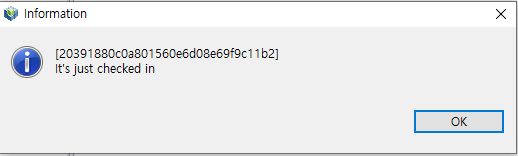
Clicking [OK] displays the EMB module in ProFrame Navigator as follows. The  icon is not displayed and only EMB module name is displayed.

1.3. Check Out
Copies a resource to modify and its associated resources from ReleaseImage (RI) area to WorkSpace (WS) area. If even one of the associated resources is already checked out, checkout cannot be executed until the checked-out resource is checked in.
It also sets a lock for an EMB module that is currently processed in EMB Designer, so that another developer cannot modify it.
The following describes each resource type and its associated resource types.
| Resource Type | Associated Resource Type |
|---|---|
Service, Business, and Batch modules |
IN-OUT structures and IN-OUT structure messages |
DBIO, FILEIO |
IN-OUT structures |
Structures |
Structure messages |
Selecting [Check Out] displays the following Information window.
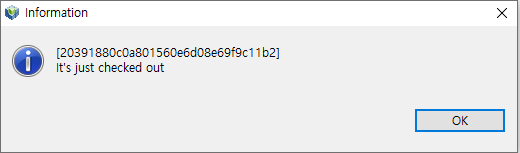
Clicking [OK] displays the EMB module in ProFrame Navigator as follows. The icon is displayed.
