Additional DBIO Functions
This appendix describes Studio’s additional functions provided to create DBIO queries.
1. Basic Table Queries
A basic query is a frequently used query such as an INSERT statement for all table columns or a query for retrieving, updating, or deleting a basic key value.
For a table selected in Studio, INSERT statements can be executed on all columns, and UPDATE, DELETE, SELECT, and FETCH queries can be executed on a basic key value. These basic queries can be checked in or out. Each query needs to be compiled separately.
The following creates a basic table query.
-
Select [New] > [Basic Query] from the context menu of Workspace Navigator. The following New Basic Query Wizard opens.
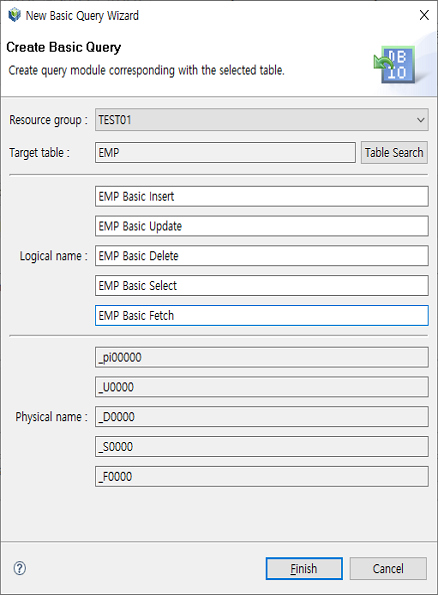 New Basic Query Wizard
Select a target table. This automatically creates the physical name of a query in the following format.
[Table name changed according to naming rules]_[i/u/d/s/f]0000
The naming rule depends on the value of 'TABLE_NAME_RULE' in WebAdmin.
-
A basic query for the selected table is crated. The query is the type of SELECT, UPDATE, INSERT, FETCH, or DELETE Persist.
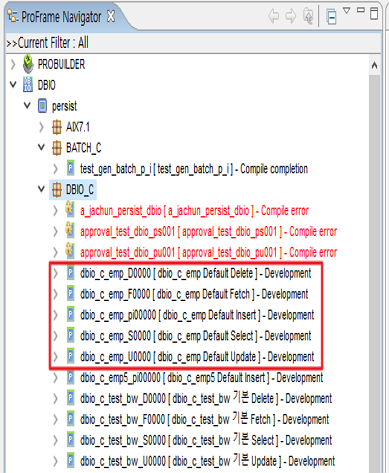 Basic Table Query Created
If a query with the same physical name already exists, the query is replaced by a new query. A new resource cannot be created when a basic query is in check-in status. To create a new resource, a query status must be in check-out status. For tables without a basic key, only INSERT Persist queries can be created.
2. DBIO-related Views
TablesView
Shows information about schemas, tables, and columns of a currently connected database. It also allows basic query creation for a selected table and source creation and compilation. It is useful when creating a basic query and creating and compiling source in batch for a DWIO target table whose layout is changed.
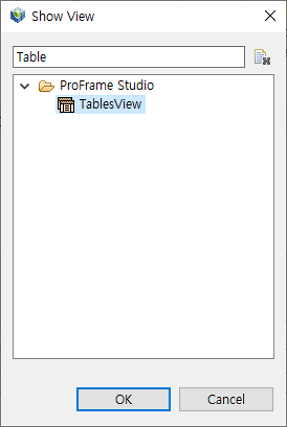
To display TablesView, select [Window] > [Show View] > [Others…] and then select ProFrame Studio > TablesView.
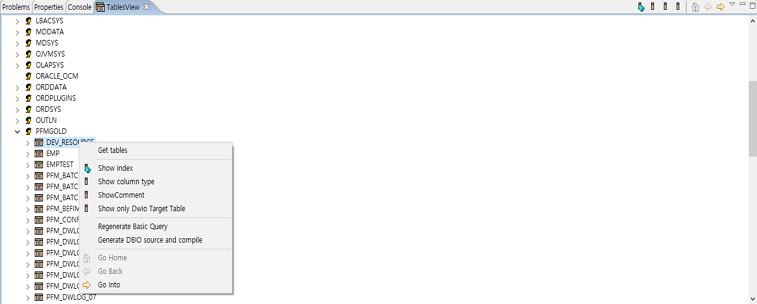
The following describes each context menu of TablesView.
| Menu | Description |
|---|---|
Get tables |
Gets the schema’s table data. |
Show index |
Shows table data along with indexes. |
Show column type |
Shows table data along with column types. |
Show only Dwio Target Table |
Shows or hides DWIO target tables. |
Regenerate Basic Query |
Creates basic queries for the selected table. |
Generate DBIO source and compile |
Creates and compiles DBIO source for a created basic query. |
Dbio Plan
Shows execution plans saved along with DBIO. It also exports SQL statements as an Excel file.
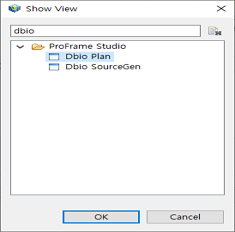
To display Dbio Plan, select [Window] > [Show View] > [Others…] and then select ProFrame Studio > Dbio Plan.
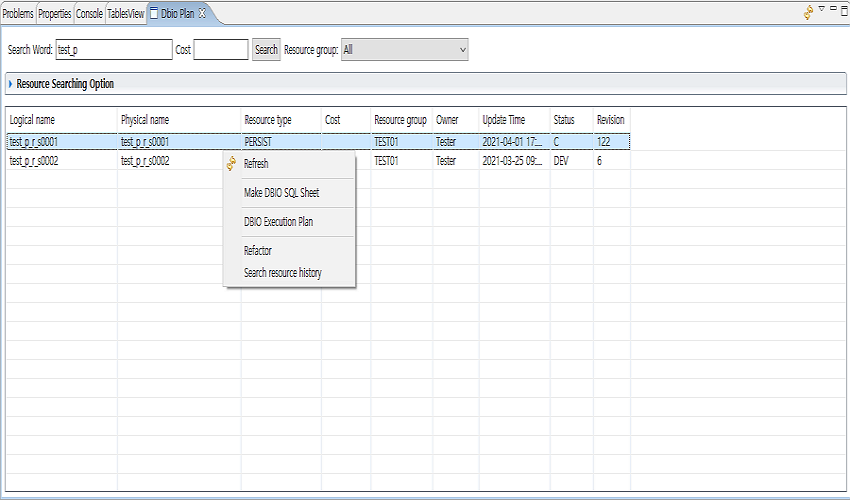
The following describes each context menu of Dbio Plan.
| Menu | Description |
|---|---|
Make DBIO SQL Sheet |
Exports the selected DBIO’s SQL statements to an Excel file. |
DBIO Execution Plan |
Shows the selected DBIO’s execution plan. |